Installation
Hardware Installation
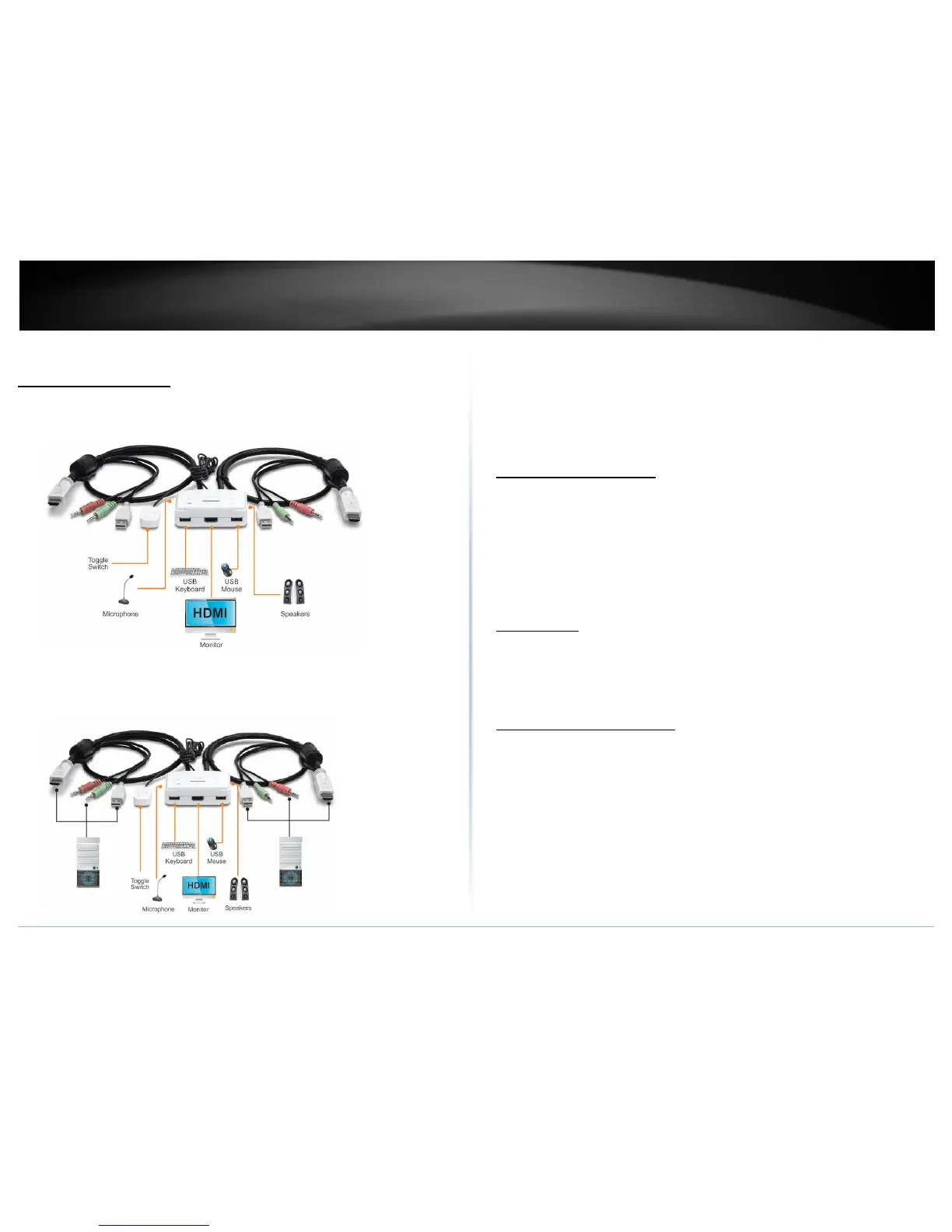
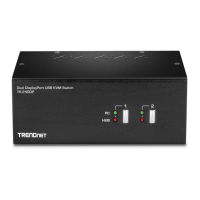
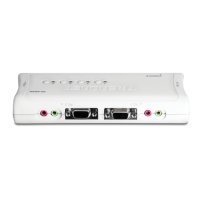
1. Connects the shared USB keyboard, mouse, HDMI monitor, microphone/
speakers (optional) to your KVM Switch’s Console port.
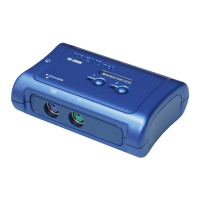
2. Connects the first set of the USB/HDMI/Microphone/Speaker KVM cable
into the 1
st
computer and connect the other set of the
USB/HDMI/Microphone/Speaker KVM cable into the 2
nd
computer.
Note:
1. The HDMI connection included both video and audio
2. Some computers with USB Interface may require you to manually enable the
USB option in the BIOS setting before using any USB device. If your USB
interface does not work, please check the USB Status option in BOS.
KVM Switch Operation
There are three ways to select the computers.
1. One-touch push button toggle switch
2. Keyboard hot key commands
3. KVM Switcher Software (see next section for detail)
Toggle Switch
The one touch toggle switch allows you to switch to another computer by click the
button.
Keyboard Hot Key Commands
Hot Key Commands = Ctrl + Alt + [command key]
Universal Hot Key Commands = Scroll Lock + Scroll Lock
Note:
1. Each keystroke within a hot key sequence should be pressed within 2 seconds.
Otherwise, the hot key sequence will be exit.



 To Next Page