EasyManua.ls Logo

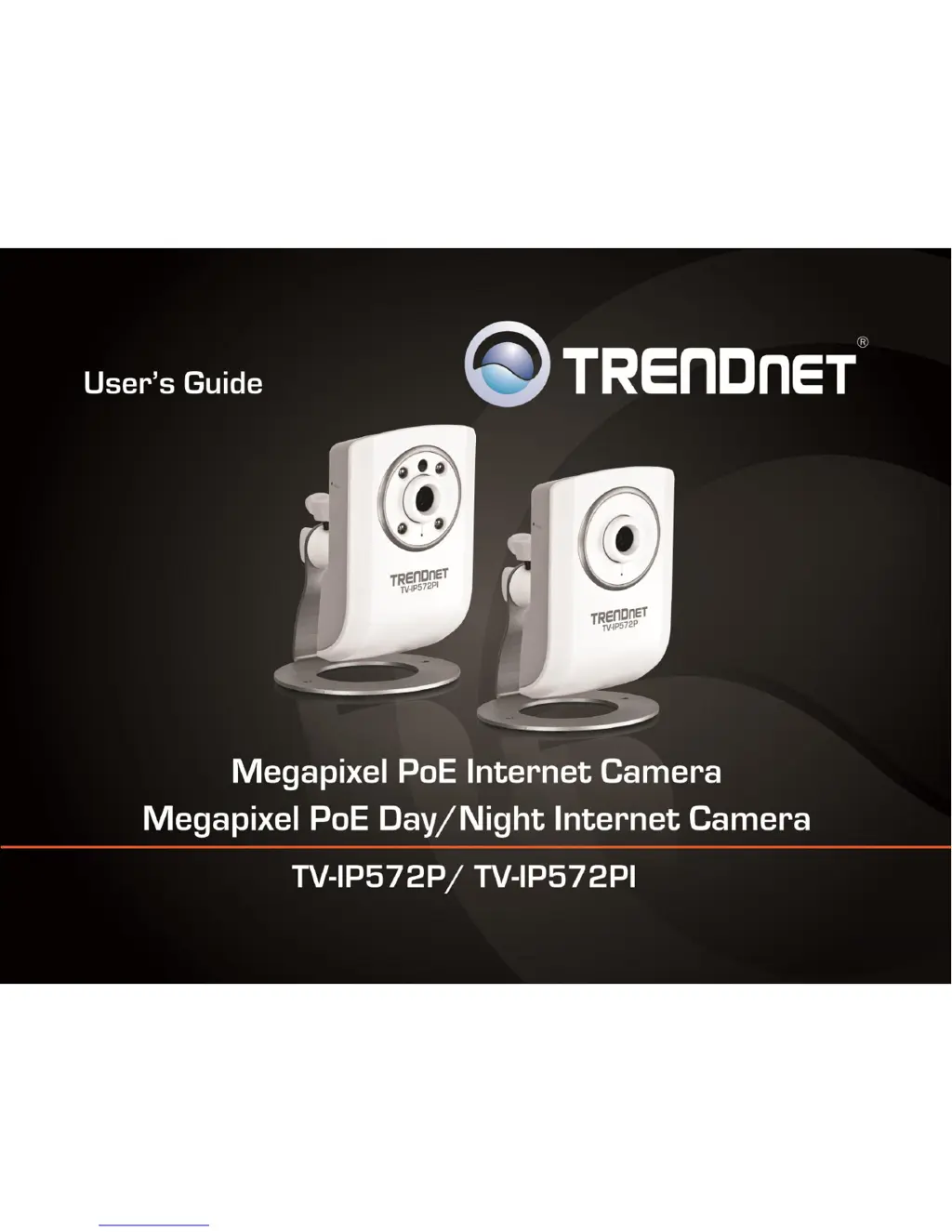
TRENDnet TV-IP572P - User Manual

TRENDnet TV-IP572P
39 pages
Print Icon
To Next Page IconTo Next Page
Loading...
TRENDnet Users Guide
Cover Page

Other manuals for TRENDnet TV-IP572P

Questions and Answers

  • C
    Carol MccoyAug 7, 2025
    What to do if TRENDnet IP Camera images are of poor quality?
    • C
      Craig WrightAug 7, 2025
      If your TRENDnet IP Camera images appear to be of poor quality, first ensure that your computer’s display properties are set to at least 16-bit color. You can also adjust the brightness, contrast, saturation, light frequency and antiflicker controls on the Video Settings under the Configuration menu. Additionally, consider adjusting the resolution of the camera and the compression rate to improve the image.
  • J
    jduncanAug 11, 2025
    What to do if TRENDnet TV-IP572P IP Camera video can’t be viewed through the web browser interface?
    • J
      Jason VazquezAug 12, 2025
      If you're unable to view video from your TRENDnet IP Camera through the web browser interface, and you are using Internet Explorer, ensure that ActiveX is enabled in the Internet Options menu. You may also need to adjust your browser's security settings to allow the ActiveX plugin to be installed.
  • J
    Jared ThomasAug 15, 2025
    Why TRENDnet IP Camera images are ‘noisy’?
    • T
      terryjenniferAug 15, 2025
      If your TRENDnet IP Camera images appear 'noisy,' especially in low-light conditions, try enabling Night mode to see if that improves the image quality. Alternatively, try using the camera in a location with more light.
  • I
    iweaverAug 19, 2025
    Why TRENDnet IP Camera can be accessed locally but not remotely?
    • A
      Abigail WatersAug 19, 2025
      This issue with your TRENDnet IP Camera might stem from firewall restrictions. Check the Internet firewall settings with your system administrator and ensure the firewall allows external access to the Network Camera from outside your local LAN. Also, verify that the Network Camera isn’t conflicting with any Web server you may have running on your network. Finally, check that the router settings allow the Network Camera to be accessed outside your local LAN.
  • R
    Ryan DuarteAug 25, 2025
    What to do if my TRENDnet IP Camera can’t be accessed or access is slow?
    • J
      Jesse MillerAug 25, 2025
      If you're experiencing issues accessing your TRENDnet IP Camera or the access is slow, the problem might be with the network cable. To confirm that the cables are working, ping the address of a known device on the network. Another possible problem may be that the network device such as a hub or switch utilized by the Network Camera is not functioning properly, so please confirm the power for the devices are well connected and functioning properly.
  • J
    Jacob GardnerAug 28, 2025
    How to fix white vertical lines on TRENDnet TV-IP572P IP Camera image?
    • M
      mtaylorAug 28, 2025
      If you notice white vertical lines on the image from your TRENDnet IP Camera, it could be due to the CMOS sensor being overloaded by bright lights like direct sunlight or halogen lights. Reposition the Network Camera into a more shaded area immediately, as prolonged exposure to bright lights will damage the CMOS sensor.
  • C
    Charles VelasquezSep 2, 2025
    What to do if Power LED and Ethernet Activity LED do not light up on TRENDnet TV-IP572P?
    • K
      Kelsey RaySep 2, 2025
      If the Power LED and Ethernet Activity LED on your TRENDnet IP Camera do not light up, check that the connection to both the power source and the terminal on the back of the camera are secure and that you are using the provided power supply. If the camera is otherwise functioning correctly, the LEDs might have been disabled in the configuration.

TRENDnet TV-IP572P Specifications

General IconGeneral
Sensor1/3" CMOS
Day/NightYes
Night VisionYes
Video CompressionH.264, MJPEG
Frame Rate30 fps
Power over EthernetYes (802.3af)
WeatherproofIP66
WirelessNo
Resolution1280 x 720
Lens3.6mm
Viewing Angle60 degrees
Minimum Illumination0 Lux with IR LEDs on
Network Interface10/100Mbps Ethernet
Power Input12V DC
Warranty3-year limited
ProtocolsTCP/IP, UDP, HTTP, HTTPS, DHCP, DNS, DDNS

Related product manuals