EasyManua.ls Logo

TRENDnet TV-IP672W - User Manual

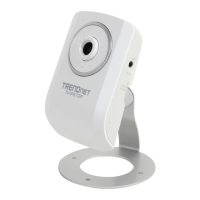
TRENDnet TV-IP672W
43 pages
Print Icon
To Next Page IconTo Next Page
Loading...
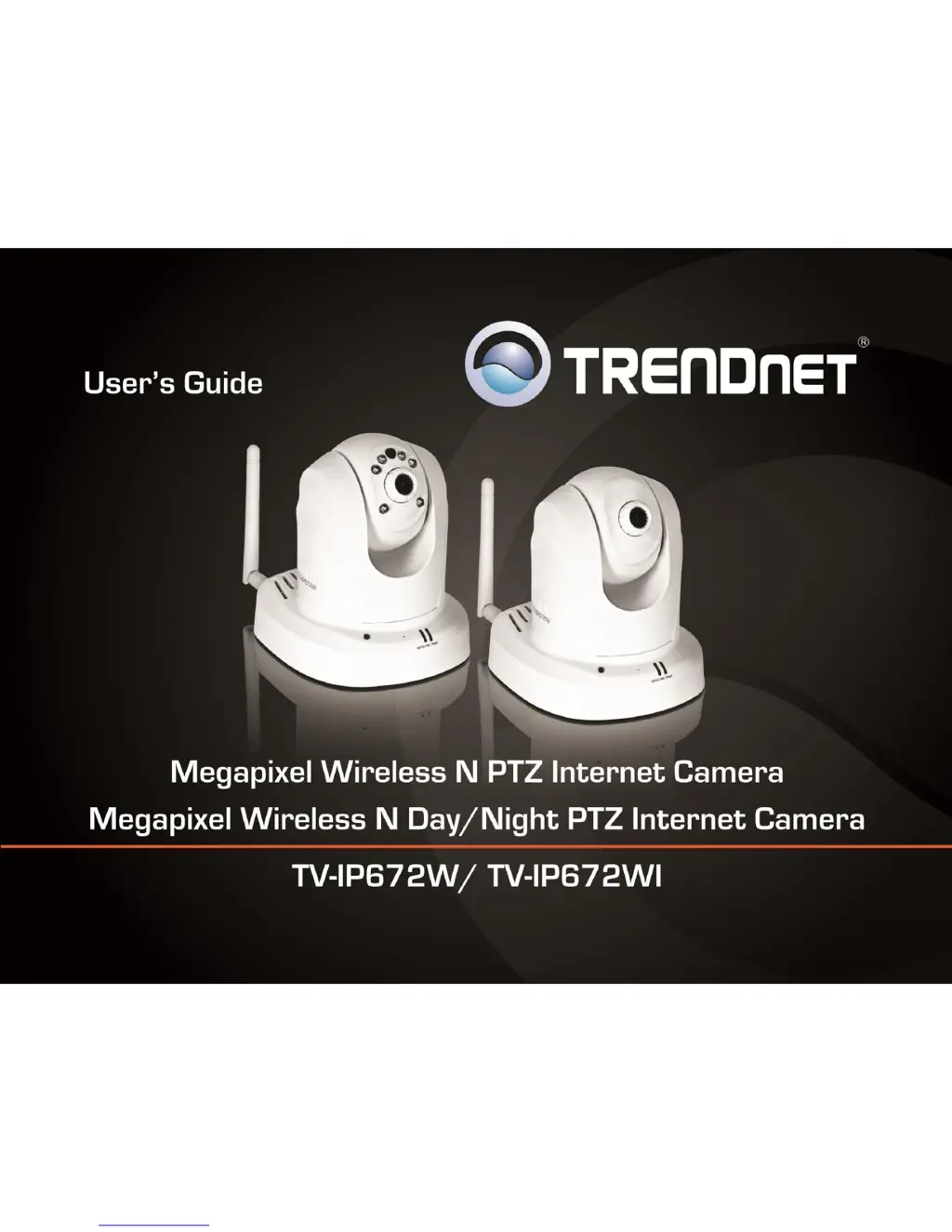
TRENDnet Users Guide
Cover Page

Other manuals for TRENDnet TV-IP672W

Questions and Answers

  • J
    Jennifer BlakeAug 6, 2025
    What to do if TRENDnet IP Camera can't be accessed or access is slow?
    • B
      Billy ReedAug 6, 2025
      If you can’t access the TRENDnet IP Camera, or access is slow, the network cable might be the cause. Ping the address of a known device on the network to confirm that the cables are working. Also, ensure the network device (hub or switch) utilized by the Network Camera is functioning properly and that the power for the devices are well connected.
  • C
    cassieguzmanAug 10, 2025
    How to improve poor quality images from TRENDnet IP Camera?
    • R
      Rhonda WongAug 10, 2025
      If the TRENDnet IP Camera images are of poor quality, ensure your computer’s display properties are set to at least 16-bit color. Also, adjust the brightness, contrast, saturation, light frequency, and antiflicker controls under the Configuration menu's Video Settings. Consider adjusting the camera's resolution and compression rate to enhance the image.
  • J
    James MillerAug 14, 2025
    Why can I access my TRENDnet TV-IP672W IP Camera locally but not remotely?
    • A
      Anna LongAug 14, 2025
      If you can access the TRENDnet IP Camera locally but not remotely, the issue might stem from your firewall settings. Consult your system administrator to check the Internet firewall. Also, verify that your router settings allow the TRENDnet IP Camera to be accessed outside your local LAN.
  • J
    Jeffrey RoachAug 18, 2025
    What to do if TRENDnet TV-IP672W images are noisy?
    • D
      Debbie TurnerAug 19, 2025
      If the TRENDnet IP Camera images appear 'noisy,' especially in low-light environments, try enabling Night mode to improve the image quality.
  • C
    Collin ChavezAug 23, 2025
    How to fix video not viewed through the web browser interface on TRENDnet TV-IP672W IP Camera?
    • K
      Kenneth MillerAug 23, 2025
      If video can't be viewed through the web browser interface for your TRENDnet IP Camera, ensure that ActiveX is enabled in the Internet Options menu if you're using Internet Explorer. If you are using Internet Explorer with a version number lower than 6, then you will need to upgrade your Web browser software in order to view the streaming video transmitted by the Network Camera. Try viewing the video using Java.
  • T
    Thomas LawsonAug 27, 2025
    How to troubleshoot if the Power LED and Ethernet Activity LED do not light up on TRENDnet IP Camera?
    • C
      Caleb DonovanAug 27, 2025
      If the Power LED and Ethernet Activity LED do not light up on your TRENDnet IP Camera, check that the connection to both the power source and the terminal on the back of the camera are secure and that you are using the provided power supply, as the power supply or camera might be faulty. If the camera is otherwise functioning correctly, the LEDs might have been disabled in the configuration.
  • P
    Penny NewtonAug 31, 2025
    Why are there white vertical lines on the image from my TRENDnet TV-IP672W?
    • B
      briggsdeniseSep 1, 2025
      If white vertical lines appear on the image from the TRENDnet IP Camera, it could be that the CMOS sensor has become overloaded when it has been exposed to bright lights. Reposition the Network Camera into a more shaded area immediately, as prolonged exposure to bright lights will damage the CMOS sensor.

Summary

Initial Setup Wizard

Setup Wizard Procedure

Guides the user through the initial camera setup process.

Network and Connection Options

Details network connection types like DHCP, PPPoE, and Static IP.

Camera Configuration

Network and Port Settings

Details LAN settings, HTTP/RTSP ports, and UPnP configuration.

Wireless Setup Details

Configuration for SSID, security mode, and encryption for wireless connection.

Camera Recording Options

Details on setting up continuous, schedule, or motion-triggered recording.

Remote Access

Remote Access Setup Guide

Guides on setting up Dynamic DNS or port forwarding for remote access.

Technical Specifications

Camera and Audio Specifications

Detailed specs for the camera sensor, lens, view, and audio capabilities.

Troubleshooting

Troubleshooting Power and Connectivity

Solutions for issues with power LEDs, Ethernet activity, and camera access.

TRENDnet TV-IP672W Specifications

General IconGeneral
Minimum Illumination0.5 Lux
Image SettingsBrightness, Contrast, Saturation
Frame Rate30 fps
Wireless Frequency2.4 GHz
Wireless SecurityWEP, WPA, WPA2
Ethernet10/100 Mbps
Power Supply12V DC, 1A
Day/NightYes
Camera TypeNetwork Camera
Image Sensor1/4" CMOS
Lens3.6 mm
Field of View54°
Night VisionYes
AudioYes
Video CompressionMJPEG
Network ProtocolsTCP/IP, HTTP, FTP, SMTP, DHCP, DNS, DDNS
InterfaceRJ-45
SecurityHTTPS, IP Filter
Web BrowserInternet Explorer, Firefox, Chrome, Safari
Operating Temperature-10°C to 50°C (14°F to 122°F)
Humidity20% to 80% non-condensing
Weight0.66 lbs
Included AccessoriesPower Adapter
Video Resolution640 x 480
Wireless Standard802.11b/g

Related product manuals