IP 365 S8
22
USER OPERATIONS
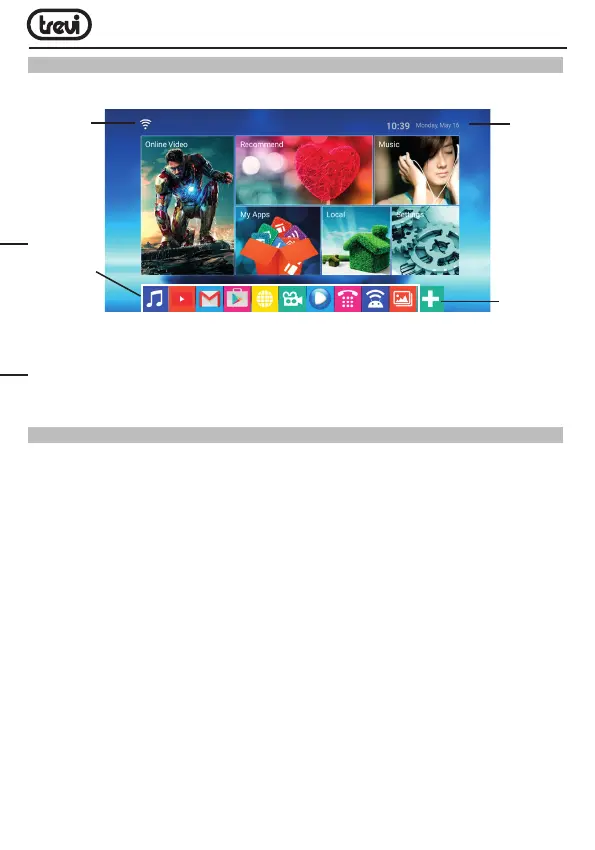
HOME menu
Note: The user can select the applications with the navigation keys (17) and open them
with the OK (23) button, or by pressing the mouse (22), an arrow will appear which you
can move quickly using the navigation keys (17) and confirming with OK (23).
CONNECTION TO NETWORKS
Wireless & networks
To access the Internet, first of all, you must configure a network that can use a Wi-Fi Ac-
cess Point (AP) or a wired cable via LAN socket. Choosing it accesses settings Wireless
and Ethernet.
Connection via LAN socket:
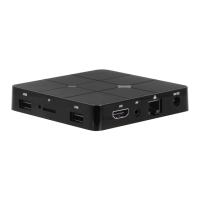
• Connect the LAN cable coming from your modem router, the LAN socket (7) unit.
• Select the “Setting”- “Network”.
• Select Ethernet and wait for the message “Connected” appears under the item “internet
connection”.
Search and connect to a Wi-Fi network:
To make a connection of this type must be in a Wi-Fi zone.
• Select “Setting”- “Wi-Fi”.
Enabling/disabling Wi-Fi:
• Select “Wi-Fi”, the unit will automatically activate a search of available Wifi networks
and will show on the TV.
• Select your favorite network and confirm with OK (23), if protected, enter the password
using the virtual keyboard.
Data
and
Clock
Connection
to the
network
indicator
Add
icons
application
Application
Icons
ENGLISH



 To Next Page