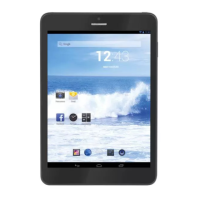
TAB 9 C8
24
GETTING STARTED
Turning the Tablet on or off
To turn the tablet on:
PressandholdthePowerkeyuntiltheLCDscreenturnson.WaituntiltheHomescreen
appears;thetabletisnowreadyforuse.
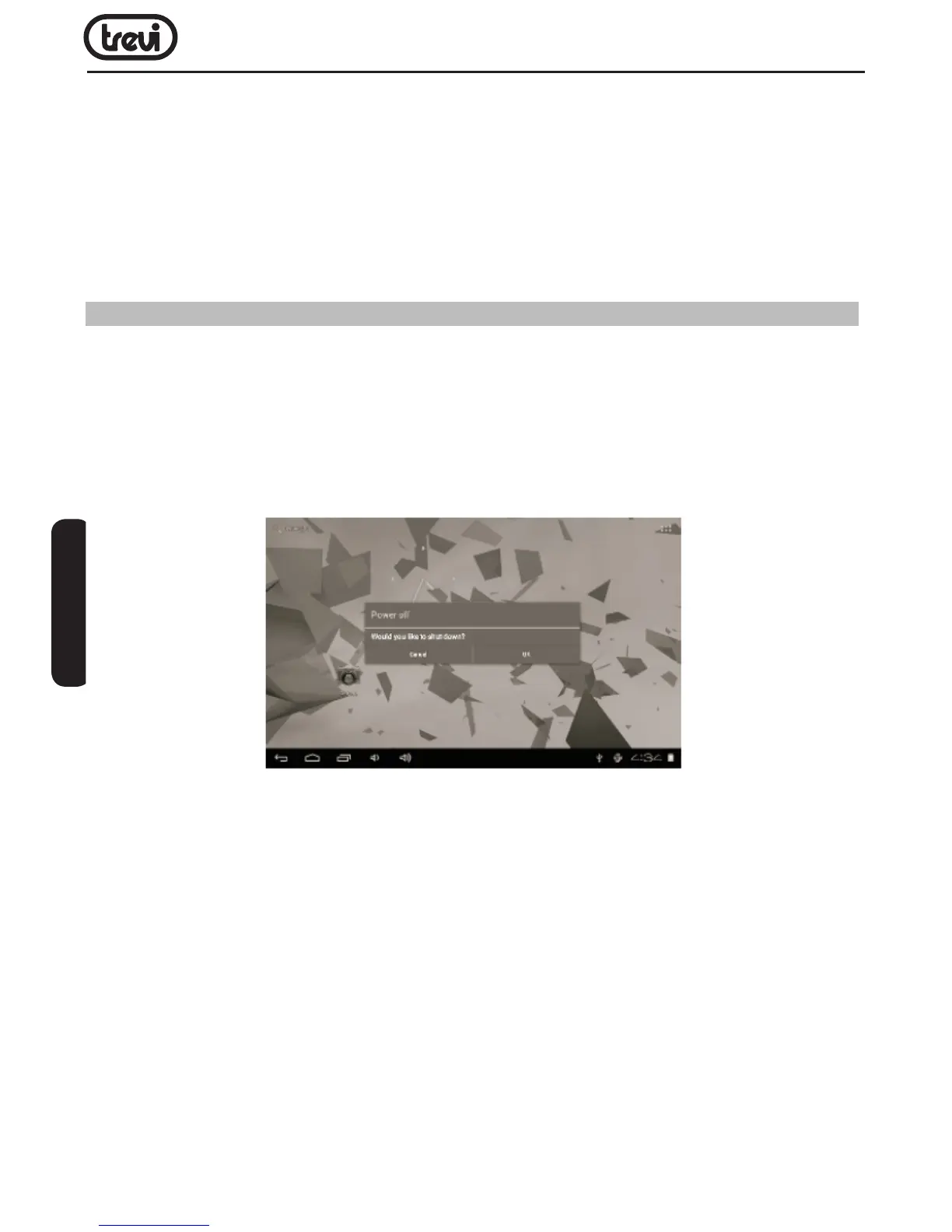
To turn the tablet off:
1.PressandholdthePowerkeyuntiltheDeviceOptionsmenuappears.
2.Touchokthescreentoturnoffthetablet.
Turning the Screen On or off (Standby)
Whenthetabletison,youcanturnoffthescreentoconservebatterypower.Simplypress
thePowerkeyoncetoturnthescreenoff.PressthePowerkeyagaintoturnthescreen
backon.
Note:Toconservebatterypower,thescreencanbesettoturnoffautomaticallywhenthetablet
isnotinuse(between1minuteand30minutes).ThisScreentimeoutoptioncanbefound
intheDisplaymenu.
Unlocking the Screen
Whenthescreenturnsoff,youwillhavetounlockthescreenwhenyouturnitbackon.
Tounlockthescreen,dragthelockiconacrossthescreentowardsthelockicon.
1.PowerbuttonandON/OFFDisplay.
2.HOMEkey.
3.MicroUSB/HostSocket:connecttheunit
toexternaldevicesorPC
4.EarphoneSocket3.5mm.
5.DCSocket:connecttheDC5Vadaptor.
6.MicroSDCARDslot.
7.Microphone.
8.RearCamera.
9.Speaker.
10.Display
11.FrontalCamera.
12. Sensor.
ENGLISH


 To Next Page