27
TAB 9 C8
2.SelectanavailableWi-FinetworktoconnectTo:
InthesameWi-Fisettingsmenuabove,touchanetworkinthelist.
Ifthenetworkisopen,thetabletwillpromptyoutoconrmconnectiontothenetwork.
TouchConnecttoconrm.
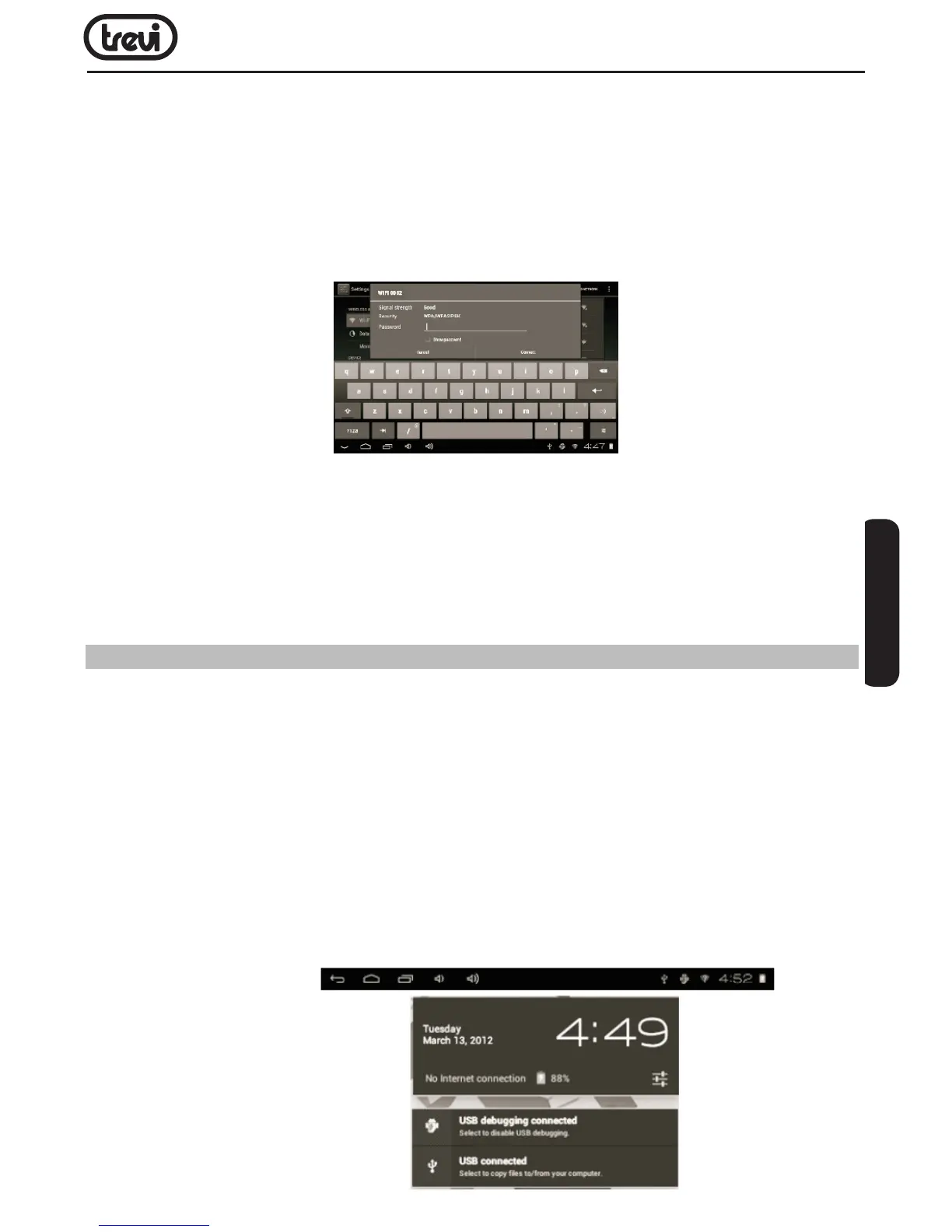
Ifthenetworkissecured(asindicatedbyaLockicon),thetabletwillpromptyoutoentera
passwordorothercredentials.TouchtheWirelesspasswordboxtoshowtheon-screen
keyboardandthenuseittoenterthepassword.TouchConnecttoconrm.
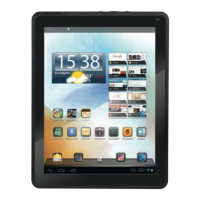
WhenyouhavesuccessfullyconnectedtoaWi-Finetwork,theNoticationsbaratthethelow
ofthescreenwillshowaWi-Fisignalindicator.
Note:TolearnabouthowtoaddaWi-Finetworkwhenitisnotinrangeorwhentherouter
issettoobscurethenetworkname(SSID);ortocongureadvancedWi-Fioptions,please
refertothemanual.
OPTIONAL CONNECTIONS
ConnectingtoaComputer
Connectthetablettoacomputertotransferles.
1.Connect your tablet to the computer.
WiththeincludedUSBcable:PlugthesmallendofthecableintotheUSB2.0highspeed
connectorofthetablet.PlugthelargeendofthecableintoanavailableUSB2.0highspeedport
onthecomputer.
2.When your tablet is connected,slide up the USB icon right down on the screen and then
touch icon USB connected.
ENGLISH


 To Next Page