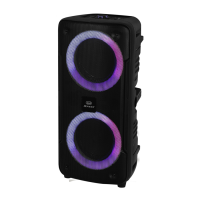
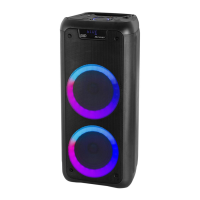
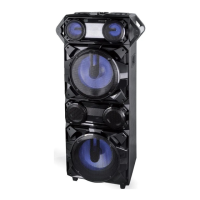
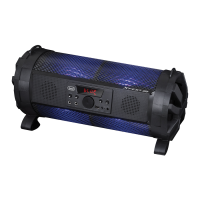
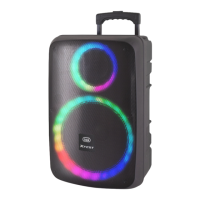
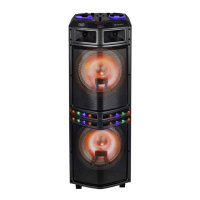
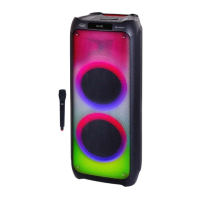
XR 8A01
Music playback management
- Hold down the +(1) button on the speaker for a few seconds to go to the next
track, hold down the -(2) button for a few seconds to go to the previous track.
- Press the (3) key to pause; press it again to resume music playback.
- Hold down the M(5) key for a few seconds to lower the voice of the song being
played and sing on it.
TF CARD/USB
1. Insert a TF Card or a USB memory in sockets (8) or (6) and turn on the device;
2. Playback will start automatically;
3. Hold down the -(2) key for a few seconds to go to the previous track, hold down
the +(1) key for a few seconds to go to the next track;
4. Press (3) button to pause; press it again to resume music playback;
5. Press and hold the M(5) key for a few seconds to activate the track repeat/
sequential playback function.
AUX
1. With the device switched on, connect any unit equipped with an audio output via
the appropriate 3.5mm Jack cable to the AUX input (7);
2. The unit will automatically switch to this input;
3. Start playback from the external device. For all playback functions, refer to the
manual of the external device.
LIGHTING EFFECTS
1. To view the various light effects available, press the key (4) repeatedly;
2. Press and hold the button (4) for a few seconds to completely deactivate/activate
the light effects.
MICROPHONE
1. Turn on the microphone by holding down the key (11) for a few seconds;
2. Use the +(12) and -(13) keys on the microphone to adjust the volume;
3. Press the key (11) again and use the +(12) and -(13) keys on the microphone to
adjust the reverberation;
4. Press the key (14) several times to vary the vocal effect.
English



 To Next Page