11
Operation (continued)
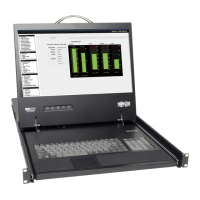
Figure 8 The OSD Main Window
Navigating the OSD
Tomoveupanddown,usethe[ ] and [ ] arrow keys.
Tojumpfromonecolumntothenext(whenrelevant),usethe[Tab] key.
ToexittheOSDortoreturntothepreviousOSDwindow,press[Esc].
Selecting a Computer
To select a computer:
1. Move to the desired computer line.
2. Press the Enter key. The selected computer will be accessed and the OSD screen will close.
Note: While the OSD Screen is active the Keyboard Hotkey Commands and Mouse will be
deactivated.
On-Screen Display
To invoke the OSD:
PressandreleasetheShiftkeytwicetoopentheOSDMainMenu.LineswithBluetext
representportsthathaveacomputer/serverconnectedtothem,whichiscurrentlyturnedon.
LineswithGraytextrepresentportsthateitherhasacomputer/serverconnectedtothem,
whichisturnedoff;ortheyhavenocomputer/serverconnectedatall.TheTypecolumn
indicates whether a computer/server (C) is connected to the port or a KVM Switch (S) is
connectedtotheport.FortheTypecolumntodisplayS,theusermustchangetheHotkey
setting for the cascaded KVM. (See page 14 for details.)
OSD Settings (F2)
Press [F2] to open the OSD Settings window (see Figure 9).
Figure 9 The Settings Window
Note:IftheOSDispasswordprotected,onlytheAdministratorwillbeabletogetaccessto
the F2 settings window by using the appropriate password.



 To Next Page
 Loading...