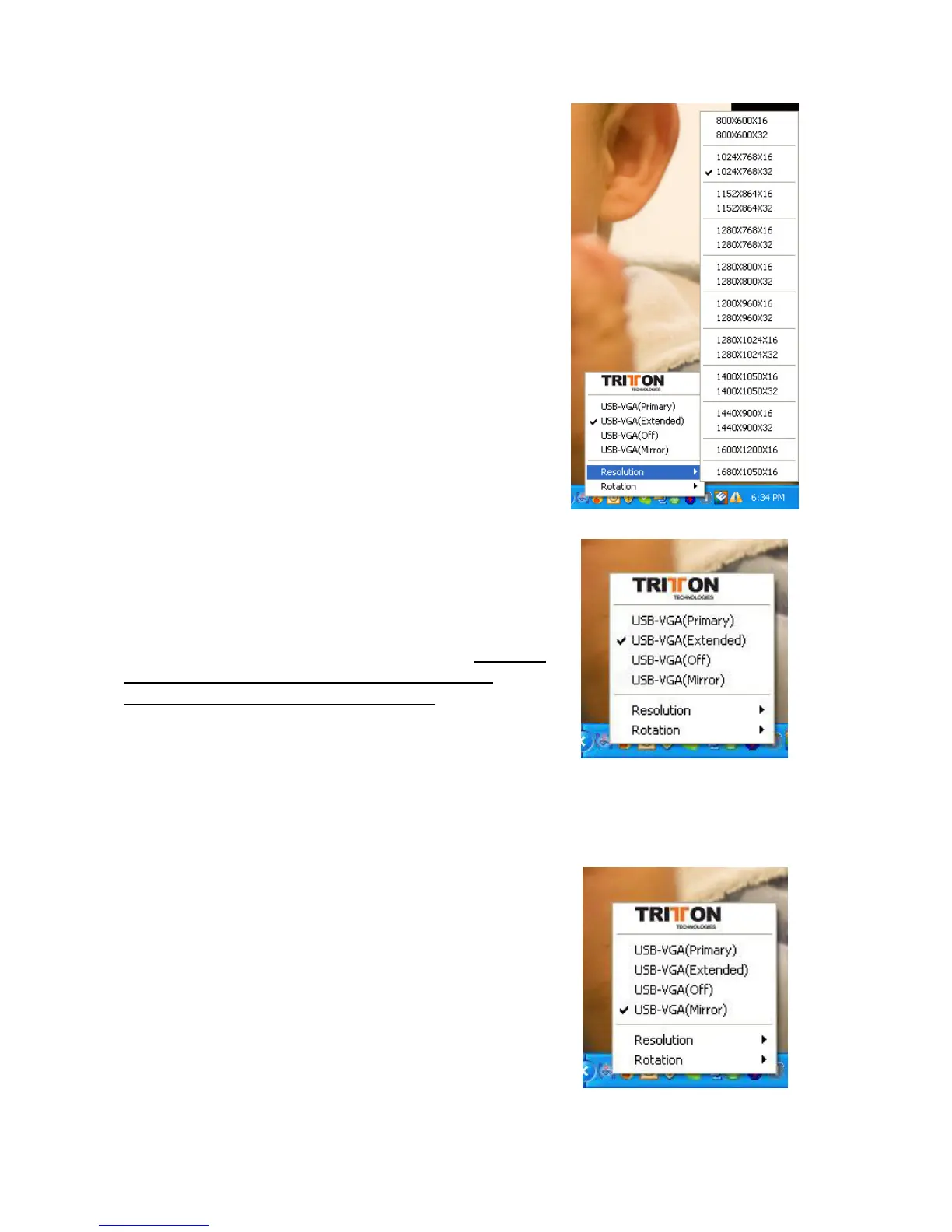
“Primary” Mode
When selected, the screen connected to your
internal video card will work as the extended
desktop. The monitor connected to the SEE2 will
act as the primary Windows desktop. Be
advised that display utilities and drivers that ship
with some AGP and built-in display adapters may
prevent this option from working. You can disable
the offending utility program (usually found in the
same toolbar located on the bottom right hand
corner) to make this function work properly. If you
need to do this, please contact your internal video
card manufacturer for instructions, or Tritton’s
technical support team.
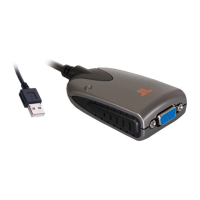
“Extended” Mode (Default)
By default, the monitor connected to SEE2 will
work as, “Extended Desktop” which extends the
primary Windows desktop of your system. You can
change the relative position of this extended
desktop under the Display Properties.
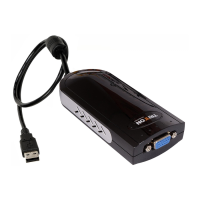
“Mirror” Mode
By setting this mode, the Windows desktop
displayed on your existing monitor will be
mirrored/replicated to the secondary CRT/LCD
monitor on the SEE2. The screen resolution setting
on the secondary monitor must have the exact
same resolution as the primary screen. For
example, if the primary resolution is
1024x768x32bit, the secondary monitor’s
resolution will be the same. But if the selected
resolution setting is not supported by the primary
screen, a warning dialogue box will be displayed
and the suggested screen resolution will be shown.
5


 To Next Page