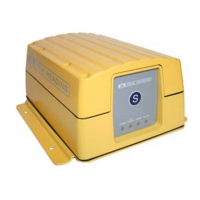
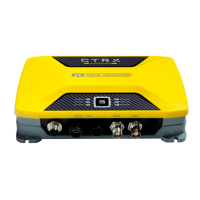
AIS CTRX GRAPHENE Class B AIS Transponder Manual
1.4E 29 CTRX GRAPHENE Manual
INSTALLATION
1. Insert the installation CD and locate the file ”Setup.exe”.
2. To start the installation double- click on the file icon ”Setup.exe”
3. If required, follow the directions to install MS dotNet framework
4. When the security alert pop-up appears, select ”Install”
5. proAIS2 will install and launch automatically.
6. A proAIS2 icon will be created and appear in the Start Menu folder.
Removal of ProAIS from the computer
The proAIS software can be removed at any time by using the ”Add or Remove
Programs” feature in the Control Panel (may differ depending on OS)
Connect to your AIS CTRX GRAPHENE with proAIS
When using the proAIS2 program with the transponder, the AIS CTRX GRAPHENE
should be connected using the supplied USB cable. It will be powered from the USB
cable during programming but cannot operate normally unless connected to a 12V or
24V DC power supply.
After starting the proAIS 2 application you should first select the communication port
to which the transponder is connected. Select the port indicated as AIS transponder.
If no port is shown the PC may need to have an updated driver for the USB port.
Connect to the internet, disconnect the transponder USB cable and then connect it
again. Windows will automatically search for a driver. When installed the port should
be available to select. Then click on the Connect- button. The computer connects to
the transponder and the data fields to be programmed will be appear on the
Configuration page.
If the USB driver fails to install automatically, a USB driver is provided on the CD.
Run the set-up in the USB driver folder to install the driver.



 To Next Page