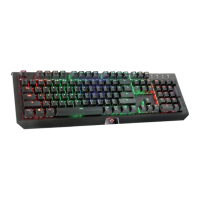
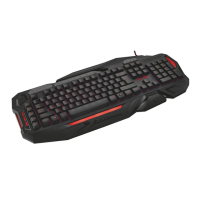
GXT Gaming Keyboard
Button programming
Assign a function
- Click on the button which you want to re-assign.
- Choose between a single keystroke or mouse button
- Click on the mouse key function to open a menu.
- Click on ‘Apply’ The keyboard is being updated.
Light Settings
Change the LED light
- Click on the ‘Advanced Settings’ tab.
- Change the brightness of the light or change to breathing.
- Select the desired LED color.
- Click on ‘Apply’ The keyboard is being updated.
Macro Settings
Create a macro
(Store a sequence of keys in the software)
- Click on the ‘Macro manager’ tab.
- Create a new macro by clicking on ‘New’.
- Enter the name of the new macro and click on the Enter key on your keyboard.
- Click on the ‘start record’ button to start recording the preferred keyboard sequence.
- When you’re finished creating your macro, click the ‘stop record’ button.
- Click on ‘OK’ The macro is saved.
Assign a macro
- Click on the ‘Macro Settings’ tab
- Hoover over the function to open the side menu’s.
- Click on the created macro in the ‘Assign a Macro’ menu to assign the macro to a Macro key.
- Click on ‘Apply’ The keyboard is being updated.
Reset
Reset the profiles
- Click ‘Reset’ to reset all the profiles.
Profile Settings
Create, Save or Load a profile
- Click on ‘Create profile’
- Enter a name for the profile
- Link the profile to activate the profile automatically
- Select your favourite application
- Click on ‘Save profile’ the profile is saved to your PC


 To Next Page