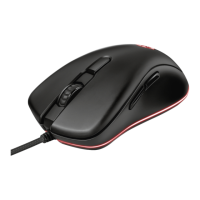
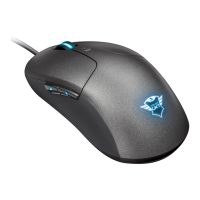
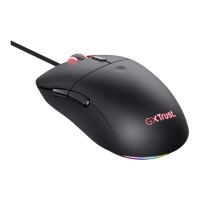
GXT 31 Gaming Mouse - USER’S MANUAL
4
Macro Management
(Store a sequence of keys in the software)
- Go to the macro manager section (step 4b).
- The macro management is divided in 3 sections:
a. Macro (Mouse Memory) list
b. Function buttons
c. Macro editor
Create a macro
There are 2 ways to create a macro function.
a
- Drag the function that you want to assign from the function buttons ‘7b’.
- Drop the function in the Macro editor ‘7c’.
b
- Press the ‘play’ button to start recording your sequence.
- Press the ‘stop’ button when you have finished your record.
Save a macro
- Drag the created macro to the Macro (Mouse Memory) list ‘7a’.
- Drop the created macro on an empty field.
- Give your macro a name (13 characters maximum).
- You can now assign the macro to a mouse button (see step 6).
Edit a macro
- Drag a macro from the list (7a).
- Drop the macro in the editor (7c).
- You can now edit the macro.
- When you’re done editing the macro save the macro as explained above.
To clear the macro editor press the clear button in the function list (7b).
DPI & Tools
a
DPI settings
- Select the DPI setting that you which to change.
- You can change the DPI setting for both X and Y axis seperatly (100 – 5600).
b
Change the report rate
- Select the desired report rate (125Hz, 142Hz, 166Hz, 200Hz, 250Hz, 333Hz, 500Hz, 1000Hz).
c
Change the scroll acceleration
- You can change the number of lines that will be scrolled by one click (1-9).
d
Backup, Restore or Reset
- You can Backup the settings that you just created by pressing ‘Backup’.
- You can Restore previous saved settings by pressing ‘Restore’.
- You can load the default mouse configuration by pressing ‘Reset’.


 To Next Page