GXT 31 Gaming Mouse - USER’S MANUAL
5
Advanced Configuration
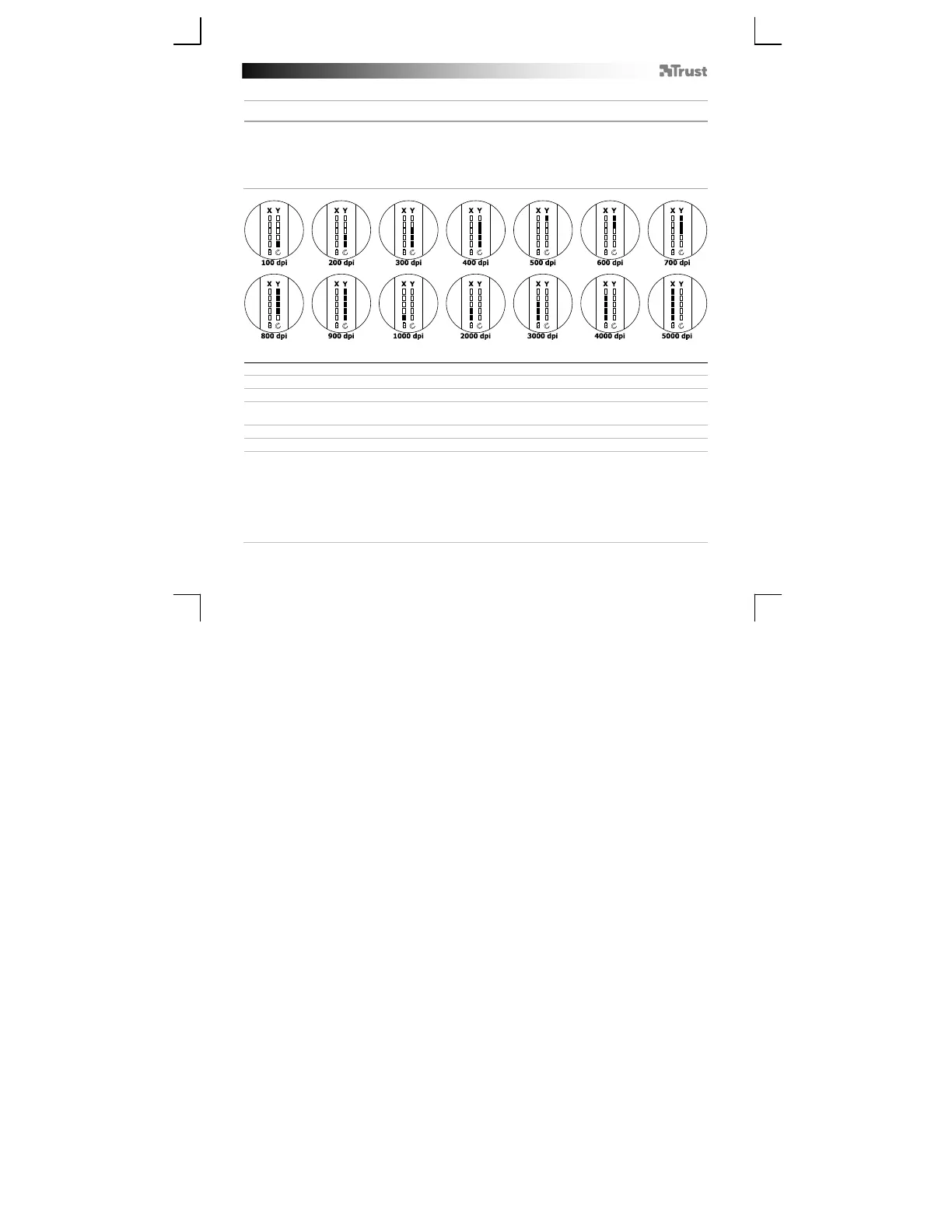
a Press the function button to toggle between the current Battery status, dpi & scroll settings.
b
Adjust the DPI (both X and Y axis separately) and scroll settings on the mouse
- Press and hold the function button for 4sec. (the X in the status indicator LED starts blinking).
- Rotate the scroll wheel up to increase the DPI or down to decrease the DPI setting.
- Press the function button to switch to the Y axis or scroll setting.
- Press and hold the function button for 4sec. when you have finished the settings.
Trouble shooting
Problem Solution
Error in the software
Can not detect mouse”
- To configure the mouse, the mouse has to be connected by using
the USB cable.
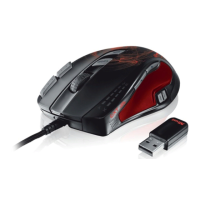
Mouse is not working wirelessly - Charge the battery.
How do I reset the default settings - See step 10d.
The mouse arrow shakes, moves
strangely or does not move at all
- Charge the battery.
- Press the link button ‘o’ on the bottom of the mouse.
- Try using the mouse on a different surface or use a mouse pad.
- Clean the sensor on the bottom of the mouse with a dry cloth.
- Connect the Trust wireless receiver to another USB port, closer to
your Trust wireless device.
- Remove any other wireless receivers which are connected to USB
ports close to your Trust wireless receiver.


 To Next Page