GXT 930 Gaming Mouse - USER’S MANUAL
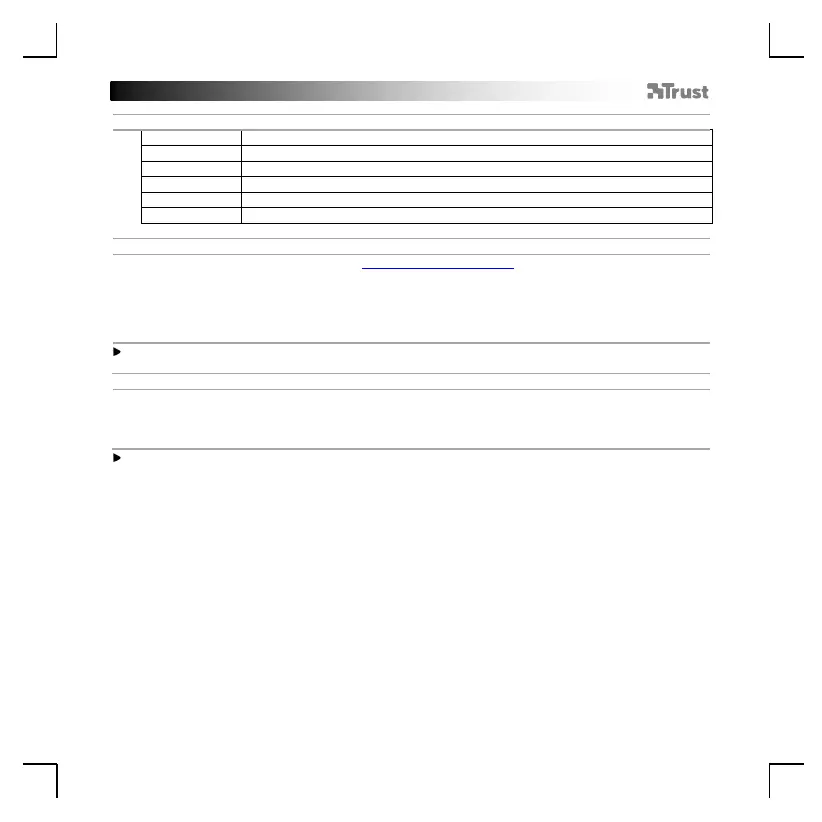
- Mouse Button 1 (Default = Left Mouse Button)
- Mouse Button 2 (Default = Right Mouse Button)
- Mouse Button 3 (Default = Mid click)
- Mouse Button 4 (Default = Forward)
- Mouse Button 5 (Default = Backward)
- Mouse Button 6 (Default = DPI)
- Open the internet browser and go to www.trust.com/23575/driver.
- Click the “Download EXE” Button to download the software.
- Click on the “23575_X.exe” and follow the installation wizard.
- Click on the “GXT 930 Gaming Mouse” shortcut to start the software.
- You can now start to configure the mouse. Changes will be updated directly to your mouse.
Updating the mouse can take up to 20 seconds depending on your system.
Assign a function
- Click on the Button you want to re-assign
- Click on the function you want to assign.
At least one Mouse Button has to be assigned as “Left Click”.



 To Next Page