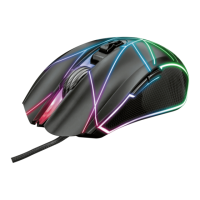
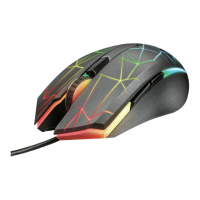
TRUST GXT 970 Gaming Mouse - USER’S MANUAL
Report rate & DPI settings
DPI setting
- Click on the ‘DPI Setting’ tab.
- Click on the checkbox next to the DPI number to enable or disable this DPI level.
- Choose a LED color for each DPI setting.
- Click on the ‘DPI’ button.
- Change the DPI level by dragging the respective bar.
- Click on ‘Apply’, the mouse is being updated.
Change the Lighting
- Click on the ‘Lighting’ tab.
- Change the light mode.
- Change the animation speed.
- Change the direction.
- Click on ‘Apply’, the mouse is being updated.
Mouse Parameter
- Click on the ‘Mouse Parameter’ tab.
- Change the Windows acceleration, Windows pointer speed, Windows scroll speed or Windows
doubleclick speed by dragging the respective cursor.
- Click on ‘Apply’, the mouse is being updated.
Polling Rate
- Click on the ‘Polling Rate’ tab.
- Change the Polling rate by clicking on the respective frequency.
- Click on ‘Apply’, the mouse is being updated.


 To Next Page