7 8
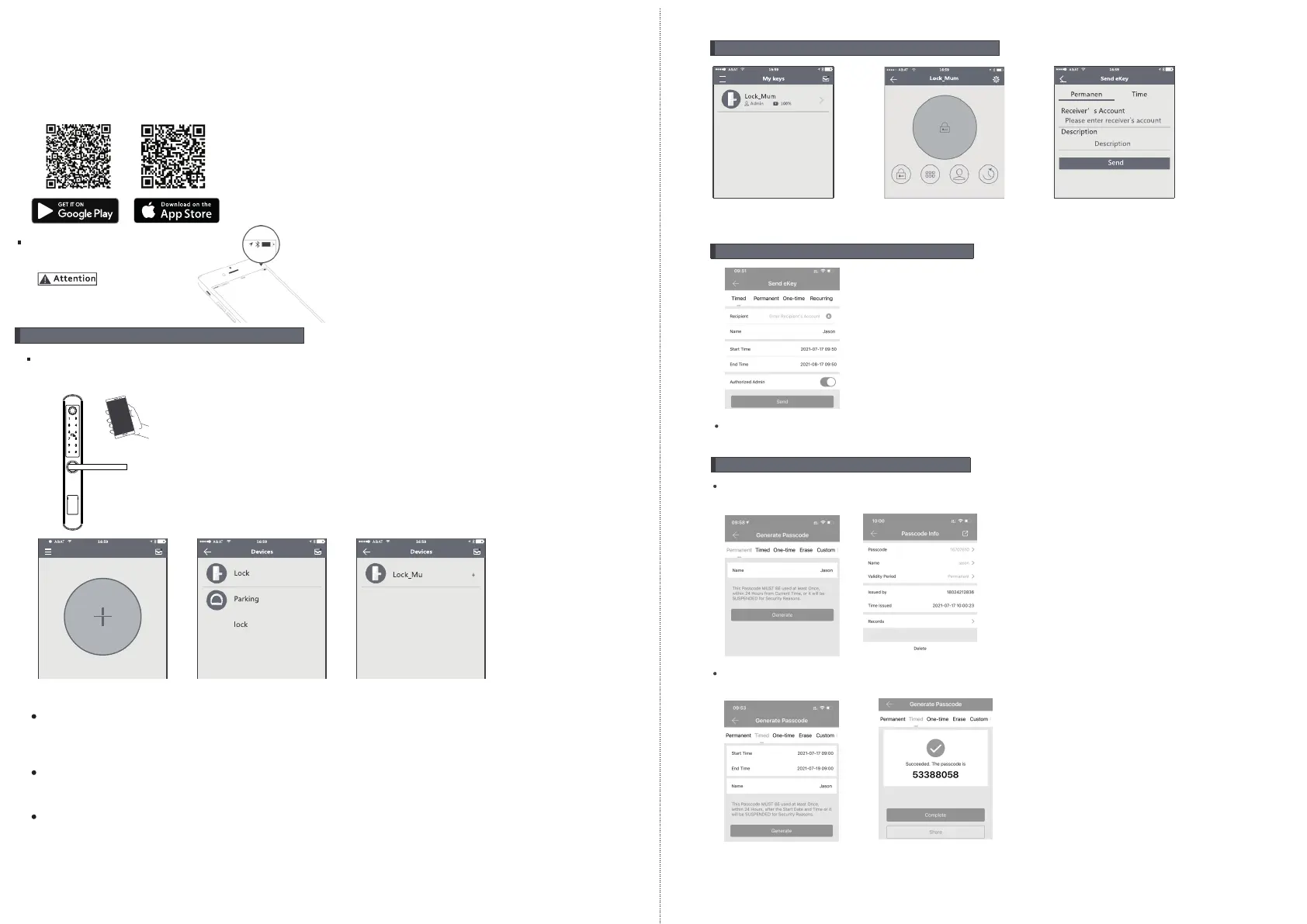
3. Send one timed eKey
During the authorized period of time, the receiver can unlock the door
without times limit, after the limitation of time, it will be invalidated automatically
4. Send a timed passcode
Passcode is with four types:permanent,timed,cylic and one-time,
you can set the passcode accordingly and share to the receiver by mail/wechat/whatsapp etc.
Permanent passcode will not expire, but the administrator can
delete them in the user list at any time.
2.Send one permanent eKey
Step1: Click device name
Step2: Click the eKey
Step3: Enter the receiver info
APP OPERATION STEPS
Search Google play or APPLE Store with TTLOCK to download the APP.
Install it or scan the below QR code we provided to install the APP program.
You can also turn to us to download the application. please read the manual
carefully before installation and keep it properly.
Please turn on your phone’s Bluetooth
function before any operation.
1.Add one smart lock on your phone
When adding the door lock, operations must be completed near
the lock and the keypad is activated during paring.
Step1: Click “+”button
Step2: Select the lock
Step3: Click device name
In step 3: there will be on “+”button after the name of the door lock, notice the door
lock can not be added if there I no “+” sign. The interface will jump back to the key list after adding
successfully.
If the operation is failed, please repeat the above steps and view the device list in steps 3. Make sure
your mobile is turned on with bluetooth feature and door lock is powered with the battery already.
If you are not able the lock administrator, please contact the device administrator and ask for the
secondary authorization for this lock.
This feature requires the receivers to install the APP in their phone and register one account already.


 To Next Page
 Loading...