User’s Guide
6
1. Place the Audio Advantage CD into your CD ROM drive. If the installation menu does not appear
within 30 seconds, click on the “My Computer” icon, browse to the root of the installation CD
and run SETUP.EXE.
2. From the menu, select “Setup Audio Advantage Micro” then “Install Drivers and
Applications”.
3. When prompted by the software installation, insert the Audio Advantage Micro into a free USB
port, either directly or with the included USB extender cable. Power for the Audio Advantage is
provided by the USB port, so you don’t need an external power adapter.
4. After inserting the Audio Advantage into the USB port, press “Yes” on the dialog screen and
follow the instructions that appear during the install.
5. If the “Add New Hardware Wizard” is displayed, click on the Cancel button to end this process.
Although Windows may prompt you to install the newly detected USB hardware, we will be
installing the Turtle Beach driver from the CD, not the generic Windows USB audio driver.
Â
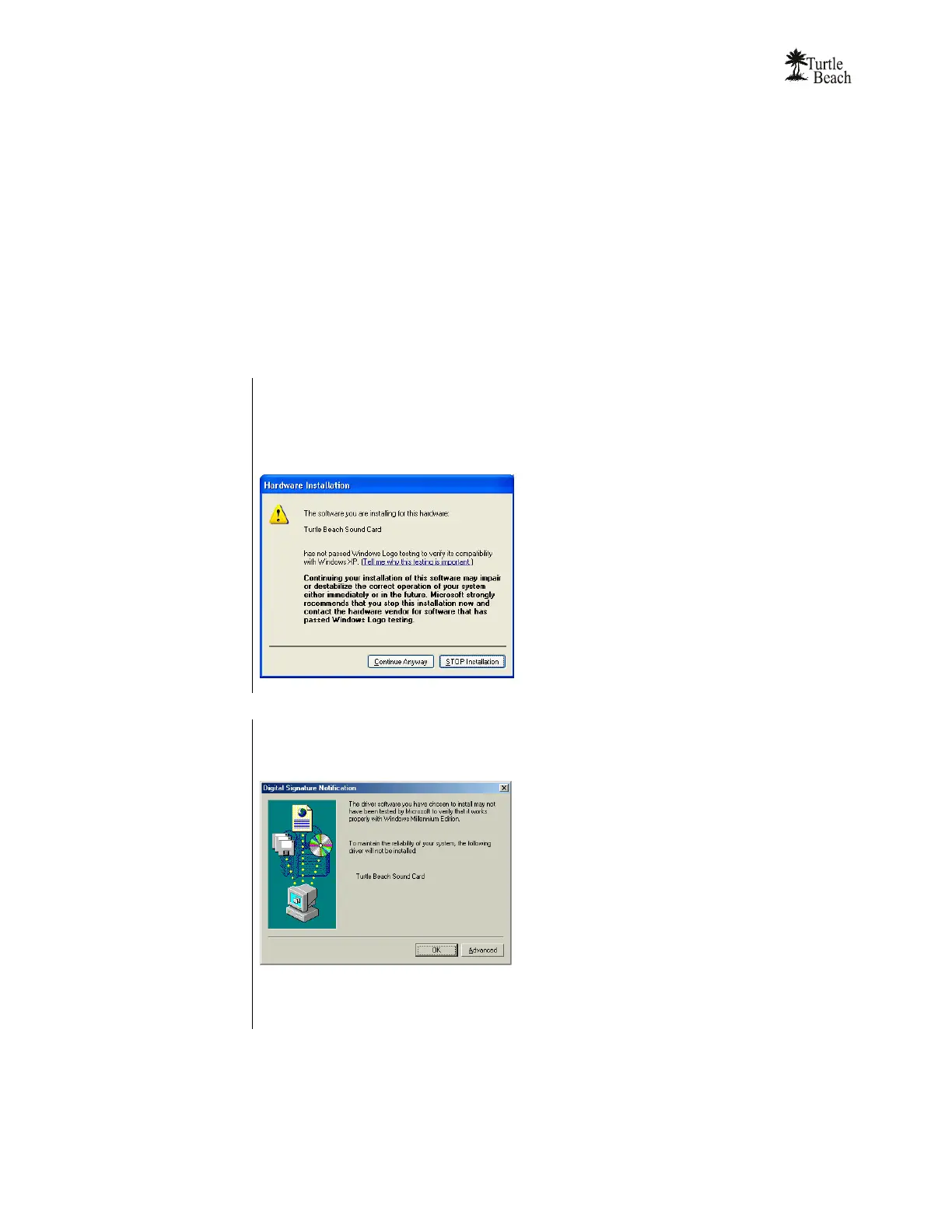
If you’re installing under Windows XP…
If the following dialog box appears, explaining that the software has not passed Windows Logo
testing or does not have a Digital Signature, click "Continue Anyway" or "Yes" (depending on the
operating system).
Â
If you’re installing under Windows Me…
When the following dialog appears, click on the Advanced button:
Next, select ‘Warn when installing unsigned devices’ and click ‘OK’



 To Next Page