EasyManua.ls Logo

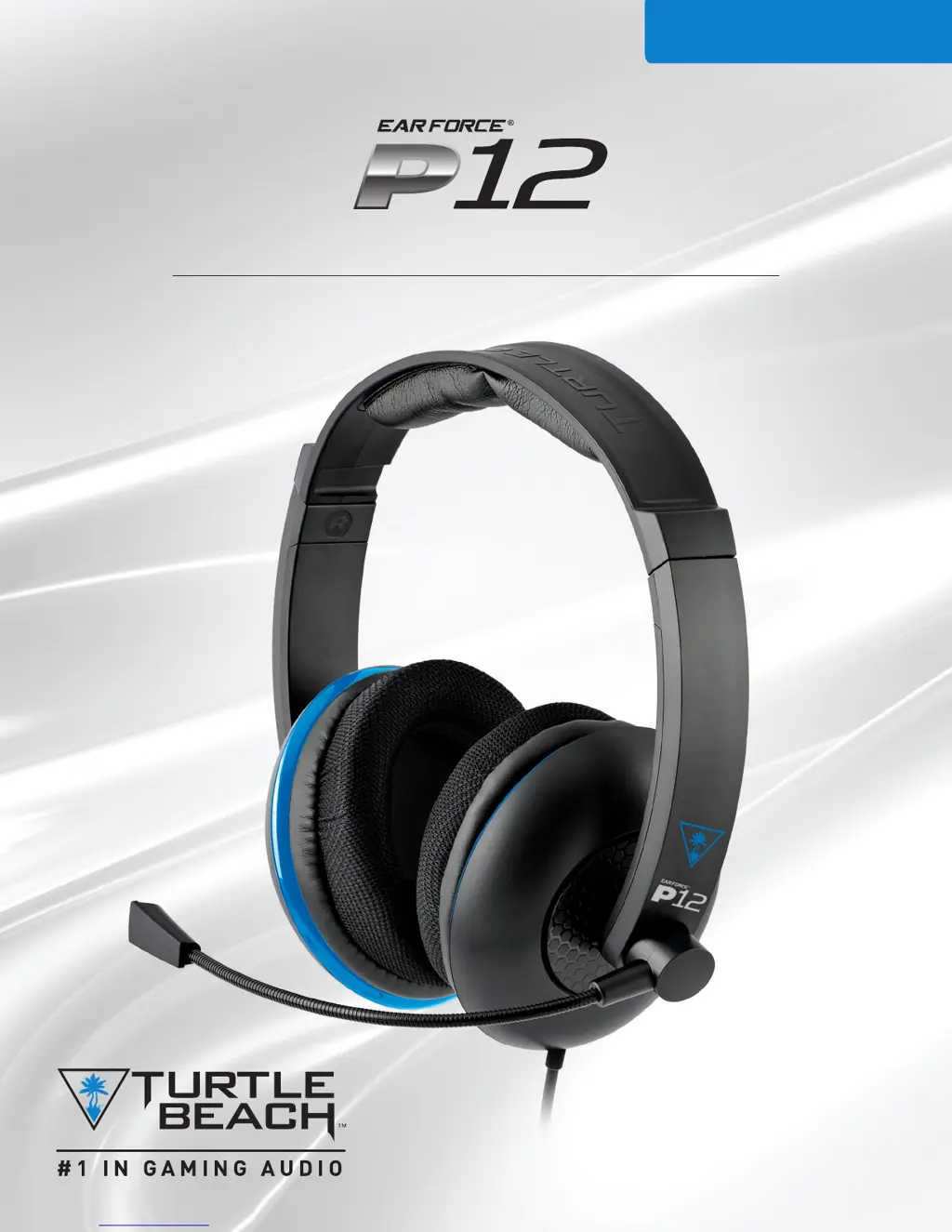
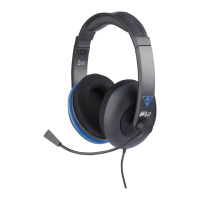
Turtle Beach Ear Force P12 - User Manual

Turtle Beach Ear Force P12
18 pages
Print Icon
To Next Page IconTo Next Page
Loading...
USER GUIDE/ INSTRUKCJA OBSŁUGI
AMPLIFIED STEREO GAMING HEADSET/
ZESTAW UCHAWKOWY DO GIER KOMPUTEROWYCH ZE WZMOCNIONYM
EFEKTEM STEREO
For/Dla PlayStation 4
|
Mobile

Questions and Answers

  • A
    Ashley PadillaJul 27, 2025
    What to do if the microphone is not working on Turtle Beach Headsets?
    • J
      Jason MarshJul 28, 2025
      If your Turtle Beach Headsets microphone isn't working, start by checking if the mic is muted. If the power LED is red, the mic is muted (OFF). Also, ensure that in your PS4 settings under Devices > Audio Devices > Headsets and Headphones > Microphone Level, the microphone level is calibrated correctly by following the on-screen instructions.
  • T
    Timothy ClementsAug 3, 2025
    How to fix low sound on Turtle Beach Ear Force P12?
    • H
      hwestAug 3, 2025
      If you have no sound or low sound with your Turtle Beach Headsets, check that the headset is fully plugged into the amplifier and that the amplifier is firmly connected to a USB port on your PS4. If necessary, read over the installation steps for your console again to ensure that all the cables are connected properly. Try another USB port to verify that it is working properly.
  • N
    Noah ReyesAug 11, 2025
    How to unmute the microphone on Turtle Beach Ear Force P12 Headsets?
    • J
      Jerry GrimesAug 11, 2025
      If your Turtle Beach Headsets microphone is not working, please ensure that the mic mute switch is in the appropriate position. If the power LED is red, then you know that the mic is MUTED (OFF).
  • W
    William Ford DDSAug 18, 2025
    How to increase the volume on Turtle Beach Ear Force P12?
    • N
      nicoleandersonAug 18, 2025
      If you are experiencing no sound or low sound with your Turtle Beach Headsets, please check to ensure that your volume dials are raised to an appropriate level.

Summary

Package Contents

About the Ear Force P12 Headset

Parts and Controls

Setup and Connections: PlayStation 4

Configuring your PlayStation 4

Details software settings for audio output and microphone calibration on PS4.

Setup and Connections: Mobile Sources

Specifications

Troubleshooting Tips

No Sound; Low Sound

Addresses issues related to no audio or low volume output from the headset.

Microphone Not Working

Provides solutions for when the headset microphone fails to function.

Important Safety Information

Regulatory Compliance Statements

FCC Compliance Notices

Details FCC regulations and interference statements for the device.

Canadian ICES Statements

Outlines Canadian radio interference regulations applicable to the device.

EU;EFTA Regulatory Compliance

Lists countries covered by EU/EFTA regulations and general compliance.

Declaration of Conformity

Declaration of Conformity - Safety

Lists safety standards and licenses the product complies with.

Declaration of Conformity - Emissions

Details emission standards and licenses the product complies with.

Declaration of Conformity - Immunity

Lists immunity standards and licenses the product complies with.

Declaration of Conformity - Environmental

Covers environmental directives like RoHS, REACH, and WEEE.

Japan Compliance Statement

Korean Compliance Statement

Limited One Year Warranty

Exclusions from Limited Warranty

Lists conditions under which the product warranty is void.

Turtle Beach Ear Force P12 Specifications

General IconGeneral
Headset typeBinaural
Product typeHeadset
Product colorBlack, Blue
Wearing styleHead-band
Recommended usageGaming
USB connectivityYes
Connectivity technologyWired
Impedance- Ω
Driver unit50 mm
Magnet type-
Ear couplingCircumaural
Headphone frequency20 - 20000 Hz
Microphone frequency- Hz
Weight and Dimensions IconWeight and Dimensions
Weight186 g

Related product manuals