EasyManua.ls Logo

Turtle Beach Ear Force XL1 - PS3 Accessory Settings Configuration

Turtle Beach Ear Force XL1
28 pages
Print Icon
To Next Page IconTo Next Page
To Previous Page IconTo Previous Page
Loading...
11
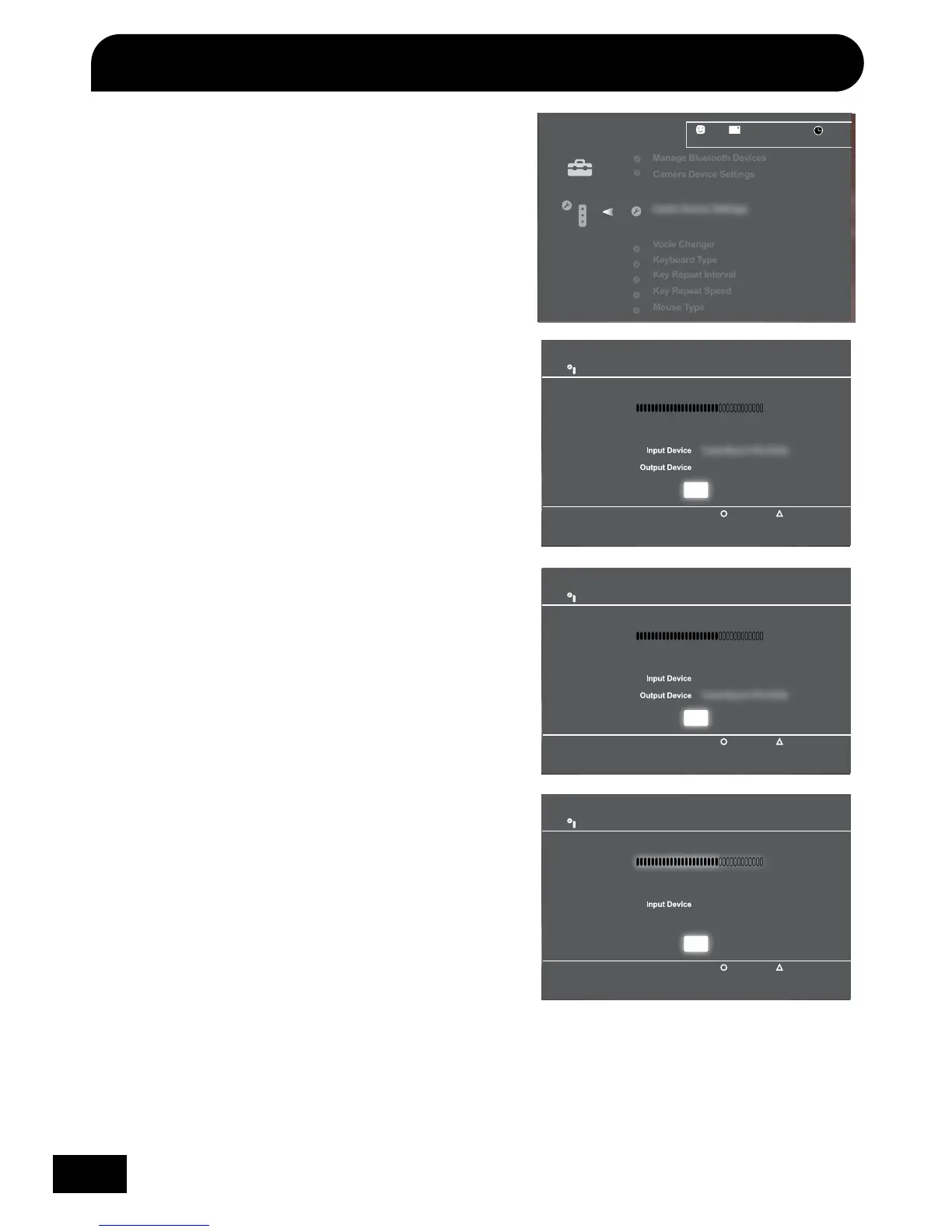
Configure PS3 Accessory Settings
Audio Device Settings
Microphone Level 3
Output Device
Back
Options
X Enter
OK
Turtle Beach PX3 (PS3)
Audio Device Settings
Vocie Changer
Keyboard Type
Key Repeat Interval
Key Repeat Speed
Mouse Type
12/14 12:15 PM
0
Sets the audio input and output devices for voice/video
chat and other communicatin features.
Manage Bluetooth Devices
Audio Device Settings
Microphone Level 3
Back Options
X Enter
OK
Turtle Beach PX3 (PS3)
Audio Device Settings
Microphone Level 3
Back Options
X Enter
OK
Turtle Beach PX3 (PS3)
Step 1:
In the PS3 menu select “Settings” > “Accessory Settings” >
“Audio Device Settings”.
Step 2:
Set the Input Device and Output Device to
Turtle Beach PX3 (PS3).
Step 3:
Set the Microphone Level so that the bar graph barely reaches
the red area when you speak loudly.
Recommended setting: 4 or 5
Step 4:
Select OK

Other manuals for Turtle Beach Ear Force XL1

Related product manuals