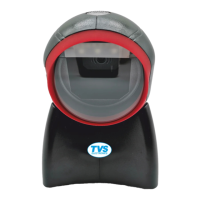
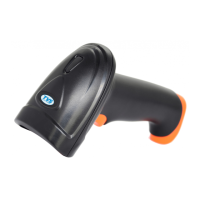
BS-i203G BT / BS-i203G+BT
1. Open the package and check the appearance
and accessories
2. Please press the button to turnthe scanner on
3. Connecting and transmitting schemes
Attention please: The default connection mode of the scanner
is 2.4G, which can be configured into Bluetooth mode as needed.
After booting, it will try to connect according to the connection
method before shut down. For example, before the scanner turns
off, the scanner and the mobile phone Bluetooth pair successfully.
After rebooting, the scanner will automatically connect to the
mobile phone while the mobile phone has not ignored the scanner
and its Bluetooth on.
Scanner function setting step:
3.1 Bluetooth mode
Turn on the Bluetooth of terminal devices and use the scanner
scans“EnterSettings”-“BluetoothHID Mode”-“Searching”-“Exit
Settings” in sequence. Find and choose the “Barcode Scanner
HID” on the terminal device to connect. If successfully, the blue
colored indicator will be on. (Note: For the meaning of indicator
refer to part 8).
①
Enter Settings
②
Bluetooth HID Mode
③
Searching
④
Exit Settings
3.2 2.4G mode
After plugging Dongle into the computer and the computer
identifying Dongle successfully, pls. scan “Enter Settings”-“2.4G
Mode”-“Connect Dongle”-“Exit Settings” in sequence to pair.
After connect successfully, the blue colored lights will be on.
(Note: For the meaning of indicator refer to part 7).
①
Enter settings
②
2.4G Mode
③
Connect Dongle
④
Exit Settings
4. Active Factory Defaults
Scanning the “Active Factory Defaults” barcode below will
return the scanner to its factory configuration. This barcode does
not change the connection and transmission method.
Active Factory Defaults
5. Function configuration
5.1 Configure carriage return (CR)
,
line feed (LF)
Scan “Enter Settings” to start functional setting. To scan one
of the functional barcode below as you needed, then need to scan
“Exit Settings” to complete the functional setting.
Enter settings
Add CR suffix
Add LF suffix
Add CR+LF suffix
Clear CR+LF suffix
Exit Settings
6. Power down method
When you do not use the scanner device, you can scan the
following barcodes in sequence to shut down the scanning device
directly.
①
Enter Settings

 Need help?
 General

 To Next Page