②
Power Down
7. Operating Modes
The barcode scanner has two operating modes: normal
mode and inventory mode, through a different set code to
operate the mode switch
Normal mode, the scanning data directly through the
cable or wireless transmission to the computer, after the
success of the scanning, it will issue a low frequency short
tone. If the transmission fails, issue a 3-channel
low-frequency tone to alert. In normal mode, if the
transmission fails, the sweep of the bar code will be lost.
Normal Mode
If the barcode scanner works beyond 2.4G or Bluetooth
transmission range, it is recommended to use storage mode.
WireleaIf the internal storage is full, the scanner will send three low
frequency short tone alarm.
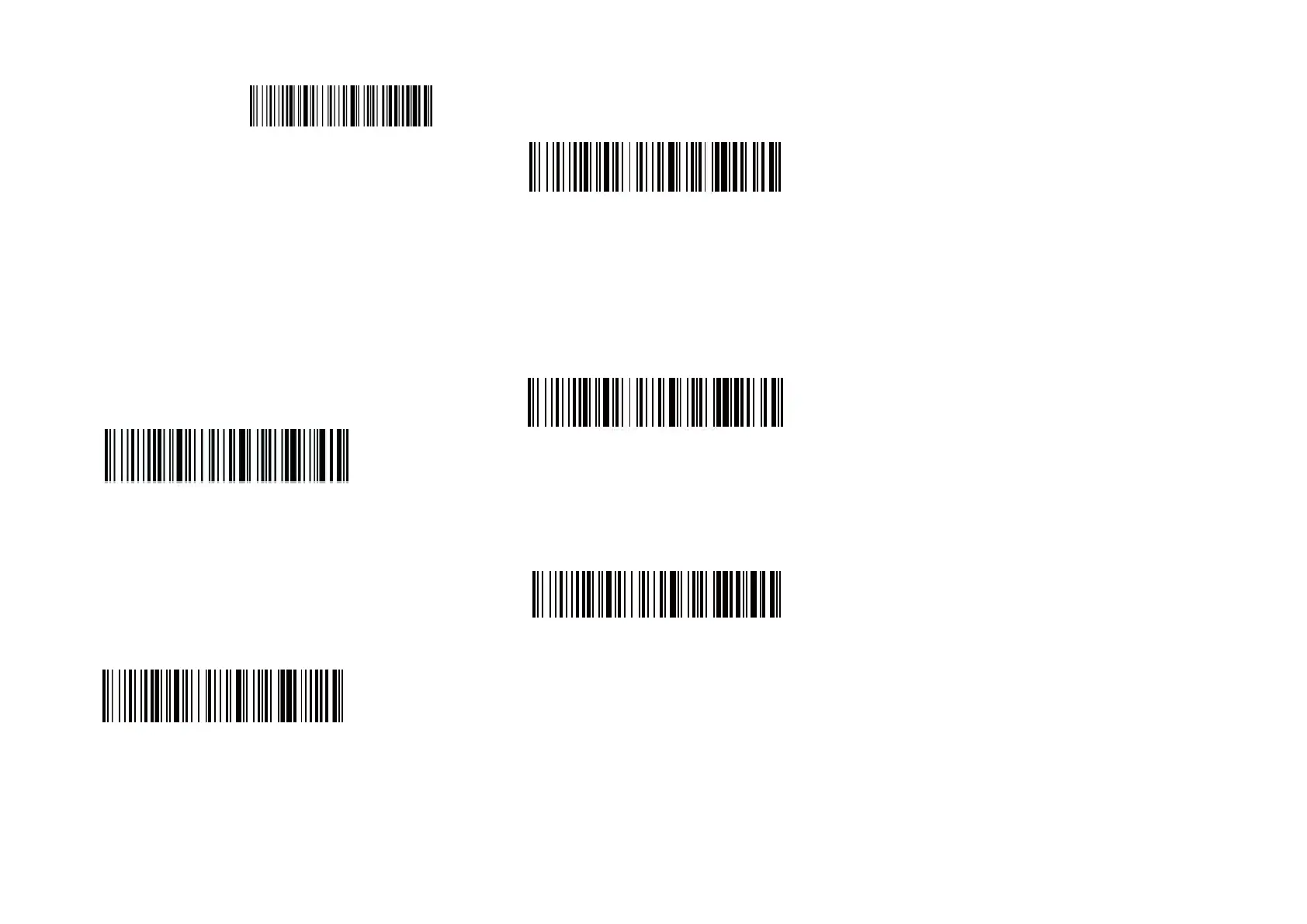
Inventory Mode
Scan the number of bar codes stored in the storage area by
scanning the "Total unmber of Storage" barcode:
Total number of Storage
Upload the stored data by scanning the "Data Upload"
barcode. After the data is uploaded, the barcode stored in the
barcode scanner is not automatically deleted. The user
uploads the storage data multiple times by scanning the "data
upload".
Data upload
Note: When data upload, please try to ensure that the wireless
signal connection is good, or in the connection of data line.
Clear data
By scanning the "clear data" bar code to clear the storage area
of the bar code data, bar code will not be able to upload after
the clear, please confirm whether the data has been uploaded
8. Meaning of indicator status &beeper tone
The blue colored light and the green colored light flash
alternately: The scanner under Bluetooth searching.
The green colored light single flashes: The scanners try to
pair with the Dongle through 2.4G mode.
The blue colored light always on: The scanner under
connection. The light will turn off after disconnect.
The two green colored lights flash one after one: The scanner
under connection. Decoding and transmitting are successful.
One green light colored flashes while the other one flashes
two times: The scanner disconnected, the decoding is successful
but transmitting fails.
Beep three times: The device receives message abnormally
from Scanner.
Beep twice: Disconnected.
Beep once: Good connection. Scanner power on. Good
transmission.
Beep always: Low battery Alert. Shut down and charge
ASAP.
The red colored light always on: The scanner is charging, and
light will off after charging completion.
9. Common Questions
9.1 What to do if can not connect to Bluetooth?
Make sure the phone is android 3.0 or above, go to 3.1
Bluetooth Mode setting and scan functional barcodes in sequence,
open the mobile phone Bluetooth, search for a new device, and
click “Barcode Scanner HID” to connect.
9.2 Why part of the barcodes can not scan?
Because some uncommon barcode types are turned off by
default, you can scan functional barcode to open the dedicate
barcode types. If you do not know the functional barcode, please
contact your supplier.
9.3 Why barcodes can not be uploaded to a computer


 To Next Page
 Loading...