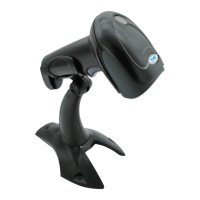
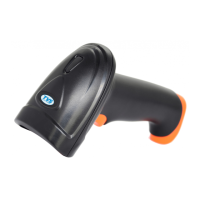
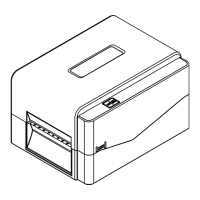
BS-i203g User Quick Setup Manual
1 、 Open the package and check the appearance and
accessories
2、Getting started
Before connecting the scanner, please don’t turn on the computer
until the scanner is fully connected.
3、Connecting and transmitting schemes
3.1 USB connection
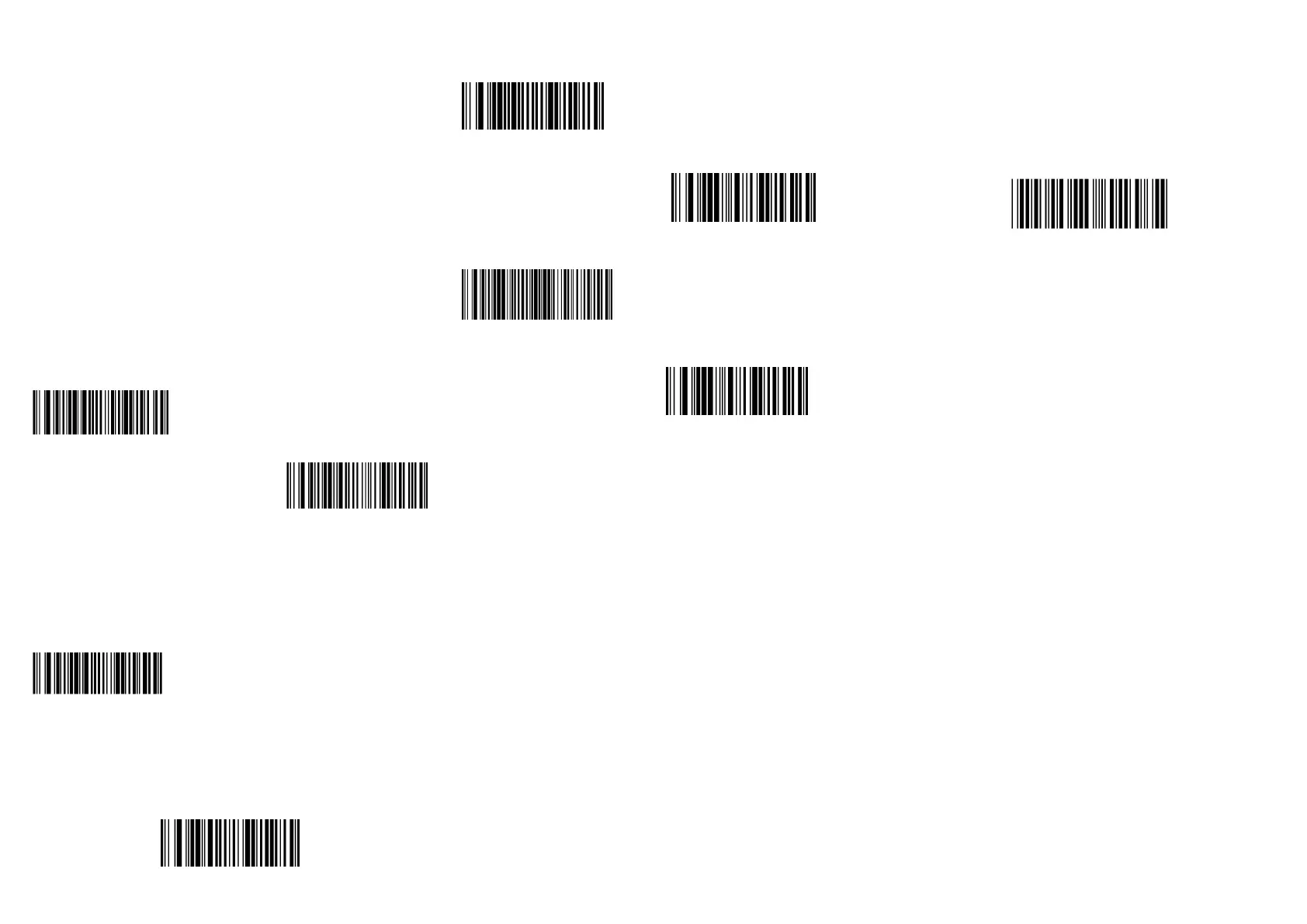
Connecting the computer and scanning "USB Keyboard" barcode,
you can configure the device for USB keyboard mode. When the
application software need the serial com input, the USB device could be
configured as "USB COM" type. User need to install the USB COM
driver. (The default configuration of this barcode is 115200 baud rate, 8
data bits, no parity, 1 stop bit).
USB Keyboard
USB COM
3.2 RS232 connection
The "RS232" barcode is used when connecting to the serial port of a
PC or terminal. The following "RS232" barcode also programs a carriage
return(CR) and a line feed(LF) suffix. The serial configuration is: 115200
baud rate, 8 data, no parity, 1 stop bit.
RS232
4、Active Factory Defaults
Scanning the "Active Factory Defaults" barcode below will default
the device to its factory condition.
Active Factory Defaults
5、Function configuration
5.1 Configure carriage return(CR),line feed(LF)
Add CR suffix
Clear CR suffix
Add CR suffix and LF suffix
Clear CR suffix and LF suffix
6、Troubleshooting
6.1 Power failure
First check the host device whether it is properly powered; Secondly
check the USB cable whether it connect properly.
6.2 Scan once, no light and no scanning
Firstly, check if the device connection is stable (the blue colored light
always on). Secondly, check if the USB COM barcode has been scanned
mistakenly (no transmission). If scanned mistakenly, please power cycle
and scan the USB Keyboard barcode.
6.3 Transmission failure
S1 Connection check: Please make sure the connection between the
scanner and the terminal is successful. If successfully, the power-on tone
will be heard.
S2 Transmission check: Please scan the sample code below. If the
sample code is transmitted, please go to S3. If the sample code is not
transmitted but there is a decoding tone, go to S4. If the sample code is not
transmitted and there is no decoding tone, please contact technical support.
S3 Barcode check: Please rescan the same type of barcode without
defacement. If transmitted, it’s due to defacement. If not please contact
technical supporter.
S4 Transfer software check: Please open the text file and serial port
transmission tools. If there is output in one of these tools, please refer to
the 3.1 USB connection section in this manual for the configuration of
what you need. If there is no output, please contact technical supporter.
12345
7、Technical supporting
If this manual doesn’t solve your problem, please contact your
supplier


 To Previous Page
 Loading...