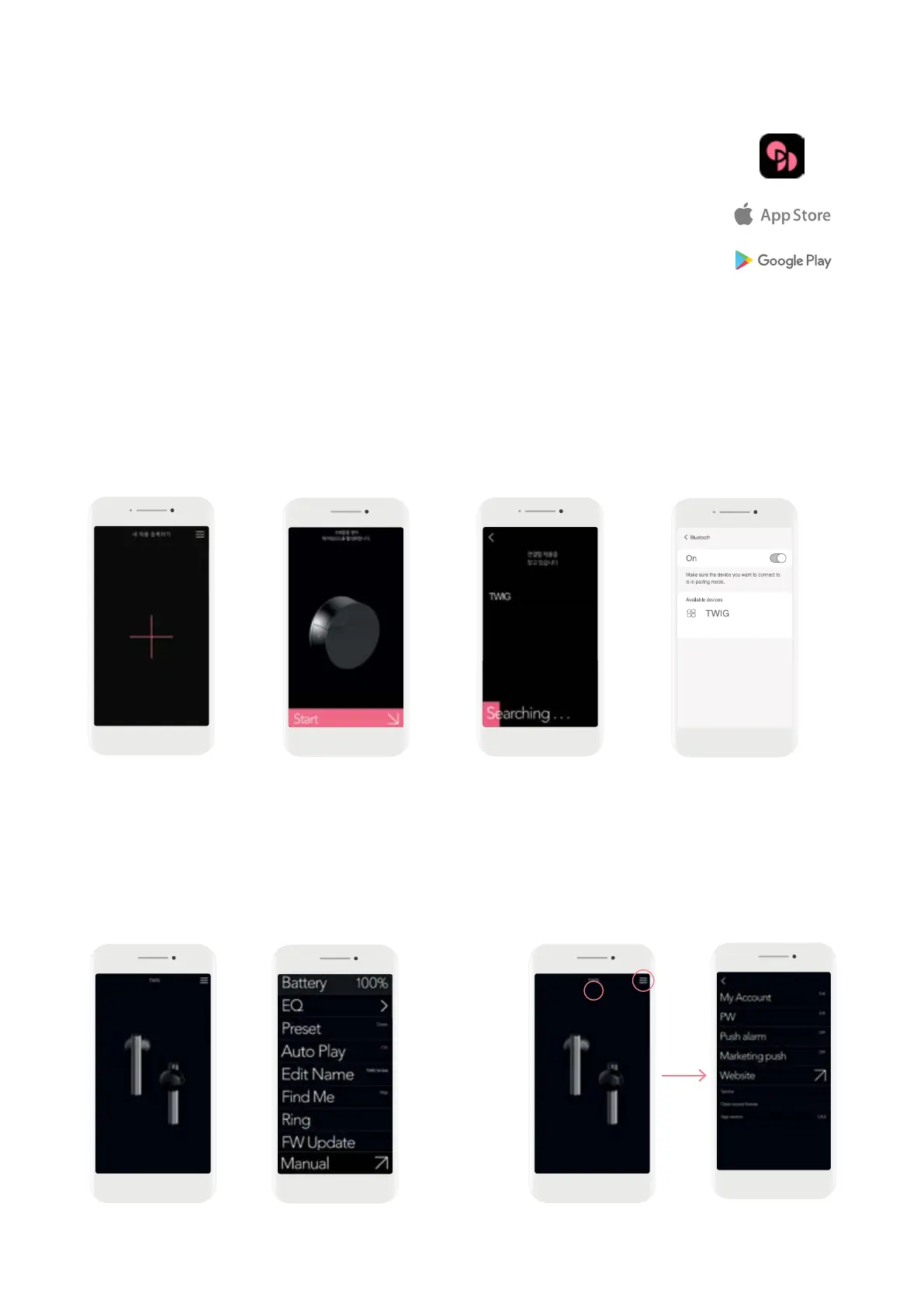
12.3 How to use the ODDICT APP
A The name of the connected TWIG device will be displayed.
Whenregisteringforthefirsttime,itwillbemarkedas‘TWIG’andcanbelatermodifiedintheODDICTapp.
B If you tap the TWIG image, you will be taken to the TWIG menu screen.
C C Moves to the APP settings screen.
Main Screen Main ScreenTWIG Menu Screen APP settings Screen
A
C
12. ODDICT APP
This is the dedicated app for TWIG which provides a variety of control functions
including equalizer, changing device name for personalization.
12.1 Download the ODDICT APP
① Search for ODDICT in the Google Play or Apple App Store and download/run the app.
② Create an account and log in.
12.2 Register your TWIG
① To connect your TWIG to the app, place both earbuds in the case.
Leave the case open and add the device through the app.
※IfthereisaTWIGalreadyregistered,swipelefttoseeanewregistrationpage.
②Followtheguidetoopenthecaseandtouch‘START’atthebottomofthescreen.
③IfyourTWIGappearsinthesearchdevicelist,selectittocontinuethepairingprocess
④GototheBluetoothsettingsoftheconnecteddeviceandcompletethedeviceconnection.
※IfTWIG_LEandTWIGareshownatthesametimeintheBluetoothconnectionsettings,connectto‘TWIG’.


 To Next Page