8. Managing music (play & control)
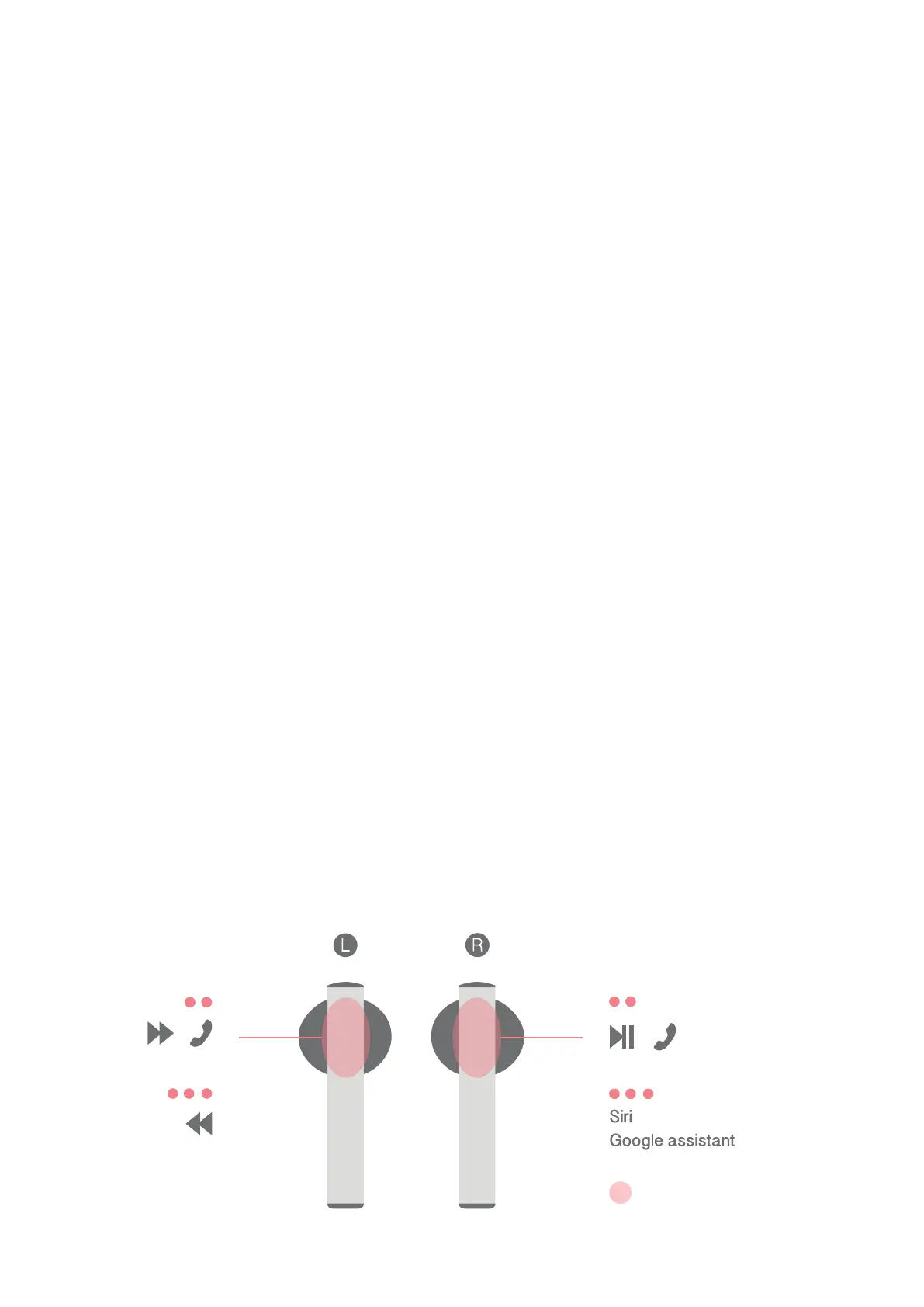
Tap the TWIG earbuds to manage the music of the connected Bluetooth device. Please check the
recommended tap position (top of earbuds) as shown in the picture below.
1) Play/stop music
①Double-taptheright(R)earbuds●● to play music from the Bluetooth device.
②Double-taptheright(R)earbuds●● to stop the song if it’s playing.
2) How to use the change song function
①Double-taptheleft(L)earbuds●● to skip to the next song.
②Triple-taptheleft(L)earbuds●●● to go back to the previous song.
※Youcanalsocontrolthemusicdirectlyfromthe‘BluetoothDevice’
※FunctionsmayvarydependingonthepairedBluetoothdevice.
※Tapmorefirmlyifcontrolsdonotoperateproperly.
9. Call Functions
If you receive a call while using TWIG, tap the earbuds to answer and end the call.
1) Answering a call
Tap earbud twice ●●to accept / end a call.
2) Ending a call
When the call is over, double-tap the earbuds●● to end the call.
(In the case of a call received while listening to music, the music will automatically pause and will play again
when the call ends.)
※Whenconnectingtoacall,theaudiowillcomeoutoftheearbuds.
※FunctionsmayvarydependingonthepairedBluetoothdevice.
※Mayneedtopressfirmlyonbuttons.
※Whenyouclick/touchontheconnecteddevicetoansweracall,thecallwillconnecttothedevice.
Recommended
tap location


 To Next Page