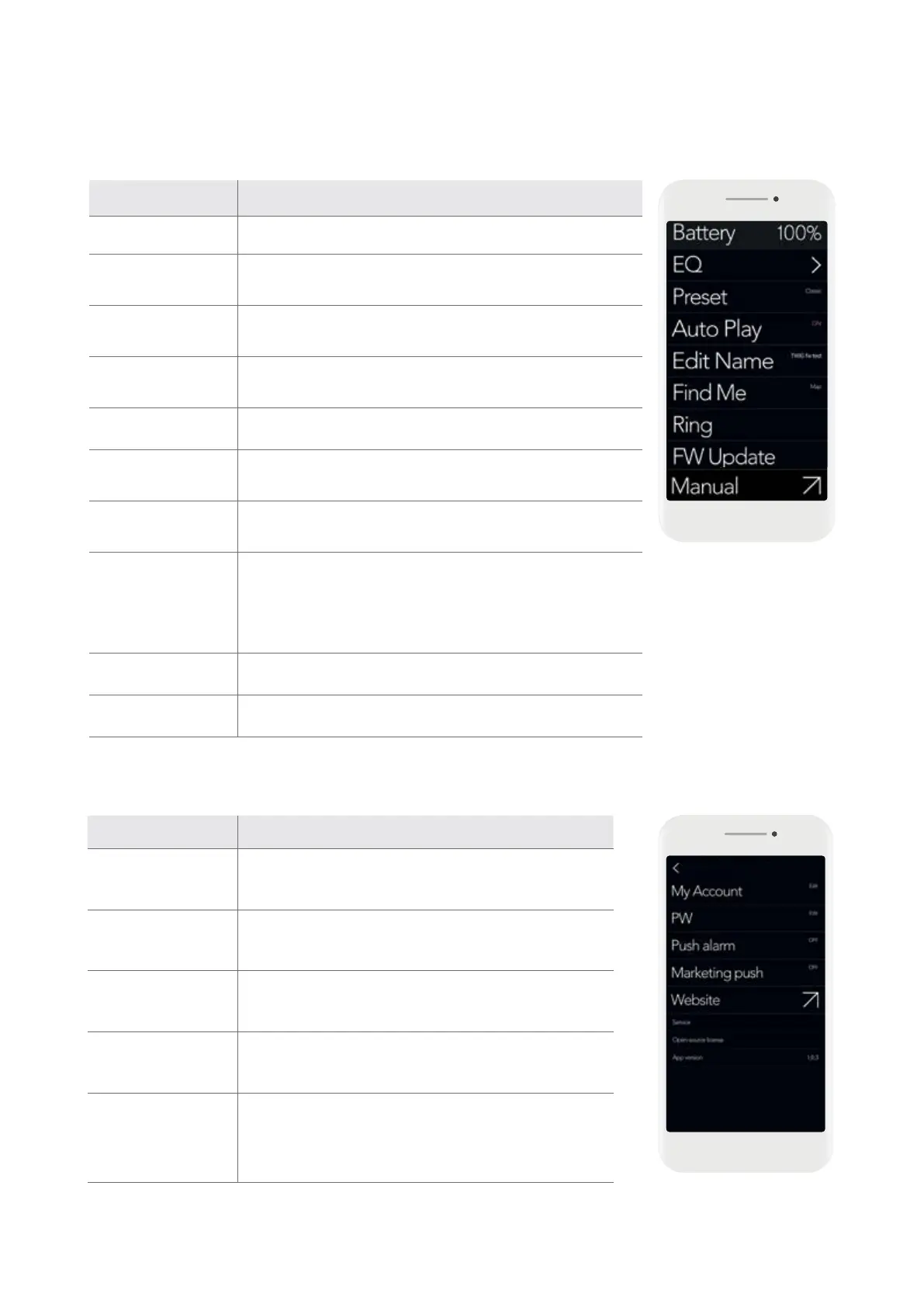
Menu Items Explanations
Battery The remaining battery level of the earbuds is displayed.
EQ Set the desired sound profile an and save it as a preset.
Preset
EQ profiles can be selected based on the music genre or
sound profile presets (Up to 6 can be created).
Auto Play
Turn on/off the auto play function that automatically plays
music while wearing the earbuds.
Edit Name Set the name of the registered device.
Find Me
Find the location where the registered product was last
connected to the device.
Ring
A 2 kHz high-pitched tone will sound to indicate the
location of the earbuds.
FW Update
Check the version of the app and update the firmware.
※Whenafirmwareupdateisrequired,itwillbeindicatedbypinkcolor.
※Pleasewaituntiltheupdateiscomplete
※Aftertheupdateiscompleted,thedevicenamewillautomaticallybe
changed to TWIG.
Manual Check the manual of the registered device.
Delete Delete registered device.
B) TWIG Menu Screen
Once TWIG is added on the app, go to the Bluetooth settings to complete the paring process.
YoucansetadditionalfunctionsfortheTWIGthroughtheapp.
Menu Items Explanations
My Account
Check the login account information connected with
the app.
Push alarm Receive or block notifications provided by ODDICT.
Marketing push
Receive or block marketing notifications provided by
ODDICT.
Website Link to the ODDICT official website. (www.oddict.co.kr)
Service
Open-Source
license App Version
Check the version of the app, license information,
terms of use, and privacy policy.
C) APP setting Screen


 To Next Page
 Loading...