GUI Components
This section is an introduction to the basic components of Bazille’s user interface.
Knobs and sliders
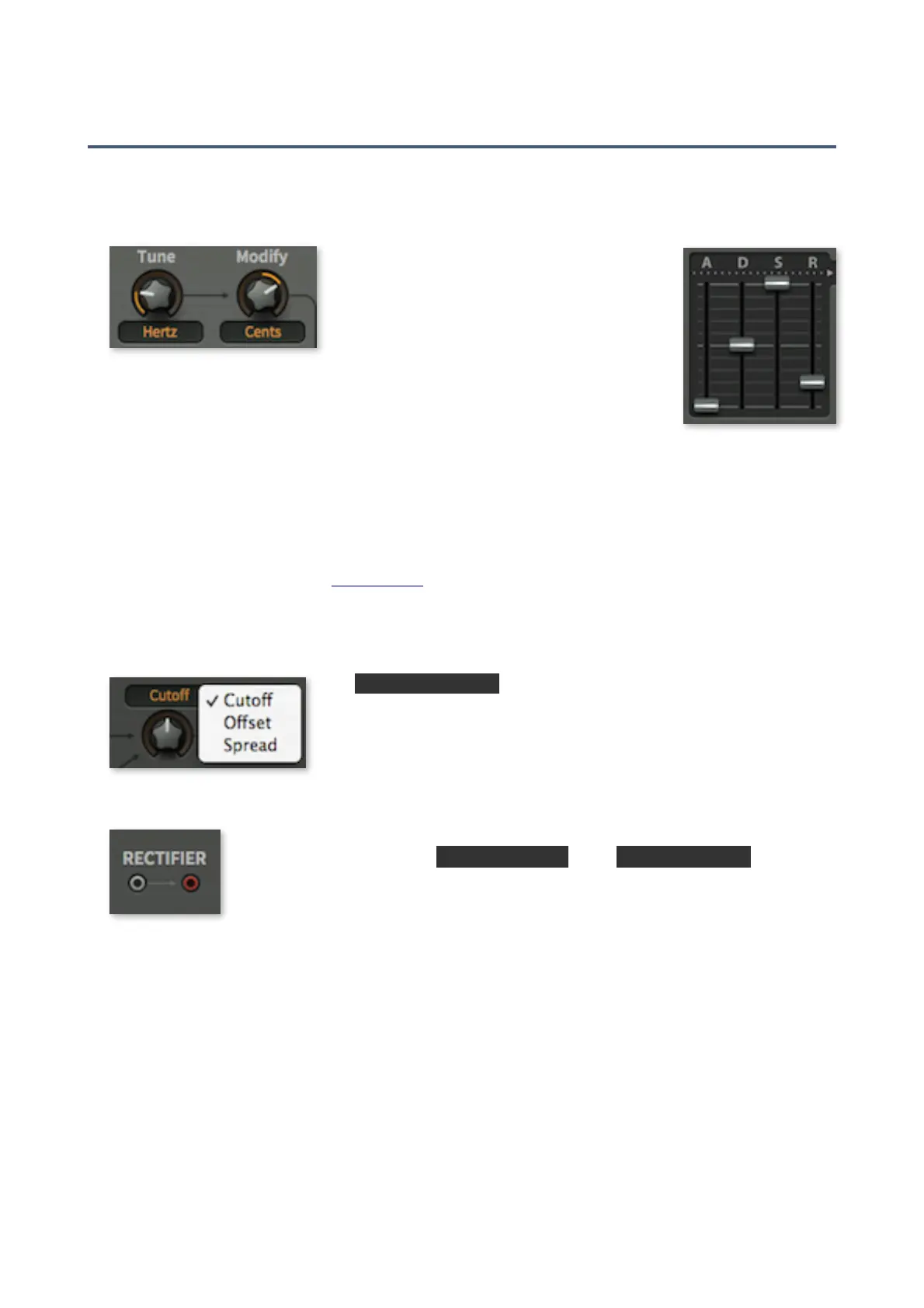
There are two types of controls: unipolar
and bipolar. Unipolar knobs and sliders only
allow positive values, while the bipolar
knobs and sliders allow negative values,
often within a range of -100 to +100.
The image above shows the two oscillator tuning controls – the Tune
knob is clearly unipolar and the Modify knob is bipolar. Envelope sliders
are unipolar (despite the central line), while sequencer sliders are bipolar.
All knobs and sliders allow the following methods of adjustment:
•
Coarse control: Click+hold with the left mouse button, then drag up and down.
•
Fine control: For 0.01 steps, hold down one of the SHIFT keys beforehand.
•
Mouse wheel: If your mouse has a scroll wheel you can hover over the knob/slider and roll
the wheel. For fine control hold SHIFT at any time. If your mouse wheel is rastered (it has
subtle ‘clicks’), go into the Preferences and switch on the Mouse Wheel Raster option.
•
Reset to default value: Double-clicking a knob reverts to a useful default value, often zero.
Selectors
The
orange-on-black
text fields contain a list of options. Note that
some of them also serve as labels for the accompanying knob.
Click on a selector to open the list, or roll your mouse wheel to scroll
through the options.
Sockets and cables
Bazille’s modules are connected together (‘patched’) using virtual cables. The
sockets are colour-coded:
inputs are grey
while
outputs are red
.
To make a connection, drag and drop between an output socket and an input
socket (either direction will work). Outputs will happily accommodate several
cables, while inputs accept just one (any existing connection is replaced).
As a rule you can’t connect two inputs together, but there’s one exception: Dragging a cable
from an unused input to one that is already in use creates a ‘daisy-chain’. The source will be
patched to both inputs. Try it!
By clicking on active sockets, you can…
•
move inputs: drag+drop the input end to a different input socket.
•
duplicate cables: shift+drag the input end to create another cable from the same output.
•
move outputs: right-click on the output end, drag+drop onto a different output.
•
remove cables
: either double-click the input end, or drag+drop away from the socket.
•
change cable colour: click on the input end of the cable until it appears in the desired
colour. If you double-click by mistake (removes the cable), click on the UNDO button.


 To Next Page