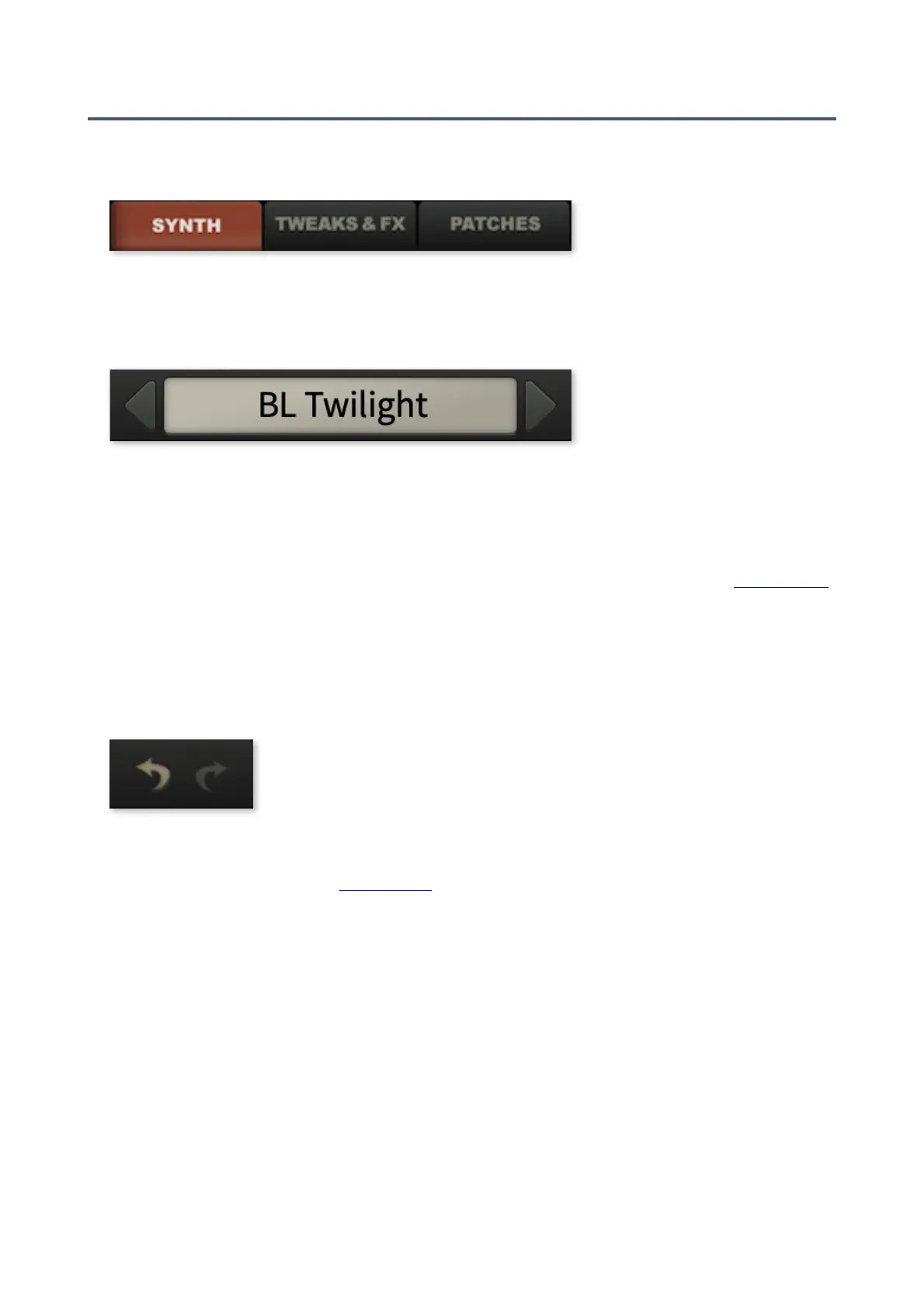
The Control Bar
Along the top is a bar containing page switches, the data display plus a few global elements:
Page switches
SYNTH patching, all basic parameters ....................
TWEAKS & FX filters 3 and 4, maps, extra envelope settings, global settings, effects... ........
PATCHES the preset browser / librarian ................
Data display
The Data Display normally shows the name of the current patch. Clicking on the triangles to the
left and right steps through patches. Clicking on the patch name lets you select a patch in the
current directory. Since version 1.1.1 you can even load a preset by dragging it from your
desktop (or any system window) onto the data display. While editing a patch it shows the
parameter name and value for a few seconds before reverting to the patch name.
New feature: If you drag a Bazille preset from elsewhere (e.g. your desktop) and drop it onto the
data display, that preset will be loaded but not automatically saved anywhere. See Drag & Drop.
Initialize
To load a simple template, right-click on the data display and select init (initialize). If you want to
start from scratch every time you open an instance of Bazille, save this under the name default
into the Local root directory.
Undo / Redo
Use the UNDO / REDO arrows to fix recent mistakes. Although the number
of undo steps is limited to 10, you can even undo a change of preset: So
switching presets before saving doesn’t mean losing your work!
Save
Stores the preset into either the currently selected folder or the User folder, depending on the
Save Presets To setting (see Preferences). To select a different folder, click on PATCHES and
navigate in the directory. Then click on [Save], give your preset a suitable name and enter any
details you would like to appear in the INFO area of the browser. Please avoid using the
following characters: (\ / ? % * : " > < =).
Right-clicking on [Save] opens a menu with a choice of file formats. h2p is our standard cross-
platform format, while h2p extended includes extra readable information. The native option is
the standard format of your system (.fxp for VST and AAX, .aupreset for Audio Units).
MIDI
To the left of this label is an indicator which flashes whenever MIDI data is received.
Output
The main volume control and signal / overload indicator (turns red if you overload the output).
Revision number
Please quote this number when you report any trouble to our support.


 To Next Page