Getting Set-Up
For the initial set up, you MUST register your
EYE MINI using the Uneekor Launcher with
your PC prior to using an iPad.
You can do this by connecting to your PC or
by connecting directly to your router.
Please see the next steps to complete this
process.
Ethernet- Direct to PC
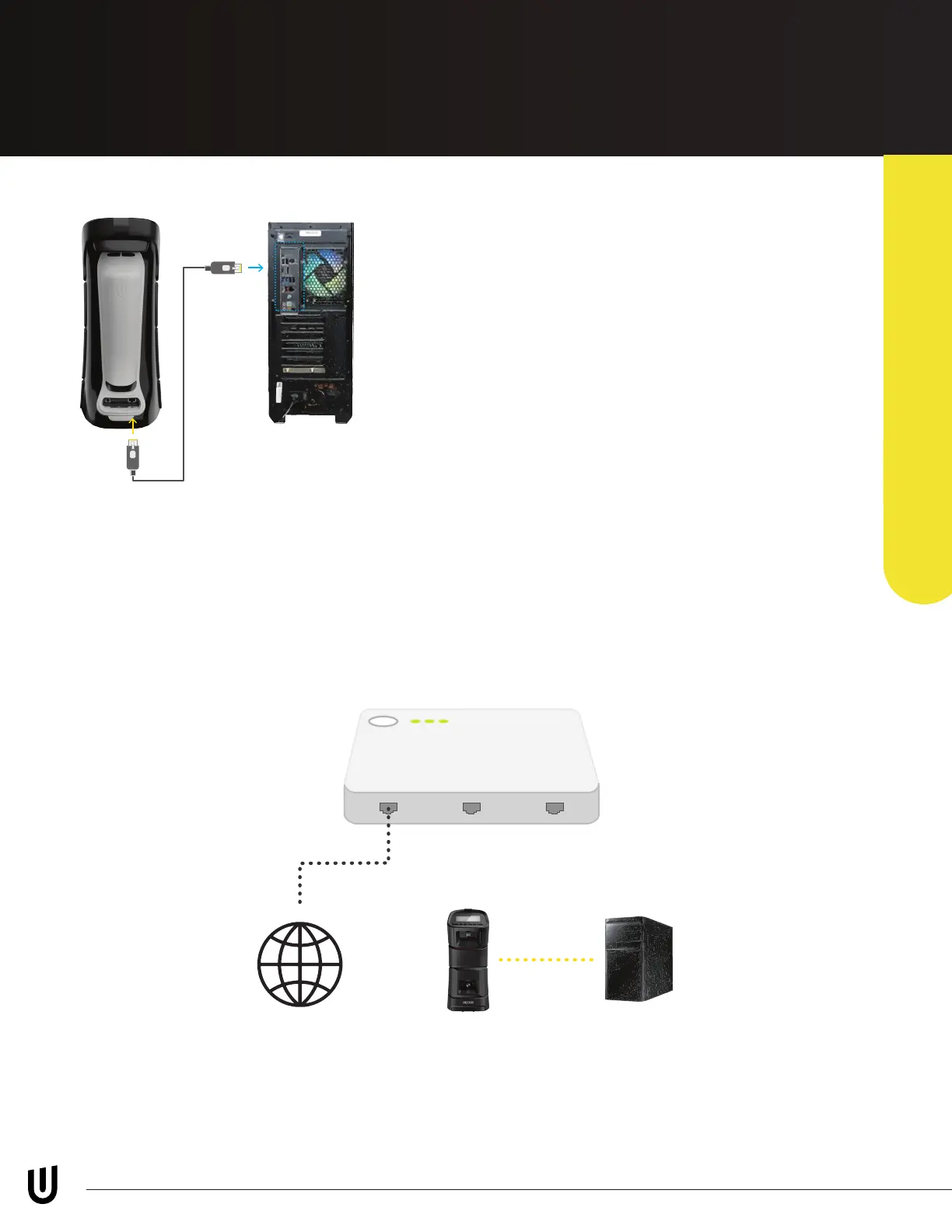
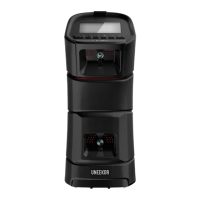
To connect your EYE MINI with PC, connect the ethernet cable from the PC to the back of the EYE
MINI. Ensure the Ethernet option under settings on the EYE MINI is set to “STATIC” and WiFi is
set to “Station.” Once ethernet is connected to EYE MINI and PC, you will see your launch monitor
under the DEVICES tab in the Uneekor Launcher.
When connecting using this method, in the Uneekor Launcher under devices, make sure ethernet is
selected, then click “connect”.
*EYE MINI is connected to the internet through WiFi for system update and license check
*PC and EYE MINI are connected directly for data communication
EYE MINI USER MANUAL 14
Page 14 Diagram 2 - EYE-MINI Manual Diagrams
EYE MINI
Static IP
PC
Static IP
172.16.1.100
Internet
Page 14 Diagram 1 - EYE-MINI Manual Diagrams
*Not sure about this computer graphic...
we could buy a stock image or I can
make one if we want to replace it
Internet Connection
**IMPORTANT**


 To Next Page