2.
CONFIGURING THE TITANIUM USING THE WEB
INTERFACE
MINIMAL SYSTEM REQUIREMENTS
The WebGUI is supported by the following web browsers:
- Google Chrome
- Mozilla Firefox
- Internet Explorer
- Safari
Make sure to use the most recent version of the browser. When using a different
browser, we cannot guarantee a correct functioning of the interface.
LOGGING IN TO THE DEVICE
Plug one end of an Ethernet cable in the control port and the other end in a computer.
Once the Titanium is powered and fully booted, the module is reachable and ready to
be configured.
For a more reliable WebGUI connection, we advise to use fixed IP or DCHP.
Therefore, carefully follow the steps below:
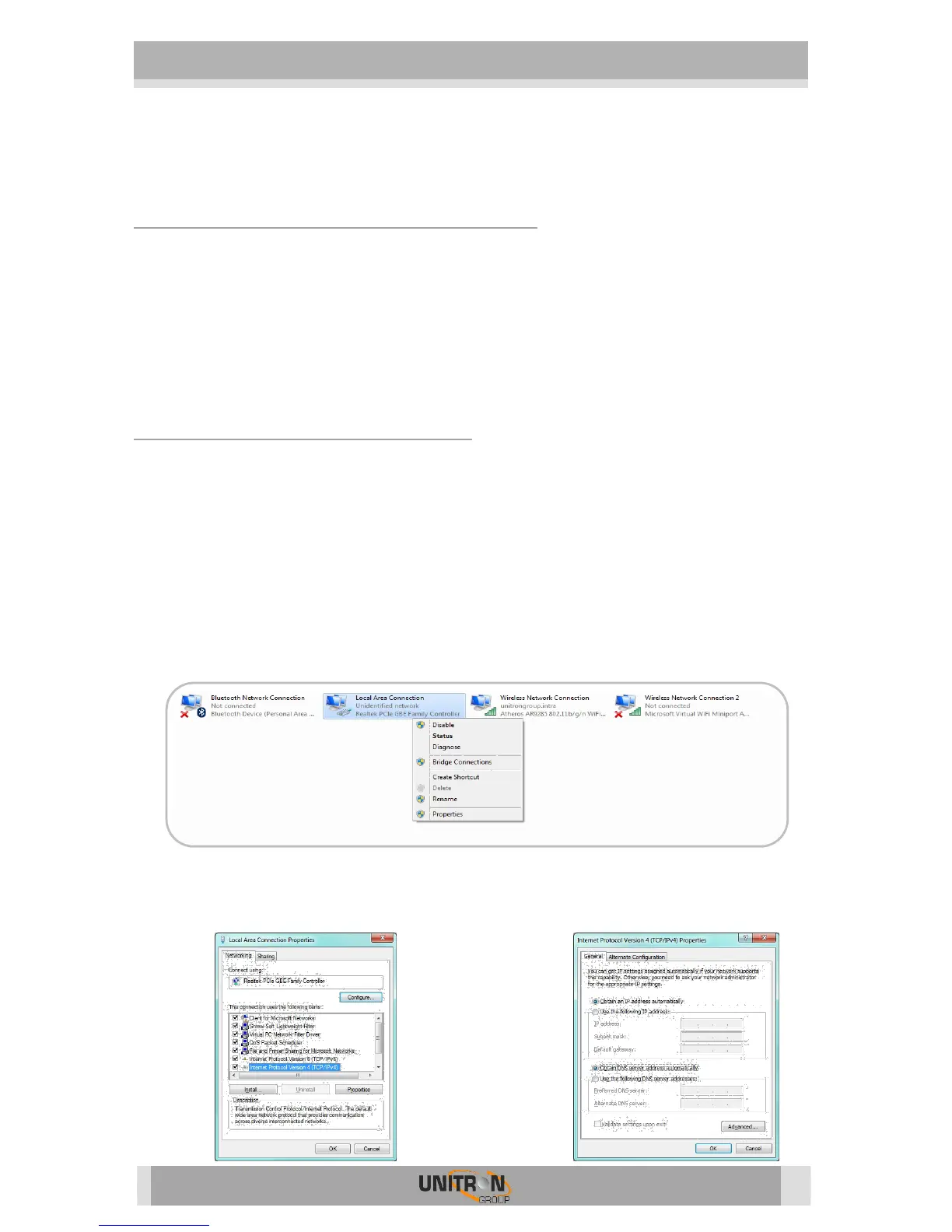
1. Set the computer to obtain an automatic IP address as explained in the
following procedure (for Microsoft Windows10®)
o Navigate to the Control Panel (Start Control Panel).
o Enter the Network and Sharing Center and go to the Adapter Settings
o Right-click on the Local Area Connection and choose Properties.
o Double click Internet Protocol Version 4 (TCP/IPv4) to enter the IP
settings of your adapter.
o Make sure the ‘Obtain an IP address automatically’ checkbox is
selected.
o Click OK to save the settings.


 To Next Page