Link to Table of Contents
User Guide
221
ULS Reference Guide Book
Optimizing Windows
Windows XP, by default, displays many “visual
eects” that slow down the computer. We
recommend that you turn o these eects by
right-clicking on the “My Computer” icon on your
desktop, then click “Properties” and then click the
“Advanced” tab. In the Performance section, click
“Settings,” then click “Adjust For Best Performance”
and then click “Apply.”
Computer Power Management
Power management is a conguration setting in Windows XP and Windows Vista that reduces the energy
consumption of computers and monitors by shutting them down after a period of inactivity. However, since your
computer is a critical component in the operation of the VLS system, you do not want your computer to go into
the Standby or Hibernate modes while your laser system is operating. Contact your IT Department if you need help
in conguring your computer.
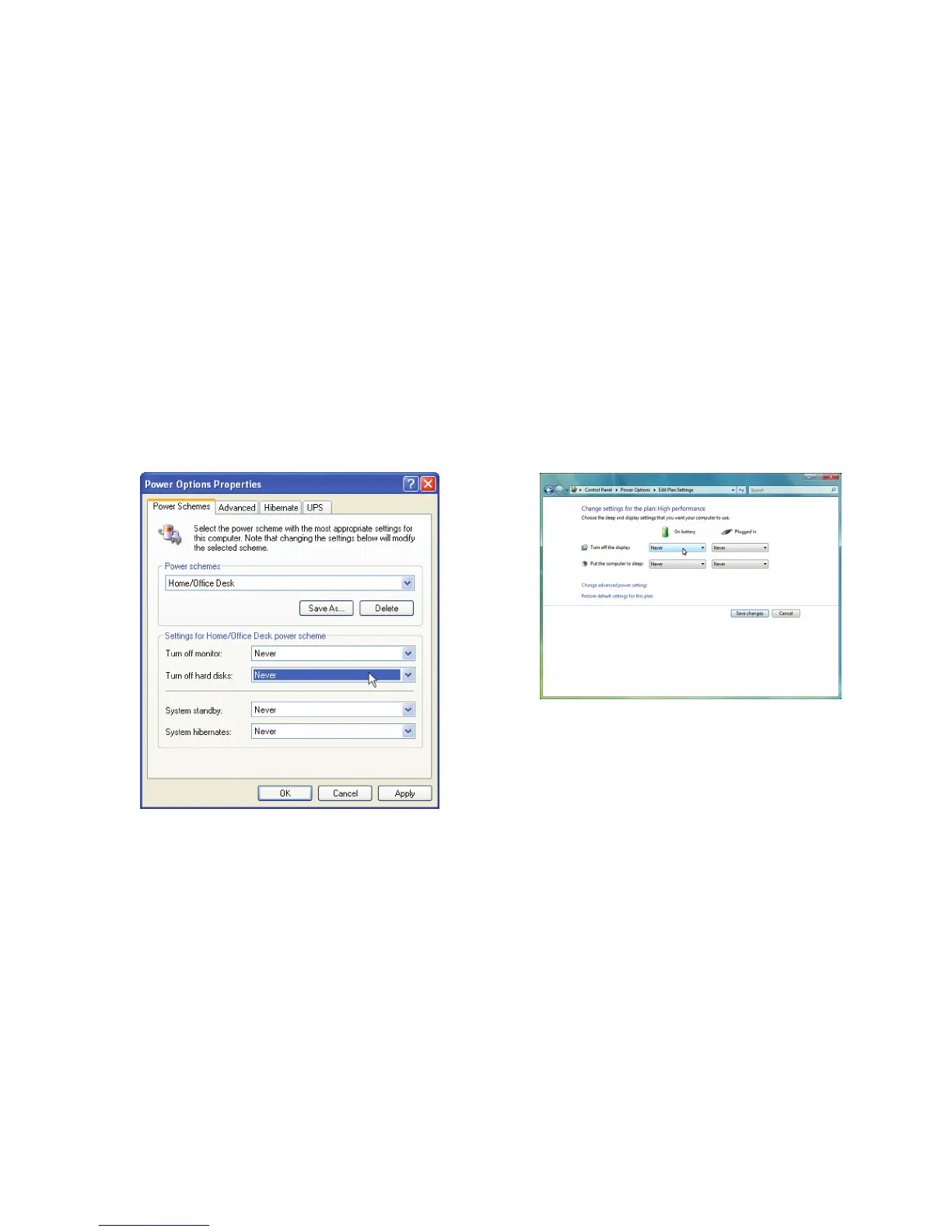
For the Power Scheme in use, select “Never” for all the
setting options: Turn o monitor, turn o hard disks,
system standby and system hibernates.
XP Performance
Vista Performance
Windows Vista, by default, displays many “visual
eects” that slow down the computer. We
recommend that you turn o these eects by clicking
the “Start” button, right-clicking on “Computer,”
then click “System Properties” and then click on
“Advanced System Settings” link. In the Performance
section, click “Settings,” then click “Adjust For Best
Performance” and then click “Apply.”
XP
Vista
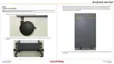
For the Power Scheme in use, select “Never” for all the
setting options: Turn o display and Put the computer to
sleep.



 To Next Page