Launching OSD menu
To launch the OSD menu:
1.
Press the OSD activation button on the front panel. The main menu displays on the screen.
2.
To select a menu item, scroll up or down by pressing OSD scroll up and down button.
3.
Press the OSD activation button again to select your choice. A second level will expand menu items.
Navigating OSD
To navigate through the OSD menus and functions:
•
Use the Up (+) or Down (-) button to scroll through the OSD menu or an OSD sub-menu. The Up (+) and
Down (-) button are also used to adjust or change a function setting.
•
Use the OSD activation button to select a sub-menu or a function.
Example:
To exit the OSD menu:
1.
Press the Down (-) button to scroll to the Exit function.
2.
Press the OSD activation button to select the Exit function and exit the OSD menu.
OSD menu
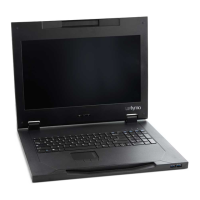
The OSD menu provides access to display settings and functions, enabling the user to customize the UPG 1U
Rackmount Console display settings.
Auto Configuration
The Auto Configuration option performs four functions automatically:
•
Auto Level—Automatically adjusts the black and white levels of the screen
•
Auto Position—Automatically adjusts the position of the screen
•
Auto Phase—Automatically adjusts the phase
•
Auto Clock—Automatically adjusts the output clock per line to match the input
Brightness/Contrast
The Brightness/Contrast option contains the following options:
•
Brightness
•
Contrast
•
Exit sub-menu
Brightness
The Brightness option displays a slider bar to enable the adjustment of the backlight brightness.


 To Next Page