Urive Zest ... 21 ... User's Guide
09. Urive Zest GUI -Menu screen
#
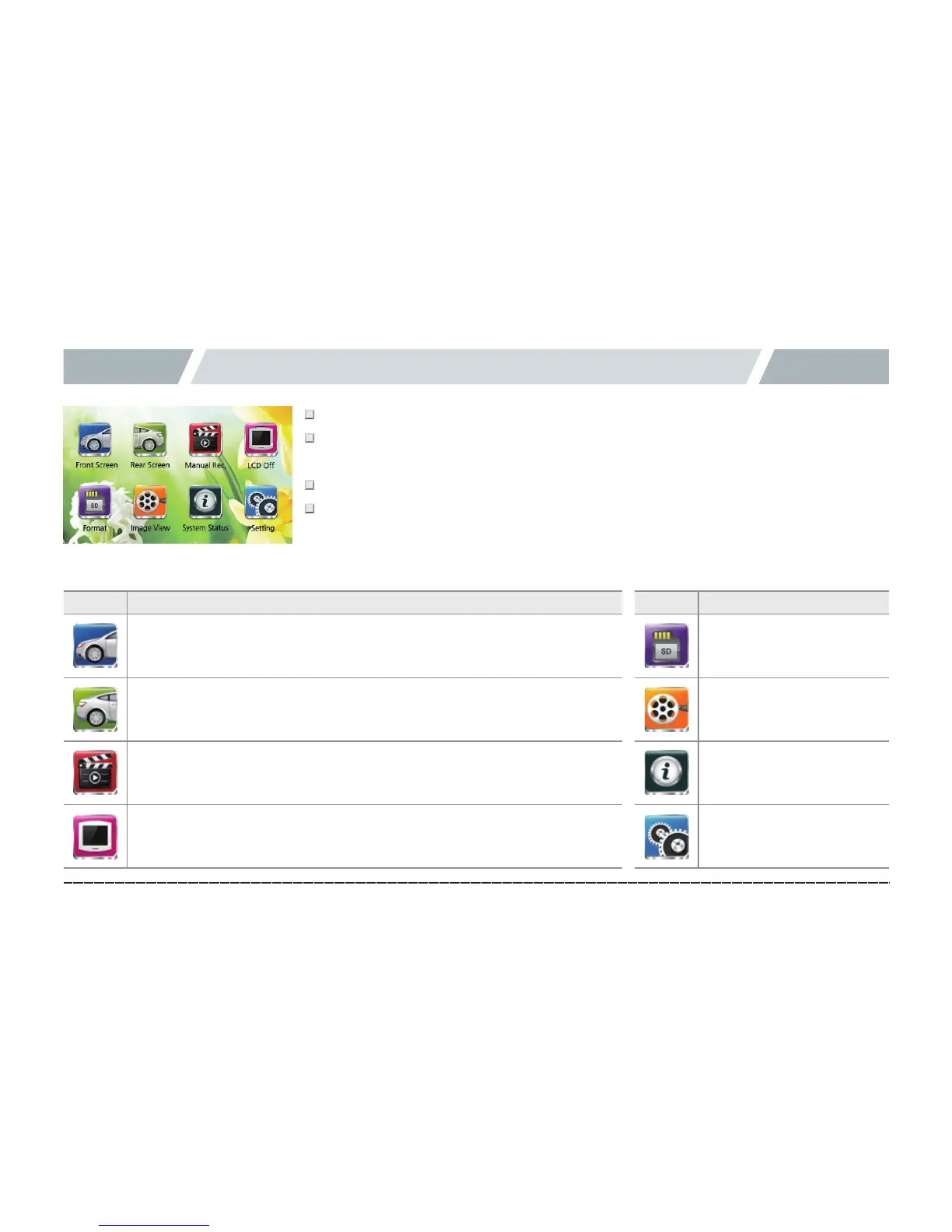
In the driving mode, touch the LCD to show the menu screen.
#
The menu screen has 6 icons: Front view, Rear view, Format SD, Video list, System
state, and Settings.
#
In the menu screen, video and voice recording doesn't stop.
#
It shifts to the screen saver when on standby for 1 minute. (If the screen saver is
enabled)
Icon Meaning
Front view
Shows real-time view of the front camera.
Rear view
Shows real-time view of the rear camera
Manual recording
It automatically recognizes events so a video from 10 seconds before to 20 seconds
after (30 seconds duration) is saved to the Event folder. (The size is limited to 35Mbyte).
LCD OFF
LCD is turned off. Touch the LCD to turn it on.
Icon Meaning
Format
Format the SD card
Video list
List of recorded videos
System state
Check the state of the black box
Settings
Configuration



 To Next Page