ClearVIEW HD-20SE QUSB SYSTEM
ClearVIEW HD-20SE QUSB SYSTEM, Document Number 342-0936 Rev C Page 2 of 46
TABLE OF CONTENTS
Overview .................................................................................................................................................................... 4
Unpacking: ................................................................................................................................................................. 5
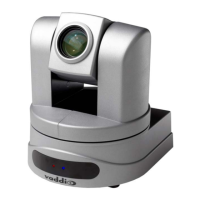
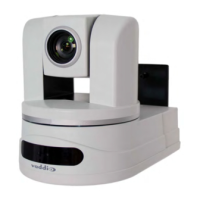
Anatomy of the ClearVIEW HD-20se HD PTZ Camera ............................................................................................ 6
Image: Front View ClearVIEW HD-20SE ............................................................................................................ 6
Image: Rear View ClearVIEW HD-20SE Connectors ........................................................................................ 7
Anatomy of the Quick-Connect USB Interface .......................................................................................................... 7
Image: Front Panel with Feature Call-outs ........................................................................................................ 8
Image: Rear Panel with Feature Call-outs ......................................................................................................... 9
Table: Quick Connect USB Rear Panel DIP Switch Settings ........................................................................... 9
Basic Application Diagram ....................................................................................................................................... 10
Diagram: ClearVIEW HD-20se QUSB in UC Conferencing Application ......................................................... 10
First Time Set-up with the ClearVIEW HD-20se QUSB System ............................................................................. 11
Image: ClearVIEW HD-20SE Rear Panel Connections ................................................................................... 11
Drawing: Dip Switch and Resolution Label on the Bottom of the HD-20SE ..................................................... 11
Installation Procedures ............................................................................................................................................ 12
Installation Basics: ............................................................................................................................................... 12
General Installation Instructions for the CONCEAL Wall Mounting System: ....................................................... 12
Quick-Connect USB Installation Instructions ........................................................................................................... 14
Controlling the Quick-Connect USB ..................................................................................................................... 14
Quick-Connect USB Details ................................................................................................................................. 14
Controlling the Camera ............................................................................................................................................ 15
IR Remote Commander ................................................................................................................................... 15
Telnet Control of the Camera through the Quick-Connect USB ...................................................................... 15
Quick-Connect USB Software Compatibility ........................................................................................................... 16
Table: Supported UVC Resolutions ................................................................................................................ 16
Quick-Connect USB Internal Web Pages and Control ............................................................................................ 17
DHCP IP Set-up (Dynamic Host Configuration Protocol) .................................................................................... 17
Static IP Set-up: ................................................................................................................................................... 17
Quick-Connect USB Web Pages Tour: ................................................................................................................ 17
Screen Shot: Login .......................................................................................................................................... 17
Screen Shot: User Menu - Camera Control Page ........................................................................................... 18
Screen Shot: Admin login from the Camera Control Page ............................................................................. 19
Screen Shot: Admin Menu - Camera Settings ................................................................................................ 20
Screen Shot: Admin Menu - Room Labels ...................................................................................................... 21
Screen Shot: Admin Menu - USB 2.0 or IP Streaming Mode Page ................................................................ 22
Screen Shot: Admin Menu - DHCP Network Configuration ............................................................................ 23
Screen Shot: Admin Menu - Static IP Configuration ....................................................................................... 23
Screen Shot: Admin Menu - Security .............................................................................................................. 24
Screen Shot: Admin Menu - Diagnostics ........................................................................................................ 24
Screen Shot: Admin Menu - System Menu ..................................................................................................... 25
Screen Shot: Admin Menu - Update Confirmation .......................................................................................... 25



 To Next Page