EasyManua.ls Logo

VADDIO RoboSHOT 20 UHD - User Manual

VADDIO RoboSHOT 20 UHD
104 pages
Print Icon
To Next Page IconTo Next Page
Loading...
Complete Manual for
RoboSHOT 20 UHD
and RoboSHOT 40 UHD
Professional PTZ Cameras
Document 411-0028-30 Rev. C
January 2019

Table of Contents

Other manuals for VADDIO RoboSHOT 20 UHD

Questions and Answers

  • H
    herringjoseAug 16, 2025
    What to do if VADDIO RoboSHOT 20 UHD is not working?
    • M
      Molly LesterAug 16, 2025
      If your VADDIO Security Camera shows no status light, video, or response to the remote, start by checking all cables with known good ones. If using a OneLINK extension, ensure it's properly connected to the camera. If problems persist with OneLINK, bypass it by connecting the camera directly to the included 12V power pack to isolate the issue. If the camera then works, the OneLINK is faulty and you should contact your reseller or Vaddio Technical Support. Also, verify that the wall outlet is active by testing it with another device.
  • L
    Laura JenningsAug 19, 2025
    What to do if the VADDIO RoboSHOT 20 UHD Security Camera light is off?
    • A
      andersondeborahAug 19, 2025
      If the light on the front of your VADDIO Security Camera is off, here are a few things to check: * Ensure all cables are working correctly by testing them with known good cables. * If using a OneLINK extension system, make sure it's properly connected to the camera. If the OneLINK system isn't working, disconnect it and connect the camera directly to the 12V power pack. If the camera then works, the OneLINK is faulty and you should contact your reseller or Vaddio Technical Support. * Verify the wall outlet is active by testing it with another device. * If none of the above steps work, the camera or its power supply might be defective.
  • D
    Daniel MartinezAug 22, 2025
    Why VADDIO RoboSHOT 20 UHD doesn't respond to the remote, but the web interface is available?
    • M
      Michelle GarciaAug 22, 2025
      If your VADDIO Security Camera isn't responding to the remote but the web interface is accessible, the issue might be: * The remote is not on the same IR channel as the camera. Try pressing the Camera Select 1 button on the remote, and other Camera Select buttons if needed. * IR is disabled. Turn IR on by setting DIP switch 3 up. * The remote's batteries are dead. Replace them with new batteries.
  • D
    Dr. John HopkinsAug 26, 2025
    How to fix VADDIO Security Camera not responding to RS-232 commands, but web UI is available?
    • A
      Adam GutierrezAug 26, 2025
      If the web UI for your VADDIO Security Camera is available but the camera doesn't respond to RS-232 commands, consider these solutions: * Ensure the RS-232 cable is properly connected and functioning. Try using a known good cable. * Verify that the camera's RS-232 settings match the settings on the controlling device. You can check the camera's settings on the System page in the web UI and adjust them as needed.
  • D
    Deborah MullinsAug 28, 2025
    What to do if VADDIO RoboSHOT 20 UHD responds to the remote, but the web interface is unavailable?
    • P
      Patrick ClarkAug 28, 2025
      If your VADDIO Security Camera responds to the remote but the web interface is unavailable, the camera might not be using the IP address you are browsing to. Press the Data Screen button on the remote to view camera information.
  • G
    gmaysAug 31, 2025
    What to do if VADDIO RoboSHOT 20 UHD is not responding to the remote and the light is yellow?
    • L
      Lisa MarksAug 31, 2025
      If your VADDIO Security Camera is not responding to the remote and the light is yellow, a firmware update may be in progress. Wait a few minutes and try again when the light turns blue.
  • L
    Leah AllenSep 3, 2025
    How to fix poor video stream quality on VADDIO RoboSHOT 20 UHD Security Camera?
    • J
      Jonathan VazquezSep 3, 2025
      If the video stream displays poorly on your VADDIO Security Camera, with issues like a jagged band, it could be due to the stream requiring more bandwidth than available. Try reducing the streaming resolution.
  • L
    Leslie MurphySep 6, 2025
    Why does VADDIO RoboSHOT 20 UHD lose settings when power is cycled?
    • K
      Kendra RobinsonSep 6, 2025
      If your VADDIO Security Camera loses all its settings when power is cycled, it might be because all the DIP switches are in the ON (down) position. Set the DIP switches to their proper positions; the default is all OFF (up).
  • K
    Kevin FrenchSep 9, 2025
    What to do if the VADDIO RoboSHOT 20 UHD web interface has stopped responding?
    • B
      Benjamin SerranoSep 9, 2025
      If the web interface for your VADDIO Security Camera has stopped responding, reboot the camera.
  • H
    hhernandezSep 12, 2025
    How to enable H.264 video stream on VADDIO Security Camera?
    • S
      Sarah RiosSep 12, 2025
      If there is no H.264 video stream from your VADDIO Security Camera, verify that streaming is enabled on the Streaming page in the web interface.

Summary

Overview of RoboSHOT Cameras

Guide Contents

Lists the topics covered in this manual for easy navigation and quick reference.

Key Camera Features

Highlights the primary technical capabilities and specifications of the RoboSHOT cameras.

Quick Look at Camera Design

Front Camera View and Specifications

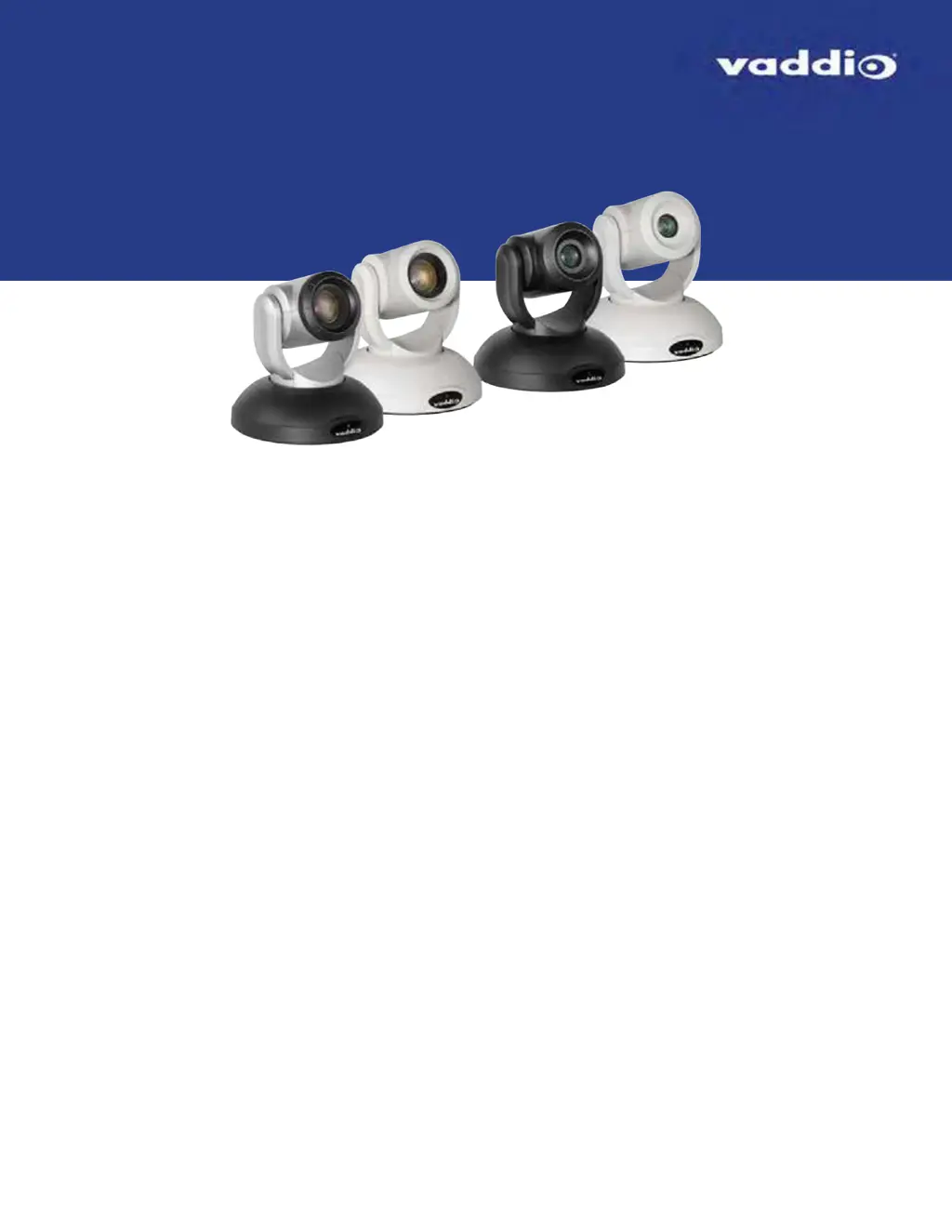
Details the visual appearance and zoom capabilities of the camera's front.

RoboSHOT 20 UHD Rear Panel

RoboSHOT 40 UHD Rear Panel

Camera Switch and Resolution Settings

Video Resolution Selector Guide

Explains how to use the rotary switch to set desired video output resolution.

RoboSHOT 20 UHD DIP Switch Configuration

Camera Installation Procedures

Warranty Protection During Installation

Important cautions to prevent voiding the camera's warranty during installation.

Pre-Installation Checklist

Essential considerations and preparations before beginning camera installation.

Wall Mount Installation

Ceiling Mount Considerations

Guidance for installing cameras in an inverted ceiling-mounted configuration.

Important Cabling Guidelines

Basic Camera Connection Diagrams

Power and Connectivity Options

RS-232 Serial Communication Setup

Serial Communication Speed and Encoding

Defines the communication speed and encoding parameters for RS-232.

RS-232 Connector Pinout

Details the pin configuration for the RS-232 serial port connection.

Step-by-Step Camera Installation

Camera Power-Up and Status Indicators

Understanding the Status Light

Explains the meaning of different LED colors and patterns for camera status.

Using the IR Remote Control

IR Remote Quick Reference

A summary of IR remote buttons and their corresponding camera functions.

Detailed IR Remote Functions

Storing and Clearing Presets with Remote

Instructions for saving and deleting camera preset positions using the IR remote.

Web Interface Navigation and Access

Obtaining the Cameras IP Address

Steps to find the camera's IP address for web interface access.

Accessing the Web Interface via Browser

How to connect to and use the camera's web interface through a browser.

Supported Web Browsers

Lists the web browsers tested and confirmed to work with the camera's interface.

Web Interface User Access Levels

Web Interface Administrative Access

Compact Menu View Option

How to switch between standard and compact views of the web interface menus.

Web Interface Control Summary

System Administration Tasks

Static IP Configuration for Non-DHCP Networks

Guide for setting a static IP address when no DHCP server is available.

Configuring Static IP Address Step-by-Step

Customizing Camera Hostname via Network Settings

Switching from DHCP to Static IP Addressing

Setting Time Zone and NTP Server

Managing User Access and Passwords

Disabling Telnet Server Access

Procedure to disable the camera's internal Telnet server for enhanced security.

Securing Web Interface with HTTPS

Adding Custom Room Information

Camera Configuration Backup and Restore

Installing Camera Firmware Updates

Rebooting the Camera System

Vaddio Technical Support and Diagnostics

Accessing Diagnostic Log Files

Instructions for downloading and emailing diagnostic logs for support.

Configuring Camera Operational Behavior

IP Streaming Setup Overview

Introduction to IP streaming, covering RTSP and RTMP protocols.

RTSP Streaming Setup: Easy Mode

RTSP Streaming Setup: Custom Mode

RTSP Streaming Protocol and URL Details

Viewing RTSP Streams

Steps to view the RTSP stream using a media player and the camera's URL.

RTMP Streaming Service Configuration

Selecting Enabled RTMP Streaming Services

Advanced Network Settings: MTU Adjustment

Stopping or Pausing IP Video Streams

Methods to stop IP streaming entirely or mute video output.

Camera Focus Adjustment Controls

Video Mute Behavior Settings (RoboSHOT 40 UHD)

Configuring color bars instead of black video when muting on RoboSHOT 40 UHD.

Customizing CCU Scenes for Lighting and Color

Performing Initial CCU Scene Adjustments

Steps for loading and adjusting factory CCU scenes for optimal image quality.

Detailed Lighting Adjustments

Fine-Tuning Image Quality and Color Parameters

Saving Custom Color and Lighting Settings

How to save customized lighting and color adjustments as custom CCU scenes.

Lighting and Image Quality Troubleshooting Tips

Color Adjustment Troubleshooting Tips

Setting Custom Camera Positions and Presets

Storing and Renaming Camera Presets

Procedure for saving camera positions and renaming them for easy recall.

Adjusting Camera Movement Speeds and Directions

Setting Camera Movement Speed

Using sliders to control pan, tilt, and zoom speed for manual movements.

Configuring Camera Movement Direction

Adjusting pan direction for intuitive camera control from the user's perspective.

RoboSHOT 40 UHD Genlock Configuration

Reading and Configuring Camera DIP Switches

RoboSHOT 40 UHD Software Switch Settings

Shared Software Switch Settings for Both Models

Operating Camera via Web Interface Controls

Camera Standby and Power Management

How to switch the camera between active and standby (low-power) modes.

Muting and Unmuting Video Output

Using the Mute button to stop or resume live video transmission.

Basic Camera Movement Controls

Manual Camera Movement Commands

Using arrow buttons for pan/tilt and zoom controls for manual operation.

Moving Camera to Preset Positions

Instructions for recalling saved camera shots using preset buttons.

Adjusting Camera Color and Lighting

Using saved CCU scenes or auto-settings for image adjustments.

Telnet Command Line Interface Reference

Telnet Command: Camera Home Position

Telnet Command: Camera Pan Control

Telnet Command: Camera Tilt Control

Telnet Command: Camera Zoom Control

Telnet Command: Camera Focus Control

Telnet Command: Camera Preset Management

Telnet Command: CCU Get Parameters

Telnet Command: CCU Set Parameters

Telnet Command: CCU Scene Management

Telnet Command: Indicator Light Control

Managing the camera's status indicator LED using Telnet commands.

Telnet Command: Camera Standby Status

Telnet Command: Video Mute Control

Using Telnet commands to mute or unmute the camera's video output.

Telnet Command: Streaming Settings Retrieval

Telnet Command: IP Streaming Enable;Disable

Telnet Command: Network Ping Utility

Using the ping command to test network connectivity to specified IP addresses.

Telnet Command: Network Settings Retrieval

Telnet Command: System Reboot

Initiating a system reboot for the camera via Telnet command.

Telnet Command: Factory Reset Configuration

Telnet Command: Session History and Version

Telnet Command: Help and Exit

Accessing command syntax help and closing the Telnet session.

RS-232 Serial Command Reference Overview

RS-232: Camera Movement, Zoom, Focus Commands

Detailed RS-232 commands for controlling camera pan, tilt, zoom, and focus.

RS-232: Pan, Tilt, Zoom Movement Commands

RS-232: Movement, Zoom, Focus Inquiry Commands

RS-232: Color and Light Management Commands

RS-232: Other Command Sets

Shutter Speed Value Mapping

Iris Position Value Mapping

Iris Gain and Limit Value Mapping

RS-232: Color;Light Inquiry Commands

RS-232: Other Inquiry Commands

Inquiry commands for power, IP address, tally, noise reduction, mute mode.

RS-232: Model Inquiry Commands

Camera Specifications Summary

Troubleshooting Common Camera Issues

Status Light Troubleshooting Guide

Diagnosing issues by checking the camera's status indicator light.

Cable Connectivity Troubleshooting

Steps to check cables for issues causing power or responsiveness problems.

Troubleshooting Power and Responsiveness

Troubleshooting Video and Streaming

Troubleshooting Camera Control Issues

Restoring Factory Default Settings

Factory Reset via Web Interface

Restoring original factory settings through the camera's web interface.

Hardware Factory Reset Procedures

Steps for resetting defaults using DIP switches or rotary switch.

Product Operation, Storage, and Care Guidelines

Compliance Statements and Declarations

FCC Part 15 Compliance Details

Information regarding FCC compliance for Class A digital devices.

ICES-003 Compliance Details

Canadian compliance statement for digital apparatus radio noise emissions.

European Compliance Standards

Warranty and Product Return Policies

Vaddio Customer Service and Technical Support

Contact information and procedures for customer service and technical support.

Return Material Authorization (RMA) Process

Steps for obtaining an RMA number and returning products for repair.

Warranty Voidance Conditions

Circumstances that will void the product's warranty coverage.

Shipping and Handling Policy

Guidelines for shipping products for warranty service and handling charges.

Out-of-Warranty Product Handling

Procedures and payment requirements for products outside the warranty period.

General RMA Terms and Advance Replacement

RMA Charges and Restocking Fees

Details on restocking fees for qualified returns and refused shipments.

Advance Replacement Policy Details

Conditions and procedures for obtaining advance replacement of Vaddio products.

Warranty Repair and Non-Warranty Repair Terms

Non-Warranty Repair Charges and Policies

Information on costs, labor, and policies for non-warranty repair services.

Minimum Labor Charges and Repair Estimates

Details on minimum labor charges and the process for obtaining repair estimates.

Repair Policy Notes and Warranty

Notes on repair duration, first-come-first-serve basis, and repair warranty.

Photo Credits

VADDIO RoboSHOT 20 UHD Specifications

General IconGeneral
Aspect ratio3:2, 4:3, 16:9
Maximum frame rate30 fps
Supported video modes720p, 1080i, 1080p, 2160p
Video formats supportedH.264
Maximum video resolution3840 x 2160 pixels
Supported graphics resolutions3840 x 2160
Megapixel9.03 MP
Sensor typeCMOS
Sync systemInternal
Digital zoom1.67 x
Optical zoom12 x
Combined zoom20 x
White balanceATW, Auto, Indoor, Manual, One push, Outdoor
Focus adjustmentAuto/Manual
Image sensor size1/2.3 \
Minimum illumination3 lx
Aperture number of steps16
Auto focusing (AF) modesAuto, Manual, One Push Trigger
Field of view (FOV) angle72 °
Effective sensor resolution8.93 MP
Signal-to-Noise Ratio (SNR)50 dB
Back Light Compensation (BLC)Yes
Horizontal field of view (tele)4.8 °
Maximum working distance (tele)1500 mm
Minimum working distance (wide)10 mm
Storage temperature (T-T)-20 - 60 °C
Operating temperature (T-T)-5 - 60 °C
Storage relative humidity (H-H)20 - 95 %
Operating relative humidity (H-H)20 - 80 %
Current3 A
DC input voltage12 V
Pan range-160 - 160 °
Product colorBlack, Silver
Tilt angle range-30 - 90 °
Number of persons- person(s)
Ethernet LAN (RJ-45) ports2
Cables includedAC
Tilt speed (min)0.35 °/sec
Harmonized System (HS) code85258900
Weight and Dimensions IconWeight and Dimensions
Depth196 mm
Width203 mm
Height200 mm
Weight2700 g
Camera dimensions (WxDxH)203 x 196 x 200 mm

Related product manuals