6 7
Firmware update in progress Blinking Green/
dimmed down
WAN Link Down (WAN cable unplugged/Ethernet link
down)
Solid Red
DHCP Discover Failed Solid Red
Wi-Fi
OK no issues (Everything working as expected) Solid Green then O
Wi-Fi crash + Any radio down + Any Wireless Problem Solid Red
Wi-Fi turned o by user Solid Yellow
3.3. Side panel
OPEN
RESET
WPS
WPS button and Reset pin
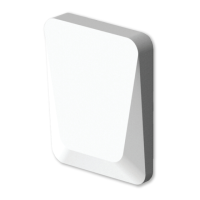
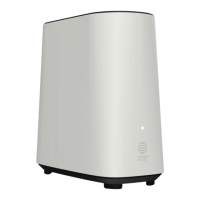
The WPS buon and reset pin hole is hidden under the side cover of your
OWM7111. The WPS buon is used to pair the OWM7111 with other Wi-Fi
devices.
4. Set up
The OWM7111 can be used:
• As a wired Wi-Fi 6E network enabler.
You will use this scenario in case your Internet gateway and/or network has
no WiFi, or Wi-Fi capabilies without Wi-Fi 6.
For this scenario, see “4.1. Wired Wi‑Fi 6E network enabler”.
• As a wireless Wi-Fi 6 network enabler.
You will use this scenario in case your Internet gateway and/or network has
Wi-Fi, but no Wi-Fi 6 and/or EasyMesh.
For this scenario, see “4.2. Wireless Wi‑Fi 6E network enabler”.
• As an EasyMesh network extender.
You will use this scenario in case you want to extend your exisng EasyMesh
WiFi network with addional coverage using the OWM7111. In such an envi-
ronment your Internet gateway or another Wi-Fi device is already operang
as the Wi-Fi EasyMesh controller.
For this scenario, see “4.3. EasyMesh network extender”.
To join an exisng EasyMesh network, you must rst enable EasyMesh on
your OWM7111 via its GUI or ayla networks cloud interface. For more infor-
maon, see “5.7. Congure your OWM7111 to your needs”.
4.1. Wired Wi‑Fi6E network enabler
This scenario allows you to add Wi-Fi 6E coverage using the OWM7111.
OWM7111IOT
ernet gateway
Wi-Fi device
Wi-Fi 6E
Ethernet cable
(not included)
WM71
a
e
POE
POE
LAN
Ethernet cable
(not included)
PoE adapter
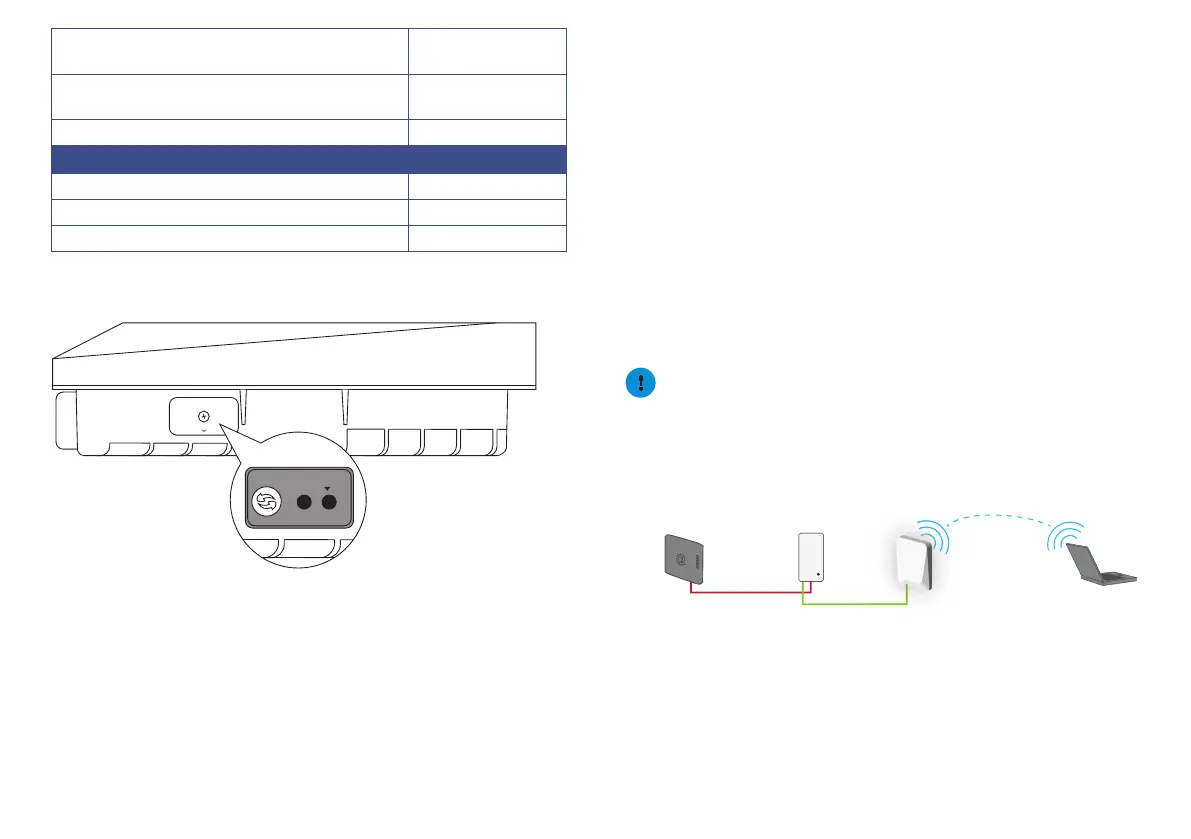
You will connect the OWM7111’s WAN port to the PoE port on the PoE adapter:
• Connect the internet gateway to the LAN port on the PoE adapter.


 To Next Page
 Loading...