12 13
or any Wi-Fi extender in the EasyMesh network.
Note: On some Internet gateways you may have to press and hold the WPS
buon for a few seconds or unl its WPS LED starts blinking.
3 During EasyMesh onboarding the Status LED on the OWM7111 goes through
(one or more of) the following states:
Flashing green & yellow (1 second each): EasyMesh onboarding started
and ongoing.
Flashing green (3 seconds) & yellow (1 seconds): EasyMesh network was
found but upstream onboarding ongoing or failing.
Flashing green (1 second) & yellow (3 seconds): No EasyMesh network was
found.
Once the Wi-Fi connecon is successfully established it will turn solid green,
yellow or red.
Note: If the Status LED is blinking red, go to “5.5. What to do when the Status
LED is blinking red?” for further instrucons.
5.4. Pairing Wi‑Fi devices to your OWM7111
Connecting your Wi-Fi devices using WPS
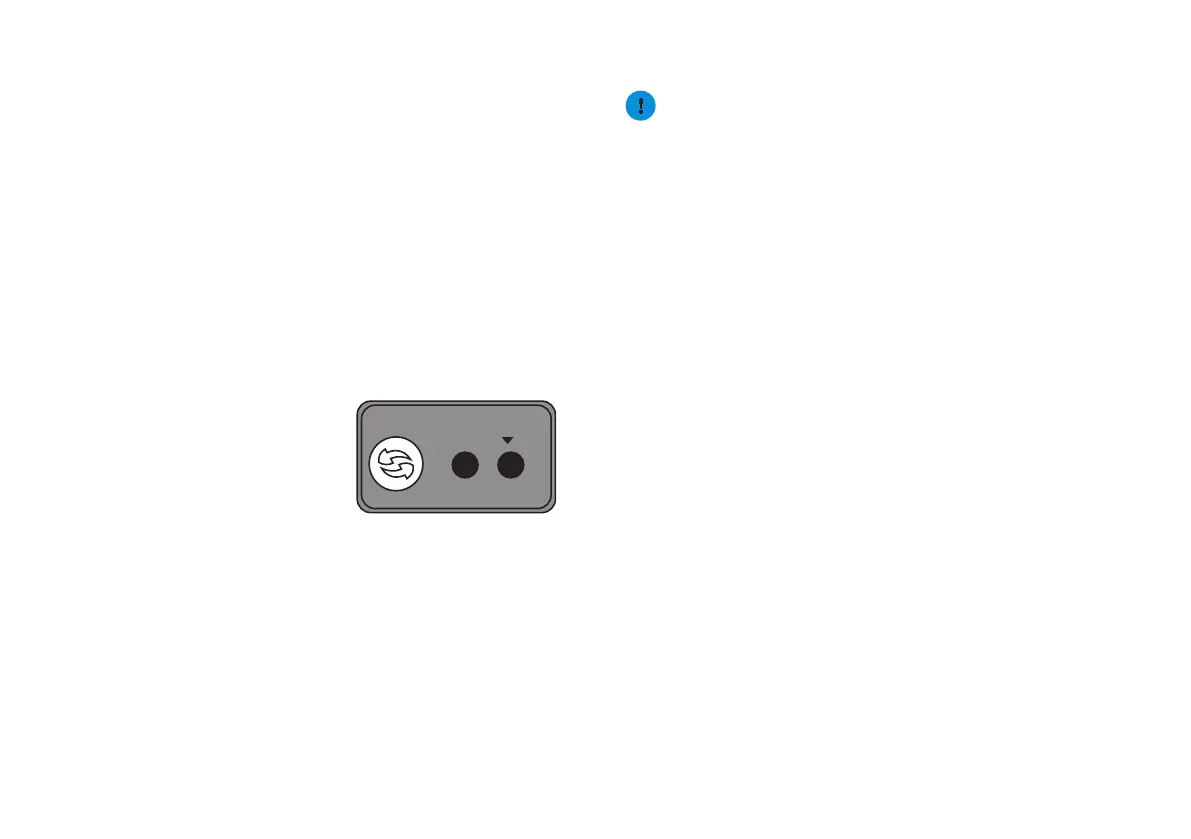
1 Briey press the WPS buon on the
OWM7111. The WiFi LED on the
OWM7111 starts blinking green.
2 Within two minutes, start WPS on your
Wi-Fi device. If your Wi-Fi device is:
Another Wi-Fi extender, briey press
its WPS buon.
Another type of device, consult the documentaon of your device.
3 Aer some me the WiFi LED on the OWM7111 turns back to its previous
solid state (green, yellow or red). The Wi-Fi connecon is now successfully
established.
Note: If the WiFi LED is blinking red, go to “5.5. What to do when the Status
LED is blinking red?” for further instrucons.
5.5. What to do when the Status LED is blinking red?
This indicates that the OWM7111 could not establish a Wi-Fi connecon
through WPS.
Do the following:
1 Wait unl the red blinking LED goes out, then try using WPS again.
2 Turn your OWM7111 slightly and then try again.
RESET
WPS
3 Obstrucons may deteriorate the signal strength. Try to minimize the number
of walls between the two devices and then try again.
4 Move the devices closer to each other and then try again.
If the WiFi LED of your OWM7111 is ashing green, your OWM7111 is
updang its soware. In this case, wait unl the LED becomes slowly blinking
yellow, or solid green, yellow or red. This can take several minutes! Do not
power o your gateway or unplug any cables!
5.6. Optimizing the link quality
Tips
To achieve opmal link quality:
• Always try to reduce the number of obstacles (especially walls) between your
Wi-Fi devices to a minimum.
• Do not place your Wi-Fi devices in the neighbourhood of devices that cause
interfence (microwave ovens, cordless phones, baby monitors, etc.).
• Use Wi-Fi devices that support and use (mulple) 5 GHz Wi-Fi.
Status LED
If the OWM7111 has a Wi-Fi connecon to an Internet gateway, extender or
repeater (with or without EasyMesh), the Status LED will provide informaon
about the quality of the link between them.
If the Status LED is:
• Solid green: then the link quality is opmal. No further acons are needed.
• Solid yellow: then the link quality is fair, but not opmal. Change the posion
of the OWM7111 unl the LED turns green.
• Solid red: then the link quality is bad. Change the posion of the OWM7111
unl the LED turns green or at least orange.
Repositioning the OWM7111 for better link quality
First try to improve the link quality without unplugging the power supply:
1 Reposion the OWM7111 to avoid obstacles, like walls, furniture and TV
screens, between the OWM7111 and your access point.
2 Wait 15 seconds to allow the OWM7111 to re-evaluate the link quality.
If the link quality did not improve:
3 Unplug the power supply and move the OWM7111 closer to your access
point, or to a place with less obstacles between the OWM7111 and your
access point.
4 Plug in the power supply and wait two minutes to allow the OWM7111 to
start up all services and evaluate the link quality.


 To Next Page
 Loading...