- 34 -
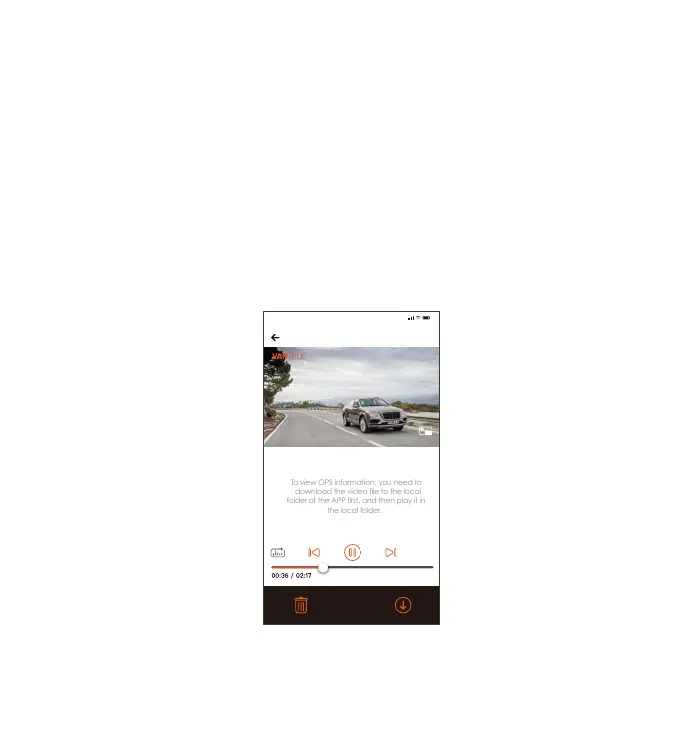
c. Viewing and Deleting on the “Vantrue” APP
After the camera is successfully connected to the mobile phone through WiFi,
it can play back, download and delete les in the mobile APP.
Depending on the computer systems of dierent users, after the camera is
connected to the computer, it will be displayed as a removable drive or a
removable folder.
To view the les on the computer, you can directly access, right-click to
open the menu and delete them.
You can also use a USB card reader to read the memo card information.
To ensure a stable power supply, please check whether the computer
inteace is a USB3.0 inteace. When connecting to a desktop computer,
it is recommended to use the USB po on the back of the host computer.
3.
4.
5.
6.
For video playback in the app, or downloads to SD card, there will be no
network trac consumption.
Note:
1.
20230601115036_0079_N_A.MP4
06/01/2023 11:05:35 N5 000.000000. 000.000000. 36MK/H
To view GPS information, you need to
download the video file to the local
folder of the APP first, and then play it in
Note:
9:41
You can view GPS track information only after the video le is downloaded
and played back locally. At the same time, you need to disconnect the WIFI
of the dash cam, otherwise the map information will be blank.



 To Next Page