7 EN
WIFI SETUP
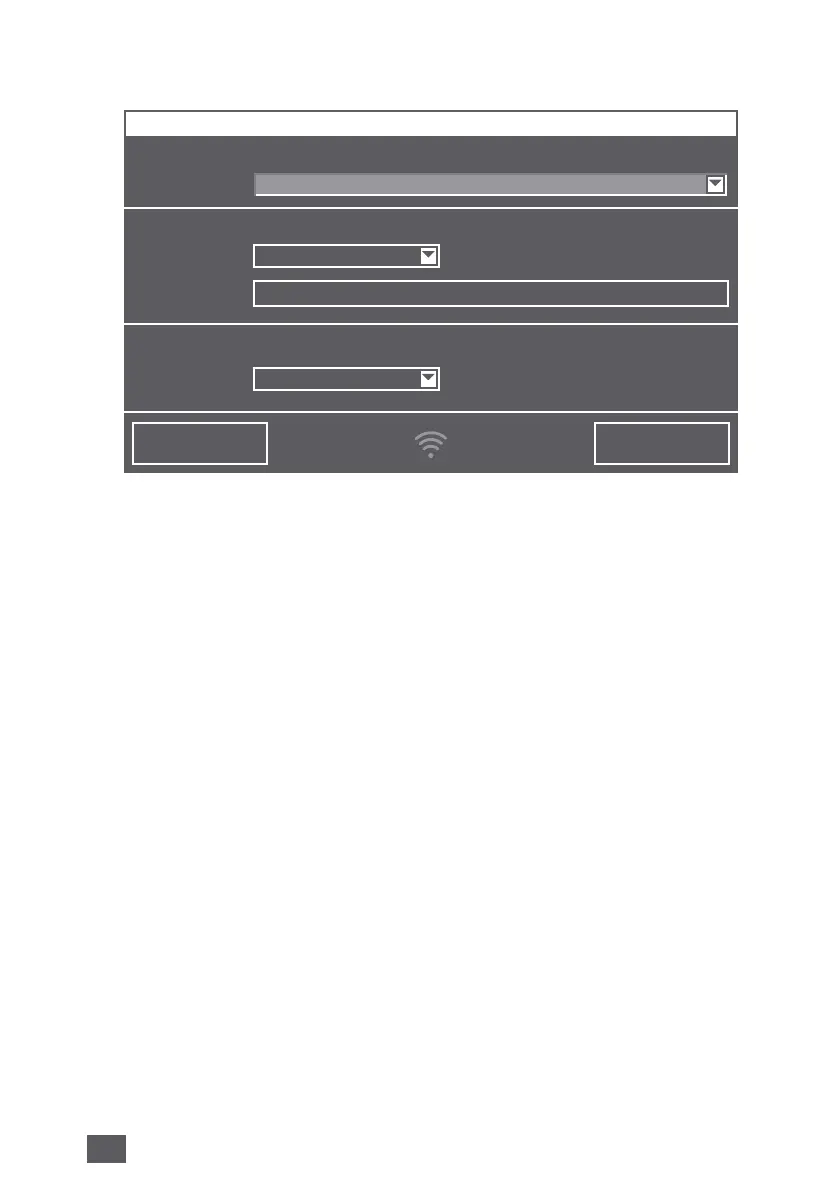
Holding WiFi display 11 for three seconds will bring up the WiFi conguration.
Choose your network from the “Select network” drop-down list. The “Security
type” is set automatically as soon as the network is selected.
Enter your WiFi password/WiFi security code into the “PSK” eld (ASCII input
mode) and conrm it with the ENTER key. If your password contains special cha-
racters that are not represented on the keyboard, you can generate your entire
password as a HEX code at the following website: www.venta-luftwaescher.de
Now enter your generated HEX code into the “PSK” eld (HEX input mode) and
conrm it with the ENTER key. Under “Access”, select the internet access privile-
ges you desire.
full access: Access to all convenience functions in the app.
local access: local access to app use.
To establish a WiFi connection, conrm with the CONNECT button.
Green WiFi display: WiFi connection established (local access)
Blue WiFi display: WiFi connection established (full access)
Red WiFi display: no WiFi connection. Double-check your network
and WiFi password.
Grey WiFi display: WiFi disabled
Actuating the CLOSE button calls up the device’s control panel.
WiFi can be enabled or disabled by touching the WiFi display 11 on the appli-
ance. If WiFi is disabled, the appliance will not connect to the Venta app.
CONNECTCLOSE
WIFI CONFIGURATION
WIRELESS NETWORK
Select network:
Security type:
Access:
PSK:
LOGIN CREDENTIALS
INTERNET ACCESS
VENTA
***********
WPA / WPA2
full access


 To Next Page