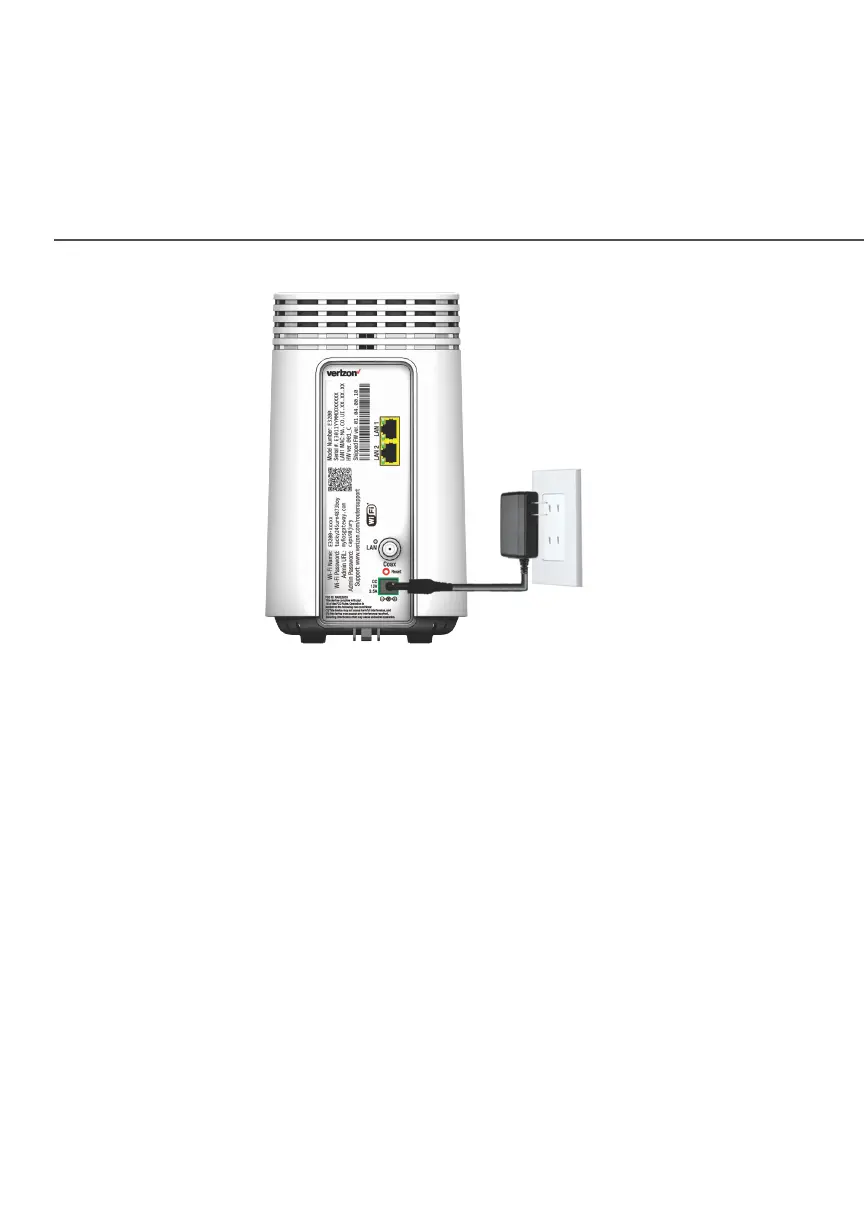
SETTING UP YOUR FIOS BUSINESS
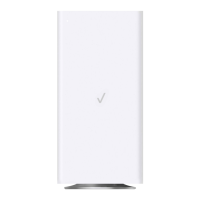
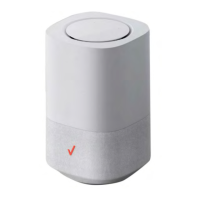
WI-FI EXTENDER
3. When the light on the extender is solid yellow, press and
hold the front buttons on both the router and extender for
about 5 seconds. The lights on the router and extender
should turn solid blue while the Wi-Fi connection is initiating.
4. When the Wi-Fi connection is established, extender will
start firmware update. It will take approximately 6 minutes
to complete the firmware update. Do NOT unplug extender
during the firmware upgrade (blinking white).
5. Once the firmware update is complete and the extender
starts fast blinking yellow, you can now unplug and move the
extender to an area between the router and an area with
spotty Wi-Fi coverage. Once plugged in, the light should turn
solid white again within a few minutes.
You’re all set! Your devices will connect automatically with the
same Wi-Fi network name and password as your Fios Business
Router.




 To Next Page