25
verizon.com/fios | ©2019 Verizon. All Rights Reserved
/ CONNECTING YOUR FIOS
BUSINESS WIFI EXTENDER
CONNECTING A WIFI DEVICE USING WPS
Wi-Fi Protected Setup (WPS) is an easier way for many devices
to set up a secure Wi-Fi network connection. Instead of manually
entering passwords or multiple keys on each Wi-Fi client,
such as a laptop, printer, or external hard drive, your
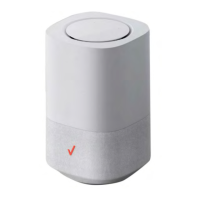
Fios Business Wi-Fi Extender creates a secure Wi-Fi network.
In most cases, this only requires the pressing of two buttons – one
on your Fios Business Wi-Fi Extender and one on the Wi-Fi client.
This could be either a built-in button or one on a compatible Wi-Fi
adapter/card, or a virtual button in software. Once completed, this
allows Wi-Fi clients to join your Wi-Fi network.
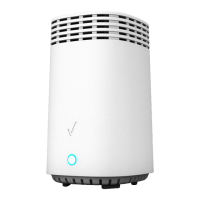
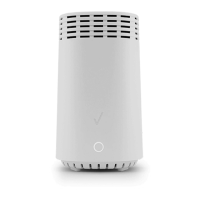
To initialize the WPS process, you can either press and hold the
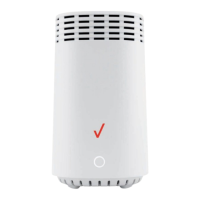
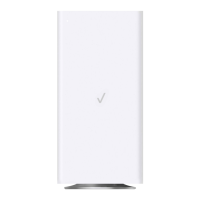
unified button located on the front of your Fios Business Wi-Fi
Extender for more than two seconds or use the GUI and press the
on-screen button.
You can easily add Wi-Fi devices to your Wi-Fi network using the
WPS option if your Wi-Fi device supports the WPS feature.
To access WPS using the user interface:
1. From the main menu, select Wi-Fi settings, then select Wi-Fi
Protected Setup (WPS).




 To Next Page