59
Recent Calls: Add the recipient from the recent calls list.
Groups: Add the recipient from the group list.
To Contacts: If a phone number or email address is
entered in the field, add it to a new contact, or update
an existing contact with it.
Edit the Text field
In the Text field, press the Right Soft Key [Options] to
display the pop-up menu:
Insert Quick Text: Insert already written sentences
into the message.
Save as Draft: Save the current message into the
Drafts folder.
Add: Add Graphic, Animation, Sound, Signature or
Name Card into the message.
Format Text: Change the Alignment, Font Size, Font
Style, Text Color or Background Color of the text.
Priority Level: Set the priority level of the message
to High or Normal.
Cancel Message: Cancel the message editing and
go back to the previous menu.
How to Send a Picture Message
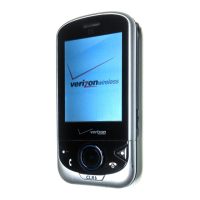
1. Slide the phone up and press the Left Soft Key
[Message], select New Message and press the OK
Key. Select Picture Message and press the OK Key.
Note: You can also press the OK Key [MENU]
→Messaging→New Message→Picture Message.



 To Next Page