Vicon Motion Systems Page 5 of 12
Set up your Vicon Vantage system
Set up your Vicon Vantage system
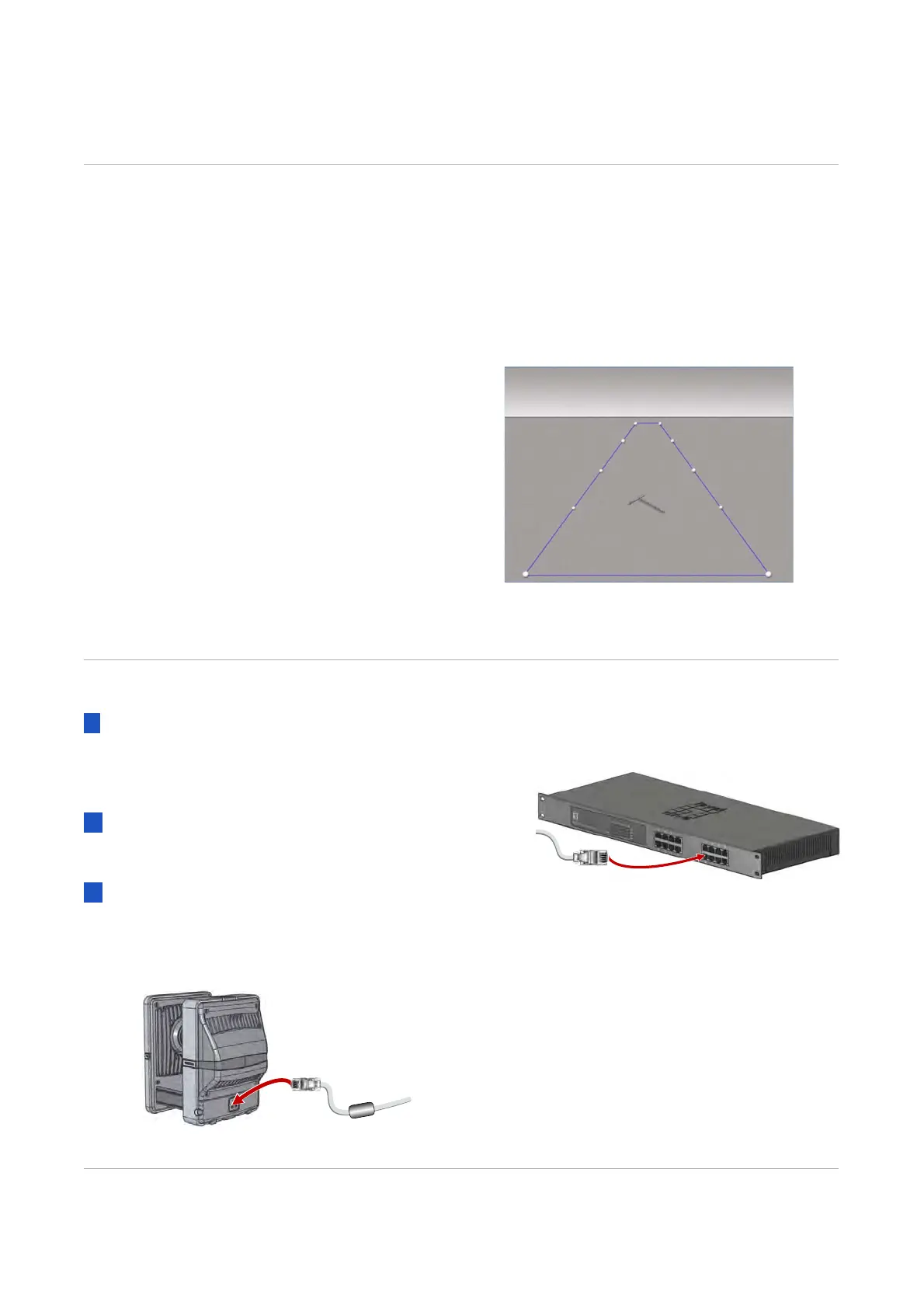
Define the capture volume
Lay out the intended capture volume by
placing markers around the edges of the
volume.
You can often place the markers on the
floor, as shown. If the volume to be
captured is higher up, place the
markers
accordingly. This makes it easier to
visualize the capture space.
Roughly position the cameras around the
volume to provide full coverage across
the
vo
lume. For more information, see
Position the cameras on page 8.
Positions will depend on the volume size
and camera lenses.
Remember to include heig
ht as well as
width and depth in your volume
calculations!
Install and connect the cameras
1 Install each camera on a tripod, on the wall,
or on a ceiling-mounted rig.
You can order mounting brackets and
camera moun
ts from Vicon.
2 Ensure the Power over E
thernet
(PoE+)
switch is connected to an appropriate
power source.
3 For each camera (up to 12 per PoE+ unit):
❙ Insert the
ferrit
e end of one of the
supplied network cables (RJ-45) into
the camera.
❙ Connect the other end of the cable to
the PoE+ switch.
Although there are 16 sockets in total,
always remember:
❙ One socket is needed to
connect to
the Vicon Van
tage host PC.
❙ Each set of four ports on the PoE+
switch can support
up to three
Vantage cameras. The remaining
ports can support any of the other
Vicon components required in your
system, such as host PC,


 To Next Page