13
NOTE : Above Sketches are just for representation. Actual Remote set may differ
than these sketches.
· Remote can be used as a keyboard and mouse as well.
· To access the Qwerty remote first you have to connect the dongle of remote provided with the remote.
· The Qwerty Remote keypad works in Net Connect applications which is indicated at
mouse symbol (RF Qwerty remote dongle is inserted in USB port).
· To access the flying cursor press and hold the center key.
· It is possible to vary the parameters of the menu with the qwerty remote by pressing the center key
and moving the remote according to the increase or decrease in parameters.
· In Qwerty remote F1 key works as a red key, F2 key work as a green key, F3 key work as yellow key
and F4 key work as a blue key.
· When battery becomes weak then, continuous LED will glow.
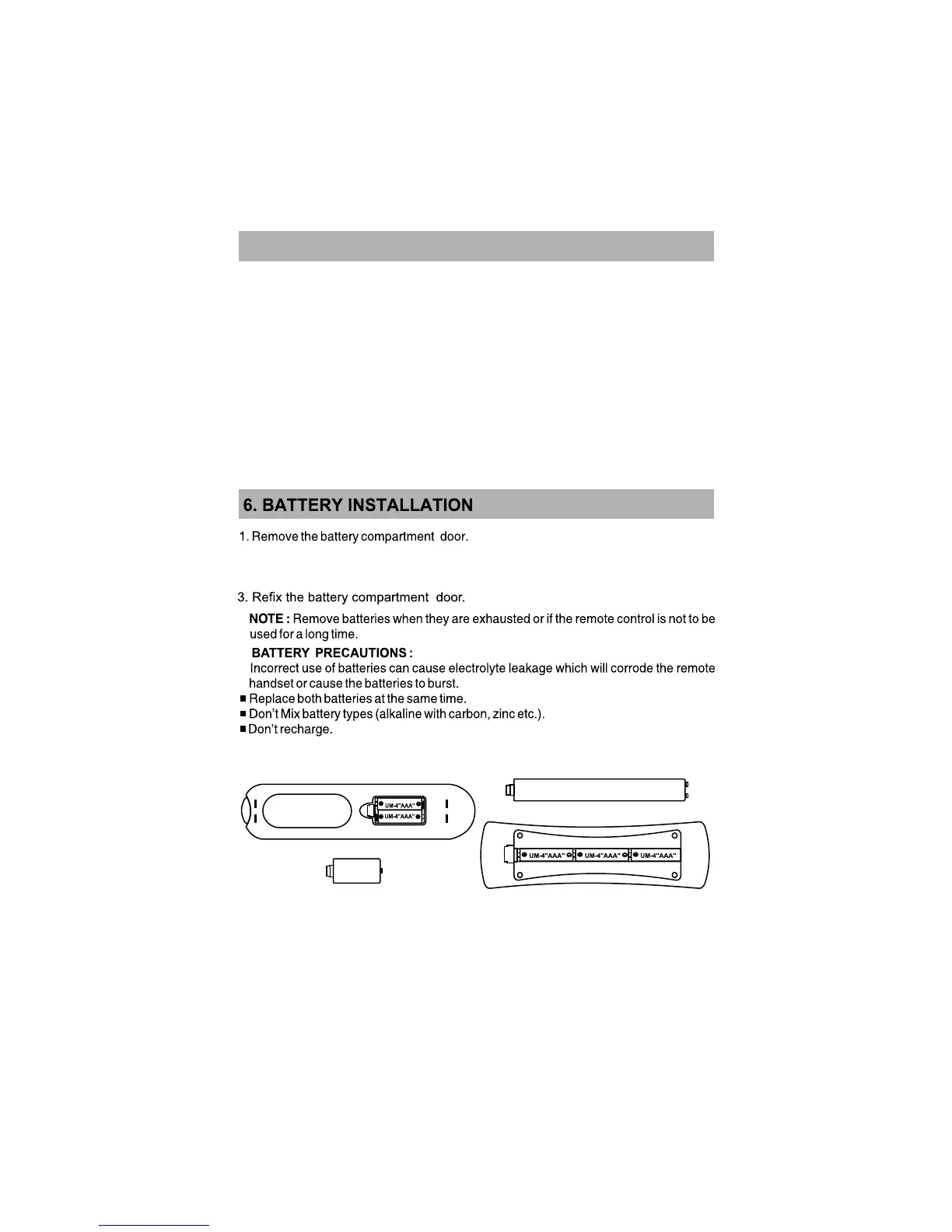
2. Insert - Two batteries (UM-4, AAA, 1.5V) in IR remote and
Three batteries (UM-4, AAA, 1.5V) in Qwerty remote
or equivalent with the correct polarities as indicated by (+) and (-) symbols.
5.1 RF QWERTY REMOTE (OPTIONAL) :



 To Next Page