7-4 Print Not Complete Rev AA
Videojet 1710 Operator Manual
3 Make sure that the correct font is selected in the message. Refer to “To
Edit a Message” on page 5-20.
Note: Refer to Table A-7 on page A-7 for information on the print height.
4 If the message width appears stretched, decrease the width value set
in the Message Parameters menu. Refer to
“To Set the Message and
Default Parameters” on page 5-23.
5 If the message width appears compressed, increase the Width value
set in the Message Parameters menu.
Print Not Complete
1 Make sure that the Max Printed Dots value set in the Message
Parameters menu is equal to the maximum number of dots required for
a raster/ stroke (depends on the model).Refer to
“To Set the Message
and Default Parameters” on page 5-23. Refer to Appendix A,
“Specifications” for more information on the different models of the
printer.
2 You must check for any ink deposits on the printhead and clean the
printhead if necessary. Refer to
“Clean the Printhead” on page 6-6.
Poor Print Quality
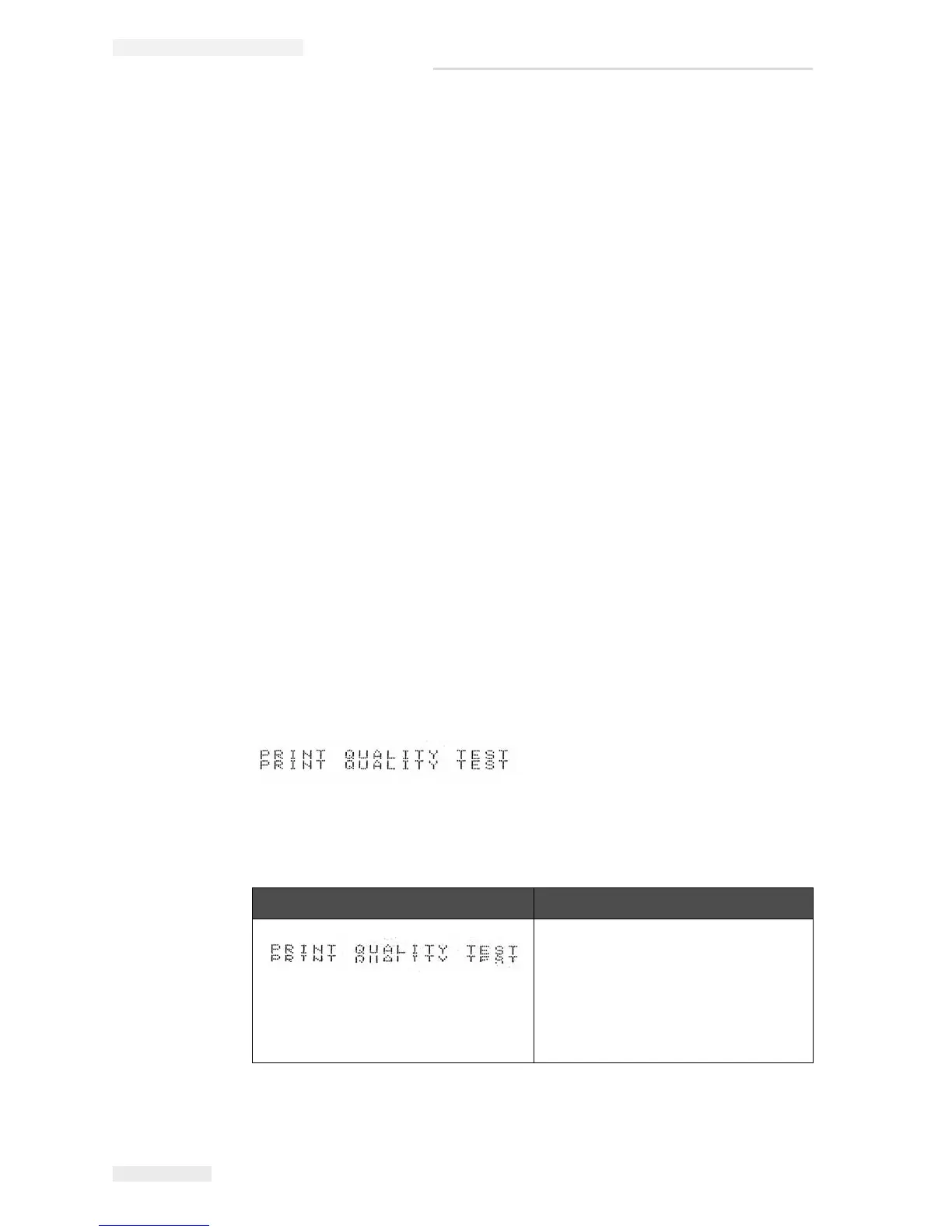
The example on the left shows good
overall character formation, no stray
drops and an even application of
print.
Table 7-2 describes the samples of bad printing, their causes and the steps
required to correct the fault.
Sample and Cause Remedy
Jet not aligned correctly, or nozzle has
a partial block. Note bottom drops
clipping the edge of the gutter.
Possible EHT too low.
Clean the printhead. Perform the
nozzle flush procedure, wash the
nozzle with wash down. Make sure
that the gutter is clean.
Table 7-2: Samples of Bad Printing


 To Next Page
 Loading...