Rev AA How to Install and Print Custom Fonts 4-29
Videojet 1710 Operator Manual
Press the F1 key to start the jet stop sequence.
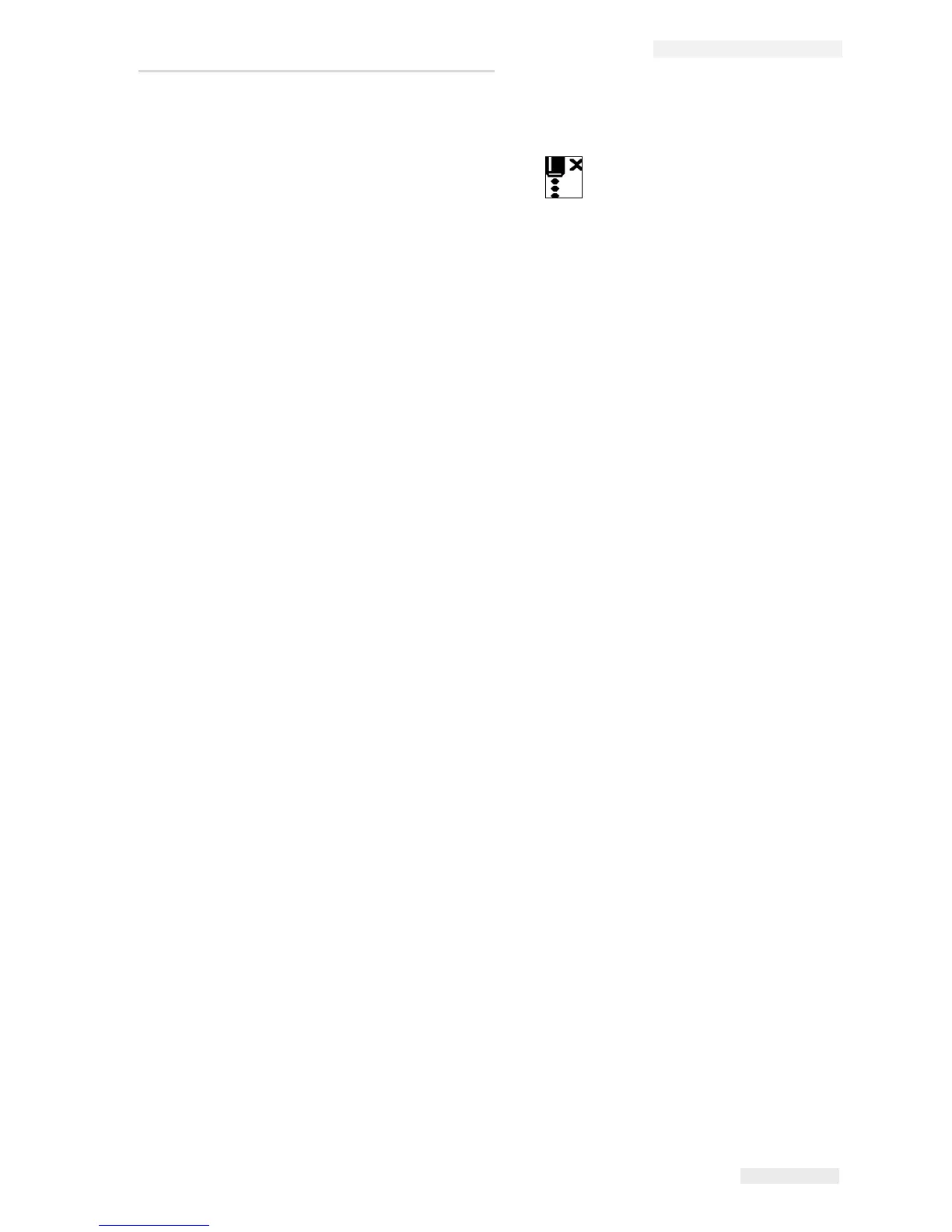
During this sequence, the jet stop icon flashes on the display. The sequence
requires one minute to complete. When the sequence is complete, the icon is
turned on continuously.
The printing automatically stops after the jet stop sequence is complete.
Note: Do not turn off the printer until the flushing cycle is complete.
How to Install and Print Custom Fonts
This procedure shows you how to install custom font and print messages using the
custom font.
• Custom Font height must match with the height of the standard font available
in the printer. Following are the list of the available font height.
-5-high
-7-high
-9-high
- 12-high
- 16-high
- 24-high
- 34-high
• Custom font file must be in *.abf2 format.
• The naming convention of the font must be in xxhigh_custom.abf2. xx
represents the height of the font. (Ex: A 16-high custom font file must be
named as 16high_custom.abf2).
Installation
Do the following tasks to install a custom font:
1 Copy the custom font you wish to install to the root of a USB Flash Drive.
2 Insert the USB Flash Drive in the USB socket on the side of the printer.
3 Press CTRL + F4 key to list files on the USB Drive.
4 Select the font file to install.
5 Press the Enter key. The following message appears in the display screen to
confirm the update.



 To Next Page