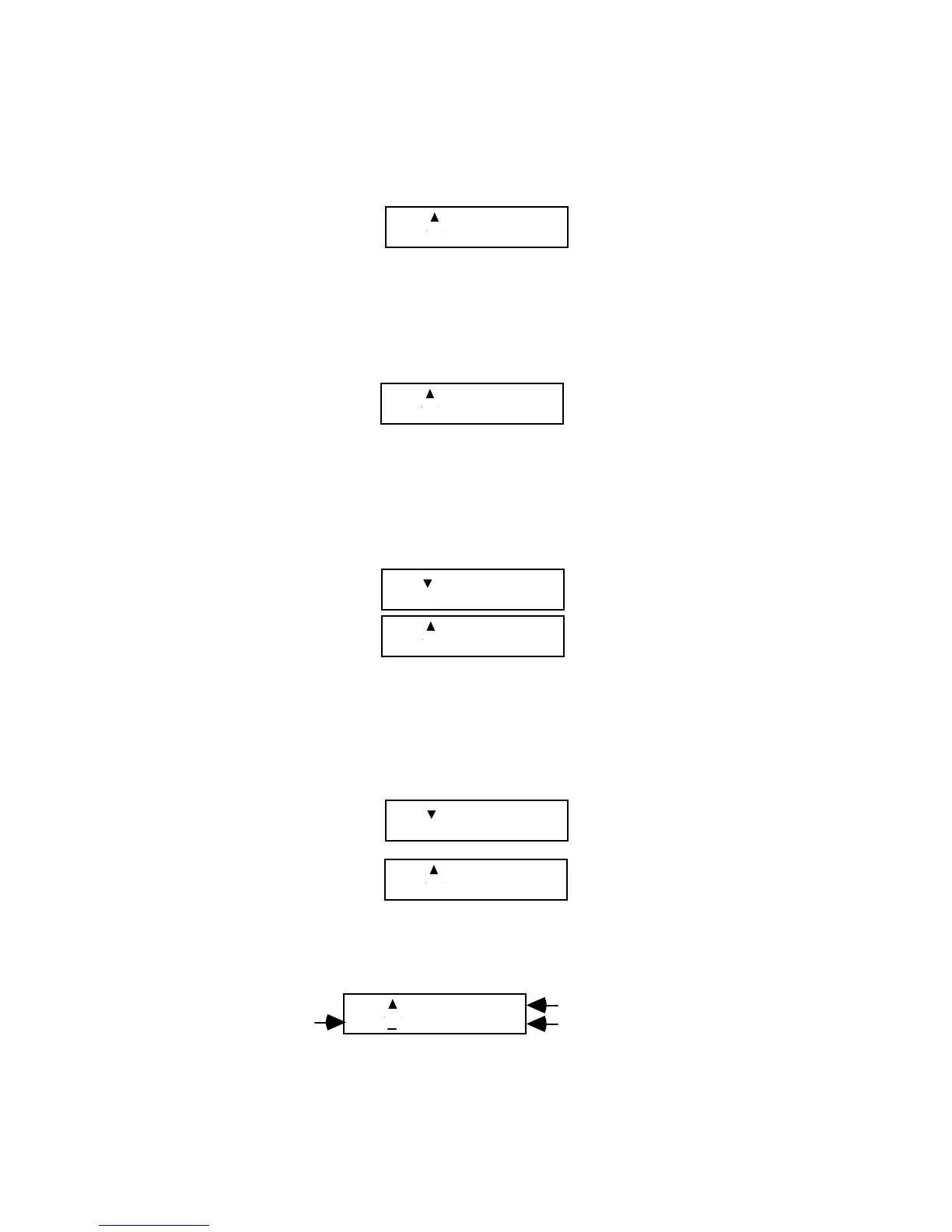
1. The NEW Menu
• Display the NEW menu, select GPI, then press [OK]. Edit Suite will create
an empty GPI Event.
001 FIXED
GPI-T : : .
2. The GPI-T Key
(or the GPI-M Key if the GPI-M port is configured for a GPI device)
• Press GPI-T. A Fixed GPI Event is created with the time code filled in. The
time is the position of the current source when GPI-T was pressed.
001 FIXED
GPI-T 00:05:15.00
If the current source is different from the source for the active scene, a new
Scene Event for the current source is also created. For example, the
following Scene Event has a source of VCR Port A. If this scene is
displayed in the LCD when you press GPI-T and VCR A is the current
VCR, the GPI Event is the only event created.
001 IN 00:05:20.00
A OUT 00:05:35.00
001 FIXED
GPI-T 00:05:25.00
If, however, VCR B is the current source, both a Scene Event for VCR B
and the GPI Event will be created when you press GPI-T. The time in the
GPI-T event will be the time that was current on VCR B when the GPI-T
key was pressed. You will have to mark the IN and OUT times for the
Scene Event.
002 IN 00:00:00.00
B OUT : : .
002 FIXED
GPI-T 00:05:15.00
Changing the GPI Fields
To change the GPI fields:
001 FIXED
GPI-T 00:05:25.00
GPI Port (T or M)
Fixed or Relative IN/OUT
Fixed Time or Offset Amount
• Move the cursor to the GPI-T/M field. Press [CHG] to change between
GPI-M and GPI-T.



 To Next Page