CMX
The CMX function exports the EDL data, in CMX format, to a PC. This function is used most often to
view the entire EDL in a single listing.
Before using the CMX function, ensure that—
• if there are MX1 Events in the EDL, the GPI-M configuration parameter is set to MX-1; or if
there are MIXER Events, the GPI-M configuration parameter is set to MIXER
• if there are INS or SPLT events in the EDL, the INS and SPLT parameters for VCRR are set to 1.
If these settings are not correct, an error message will display during the export, or the event will be
excluded from the CMX report.
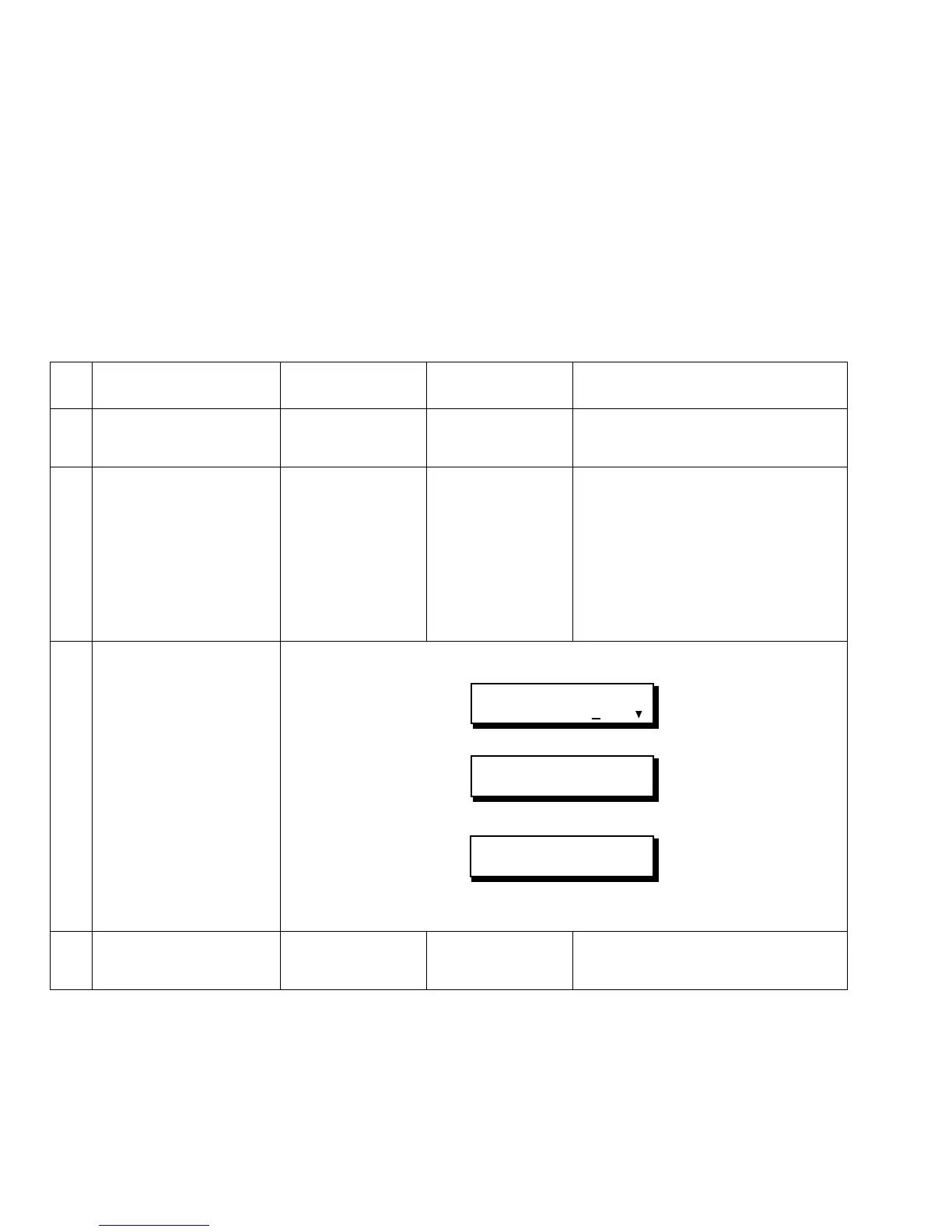
To do a CMX Export, complete the following steps.
# Step Macintosh
MicroPhone II
PC DOS
ProComm
PC Windows
Terminal
1. At the PC, start the
communications
program.
2. Do this step if you want
to save the CMX data to
a file.
If you just want to view
the CMX listing, omit
this step.
Select Open New
Capture File in the
File Menu.
Select a directory
and file name.
Click SAVE.
Press [Page Down]
to display the
Download
Protocol menu.
Select Protocol 7
(ASCII).
Assign a file name
and press return.
Select Receive Text File... in the
Transfers Menu.
Select a directory and file name.
Click OK.
3. At Edit Suite:
a. Press [SETUP] to
display Setup Menu 1
and move the cursor
to CMX.
b. Press [OK] to display
the CMX screen.
c. Press [OK] to start the
CMX export
— or —
press [SETUP] to
cancel the export.
LCD CONFIG NEWVCR
IMPORT EXPORT CMX
[OK]=BEGIN CMX
EXPORT
CMX EXPORT
IN PROGRESS
4. If you saved the data to a
file, stop the file capture.
Select Turn Capture
Off in the File
Menu.
(No action
required.)
Select Stop in the Transfers Menu.



 To Next Page