EasyManua.ls Logo

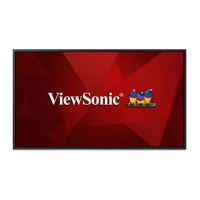
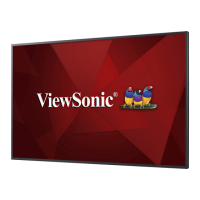
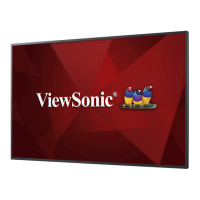
ViewSonic CDM4300R - User Manual

ViewSonic CDM4300R
64 pages
Print Icon
To Next Page IconTo Next Page
Loading...
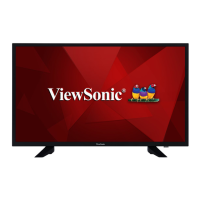
CDM4300R/CDM4900R/CDM5500R
Commercial Display
User Guide
Model No. VS16466/VS16467/VS16468
IMPORTANT: Please read this User Guide to obtain important information on installing
and using your product in a safe manner, as well as registering your product for future
service. Warranty information contained in this User Guide will describe your limited
coverage from ViewSonic Corporation, which is also found on our web site at http://
www.viewsonic.com in English, or in specific languages using the Regional selection
box in the upper right corner of our website. “Antes de operar su equipo lea cu
idadosamente las instrucciones en este manual”

Table of Contents

Questions and Answers

  • J
    Joseph HickmanAug 6, 2025
    Why is there no picture on my ViewSonic Monitor?
    • M
      Mitchell McclainAug 6, 2025
      There might be several reasons: * The power cord may be disconnected. Ensure it is properly plugged in. * The main power switch on the back of the display might not be switched on. Make sure it is on. * The selected input may have no connection. Connect a signal cable to the display. * The display could be in standby mode.
  • S
    Steven PattonAug 11, 2025
    What to do if the ViewSonic CDM4300R Monitor image is distorted with abnormal patterns?
    • T
      tanya68Aug 11, 2025
      If your ViewSonic Monitor displays a distorted picture with abnormal patterns, check the following: * Ensure the signal cable is firmly attached. * Verify the video signal source is within the display's capabilities, referring to the specifications section for confirmation.
  • J
    Jessica BarberAug 14, 2025
    Why does my ViewSonic CDM4300R Monitor image doesn’t fill up the full size of the screen?
    • M
      Mrs. Heidi StoneAug 15, 2025
      If the display image doesn’t fill up the full screen size on your ViewSonic Monitor, it may be due to incorrectly set zoom mode. Use the Zoom mode or Custom zoom function in the Screen menu to fine tune display geometry and time frequency parameter.
  • M
    Mrs. Dominique LawsonAug 19, 2025
    What to do if I can see picture but no sound is heard on my ViewSonic CDM4300R?
    • M
      Michelle HuynhAug 20, 2025
      If you can see the picture but cannot hear any sound, consider the following: * Check if the source signal cable is improperly connected and ensure that both video and sound inputs are correctly connected. * Verify that the volume isn't turned all the way down by pressing the [VOL DOWN] or [VOL UP] button. * Ensure that [MUTE] is not turned on by using the [MUTE] button. * If you are using external speakers, check if they are connected and adjust the volume to a suitable level.
  • J
    James LeeAug 23, 2025
    What to do if I can hear sound, but no picture on ViewSonic CDM4300R Monitor?
    • D
      Denise WestAug 23, 2025
      If you can hear sound but there is no picture on your ViewSonic Monitor, the source signal cable might be improperly connected. Ensure that both video inputs and sound inputs are correctly connected.
  • S
    Samuel MooreAug 28, 2025
    Why do after-images can still be seen on the ViewSonic display after the display is powered off?
    • A
      amanda32Aug 28, 2025
      If after-images are visible on your ViewSonic display even after it's powered off, it's likely because a still picture was displayed for an extended period. Avoid displaying still images for long durations, as this can cause a permanent after-image.
  • C
    Christopher MccormickSep 1, 2025
    What if some picture elements do not light up on ViewSonic CDM4300R?
    • A
      ann35Sep 1, 2025
      This display is manufactured using an extremely high level of precision technology: however, sometimes some pixels of the display may not display. This is not a malfunction.

Summary

Safety Precautions

General Safety Guidelines

Important precautions for safe operation and handling of the monitor.

Unpacking and Installation

Unpacking Procedures

Steps for unpacking the display and checking contents.

Package Contents List

Lists all items included in the package.

Installation Notes

Important notes regarding installation environment and power.

Parts and Functions

Control Panel Overview

Identifies and explains the buttons on the display's control panel.

Remote Control

Connecting External Equipment

Operation

Selecting Video Sources

How to select and view video sources.

Picture Format Adjustment

Adjusting picture aspect ratios and formats.

Admin Settings - Network Configuration

Admin Settings - Display and System Management

Admin Settings - Development and OSD

Display Settings

Picture Menu Adjustments

Adjusting picture settings like brightness, contrast, and color.

Screen Menu Adjustments

Adjusting screen settings like position, zoom, and auto-adjust.

Display Settings (cont.)

Advanced Menu

Advanced Operations

USB Device Compatibility

Input Mode Specifications

Cleaning and Troubleshooting

Cleaning Instructions

Instructions for cleaning the display and cabinet.

Troubleshooting Common Issues

Symptom and Solution Guide

Common issues and their solutions.

Technical Specifications

CDM4300 R Specifications

Detailed technical specifications for the CDM4300R model.

CDM4900 R Specifications

CDM5500 R Specifications

RS232 Protocol

RS232 Protocol Commands

RS232 Protocol Commands (cont.)

RS232 Get-Function Listing

Customer Support

Contact Information and Resources

Contact information for technical support and service by region.

Limited Warranty

Warranty Coverage Details

Details what is covered and not covered by the warranty.

Warranty Service Procedures

Instructions on how to obtain warranty service.

Mexico Limited Warranty

Mexico Warranty Coverage

Details what is covered and not covered by the Mexico warranty.

Mexico Warranty Service

Instructions for obtaining Mexico warranty service.

ViewSonic CDM4300R Specifications

General IconGeneral
Screen Size43 inches
Panel TypeIPS
Viewing Angles178° horizontal, 178° vertical
Speakers10W x 2
VESA Mount CompatibleYes (200 x 200 mm)
Aspect Ratio16:9
VESA Mount200 x 200 mm
Response Time8 ms
ConnectivityHDMI, USB
Color Support1.07 Billion Colors
Input PortsHDMI, VGA
Built-in SpeakersYes

Related product manuals