EasyManua.ls Logo

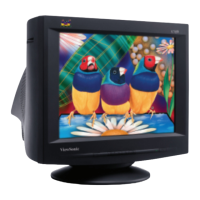
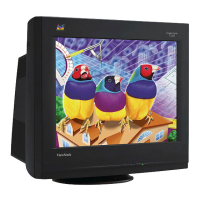
ViewSonic GS815 - User Manual

ViewSonic GS815
20 pages
Print Icon
To Next Page IconTo Next Page
Loading...
User Guide
Guide de l’utilisateur
Guía del usuario
Guia do usuário
with Plug & Play
+
21"(20"ViewableDiagonal)
GS815 Color Monitor
Front cover.fm Page 1 Monday, September 11, 2000 3:51 PM

Other manuals for ViewSonic GS815

Questions and Answers

  • R
    Robert KaufmanJul 30, 2025
    How to fix ViewSonic Monitor when there is no power?
    • M
      meghan80Jul 30, 2025
      If your ViewSonic Monitor shows no power, ensure the power button or switch is turned ON. Also, check that the A/C power cord is securely connected to both the back of the monitor and a functioning power outlet. To verify the outlet's functionality, plug another electrical device into it.
  • M
    Matthew WolfeAug 6, 2025
    How to stop flickering on ViewSonic GS815?
    • S
      Steve GainesAug 6, 2025
      If your ViewSonic Monitor is flickering, try connecting it to a different outlet to ensure it's receiving sufficient power. Check the refresh rate (vertical frequency) using the ViewMeter® from the main menu to verify it is 75 Hz or higher. Ensure your computer's graphics card supports non-interlaced mode at the desired frequencies. If needed, select fewer colors or lower resolutions to enable higher refresh rates.
  • Z
    Zachary RamirezAug 11, 2025
    What to do if ViewSonic Monitor has power but no screen image?
    • J
      jdownsAug 11, 2025
      If your ViewSonic Monitor powers on but displays no screen image, first, make sure the video cable is tightly secured to the video output port on your computer. You may also need to adjust the brightness and contrast settings. Finally, check the user's guide to see if an adapter is required for proper signal continuity between your graphics card and monitor.
  • J
    Joyce ReedAug 17, 2025
    Why is the entire screen image rolling vertically on my ViewSonic GS815 Monitor?
    • T
      Theresa MitchellAug 17, 2025
      If your ViewSonic Monitor screen image rolls vertically, ensure the video input signals are within the monitor's specified frequency range. Try testing the monitor with an alternative power source, graphics card, or computer system to isolate the issue. Also, ensure the video cable is securely connected.
  • A
    Amanda HarrisonAug 23, 2025
    What causes wrong or abnormal colors on a ViewSonic GS815?
    • J
      Jorge BeckerAug 23, 2025
      If your ViewSonic Monitor displays wrong or abnormal colors, especially if any colors like red, green, or blue are missing, check the video cable to ensure it is securely connected. You can also try connecting the monitor to another computer to see if the issue persists. Select Degauss from the Main Menu, but only do this once. If you have an older graphics card, it is recommended to contact ViewSonic® Customer Support for a non-DDC adapter.

Summary

Getting Started

Package Contents

Lists all items included in the ViewSonic GS815 monitor package.

Precautions

Provides essential safety and handling guidelines for using the monitor.

Quick Installation

Step-by-step guide for connecting and setting up the ViewSonic GS815 monitor.

Using the Monitor

Setting the Timing Mode

Explains how to set resolution and refresh rate for optimal screen image quality.

Adjusting the Screen Image

Instructions on using the OnView controls to fine-tune the monitor display.

Main Menu Controls

Detailed explanation of various adjustments available through the monitor's OSD menu.

Other Information

Specifications

Technical details and performance characteristics of the ViewSonic GS815 monitor.

Cleaning the Monitor

Guidelines for safely cleaning the monitor screen and case.

Troubleshooting

Customer Support

Limited Warranty

Appendix

Power Cord Safety Guidelines

Safety instructions and standards for power cords used with the monitor.

FCC Information

ViewSonic GS815 Specifications

General IconGeneral
BrandViewSonic
ModelGS815
CategoryMonitor
LanguageEnglish

Related product manuals