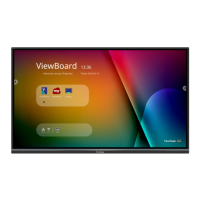
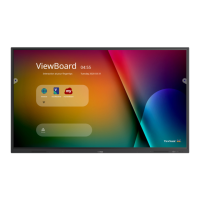
How to fix no sound on ViewSonic IFP5550 Monitor?
- PpricelauraSep 2, 2025
If there is no sound on your ViewSonic Monitor, first press the Mute/Unmute button. If that doesn't work, adjust the volume. Lastly, check the audio cable.

How to fix no sound on ViewSonic IFP5550 Monitor?
If there is no sound on your ViewSonic Monitor, first press the Mute/Unmute button. If that doesn't work, adjust the volume. Lastly, check the audio cable.
How to fix background streaking on ViewSonic IFP5550?
To fix background streaking on your ViewSonic Monitor, choose auto adjust. If that doesn't work, adjust clock and phase.
What to do if ViewSonic IFP5550 touch function does not work?
If the touch function on your ViewSonic Monitor isn't working, check that the drivers are installed correctly and reinstall them if necessary. Also, check the setup and align it. Finally, check whether the touch pen is working properly.
What to do if ViewSonic IFP5550 Monitor has a picture trembling?
If the picture on your ViewSonic Monitor is trembling, check the signal cable. Also, check if other electronics are interrupting the signal.
How to fix poor picture quality on ViewSonic IFP5550 Monitor?
To fix poor picture quality on your ViewSonic Monitor, adjust chroma, brightness, and contrast settings in the menu. Additionally, check the signal cable.
How to fix ViewSonic IFP5550 Monitor when there is no sound?
If there is no sound on your ViewSonic Monitor, first press the Mute/Unmute button. If that doesn't work, adjust the volume. Also, check the audio cable.
What to do if my ViewSonic Monitor has no picture or sound?
If there is no picture or sound on your ViewSonic Monitor, first check the POWER status. Then, check the signal cable. Also, ensure that the internal PC is installed correctly.
| Panel life | - h |
|---|---|
| Pixel pitch | - mm |
| Response time | 8 ms |
| Display diagonal | 55 \ |
| Touch technology | Multi-touch |
| Display brightness | 350 cd/m² |
| Display technology | LED |
| Native aspect ratio | 16:9 |
| Contrast ratio (typical) | 1200:1 |
| Display number of colors | - |
| Number of simultaneous touchpoints | 20 |
| Internal memory | 2 GB |
| Processor cores | 4 |
| Processor model | A53 |
| Processor family | ARM Cortex |
| Processor frequency | 1.2 GHz |
| Internal storage capacity | 16 GB |
| Operating system installed | Android 5.1 |
| DVI port | No |
| USB version | 2.0/3.2 Gen 1 (3.1 Gen 1) |
| HDMI version | 1.4/2.0 |
| USB connector type | USB Type-A, USB Type-B |
| USB ports quantity | 8 |
| HDMI ports quantity | 3 |
| Ethernet LAN data rates | 10, 100 Mbit/s |
| VGA (D-Sub) input ports | 1 |
| RMS rated power | 32 W |
| Number of built-in speakers | 2 |
| AC input voltage | 100 - 240 V |
| AC input frequency | 50 - 60 Hz |
| Power consumption (standby) | 0.5 W |
| Power consumption (typical) | 350 W |
| Purpose | Universal |
| Operating altitude | 0 - 2000 m |
| Non-operating altitude | - m |
| Storage temperature (T-T) | -20 - 60 °C |
| Operating temperature (T-T) | 0 - 40 °C |
| Storage relative humidity (H-H) | 10 - 90 % |
| Operating relative humidity (H-H) | 20 - 80 % |
| Package depth | 220 mm |
| Package width | 1458 mm |
| Package height | 932 mm |
| Package weight | 42000 g |
| Product color | Black |
| Product design | Interactive flat panel |
| Placement supported | Indoor |
| Panel mounting interface | 400 x 400 mm |
| Sustainability certificates | RoHS |
| Certification | cTUVus, FCC, Mexico Energy, CE, CB, ErP, WEEE |
| Cables included | AC, AV, Audio (3.5mm), USB, VGA |
| Depth | 97 mm |
|---|---|
| Width | 1304 mm |
| Height | 800 mm |
| Weight | 32500 g |
Statement regarding compliance with FCC rules for digital devices.
Statement regarding compliance with Industry Canada regulations.
Statement regarding compliance with EU directives for European countries.
Restriction on hazardous substances in India, specifying concentration limits.
Declaration of compliance with EU RoHS2 Directive regarding hazardous substances.
Section for users to record product details like model and serial numbers.
Lists all items included in the product package.
Details VESA mounting standards and screw specifications for wall mounting.
Explains the function of each button on the device's control panel.
Details the various input/output ports and their functions.
Describes the functions of each button on the remote control.
Instructions on how to install batteries into the remote control.
Specifies the effective working range of the remote control receiver.
Guides on connecting external devices via VGA or HDMI cables.
Explains how to connect the display to a computer using an RS232 serial port.
Instructions for connecting USB devices like microphones and network cables.
Details how to connect devices using AV input ports.
Steps to connect media players using HDMI cables.
Instructions for connecting audio systems using coaxial cables.
Explains how to connect the display to output video to a projector.
Instructions on how to turn the ViewBoard on.
How to customize the welcome screen with preferred apps and theme.
Explains the functions of the tool bar icons for interactive use.
How to access and navigate the on-screen display menu for settings.
Introduction to the digital whiteboard app and its user interface.
Explains the wireless screen sharing feature for casting content.
Functionality for interactive classroom quizzes and Q&A sessions.
Information on default applications like Zoom.
Lists supported display resolutions and refresh rates for VGA input.
Lists supported display resolutions and refresh rates for HDMI input.
Lists supported display resolutions and refresh rates for DisplayPort input.
Overview of the RS232 interface specification and software protocols.
Details hardware specifications, pin assignments, and communication settings.
Details the RS232 protocol, including Set-Function and Get-Function commands.
Outlines what the warranty covers, what it excludes, and how to get service.
Specific warranty terms for Mexico, including product registration.


Loading...